




Did you ever need to highlight a paragraph in InDesign? Should be simple, right? You’d think there would be an option to do this in the Control panel or Paragraph Style Options. You’d think that you could just select a paragraph, click a button, and be done with it. You’d be wrong. Of course there are workarounds, like using custom underlines or paragraph rules. Another way is to just draw a frame over the paragraph, fill it with a color set to the Multiply blend mode and anchor it. All the workarounds have their strengths and weaknesses.
One method that has a lot going for it is to place the paragraph in a table with just one cell. Here’s how:
1. Create a cell style with the fill color you want.

2. Create a table style that specifies your new cell style for use in body rows.
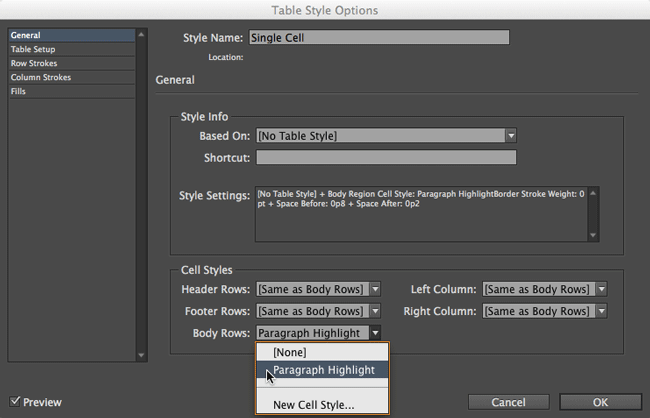
3. Select the paragraph text but not the paragraph return at the end and choose Table > Convert Text to Table. In the dialog box, choose your new table style and click OK.


Voila, the paragraph is highlighted.

You may have to do some tweaking of the Table Spacing in your table style to get the right amount of space above and below your paragraph. But once you have that figured out, you should be good to go. The cell, and thus the highlighting, will grow and shrink to fit the paragraph if you edit or reformat it. And it will move along with the paragraph if the text before it is changed. It will also export nicely to PDF, EPUB, HTML, etc.
You can also tweak the cell style to add some space around the text inside the highlighting via Cell Insets.

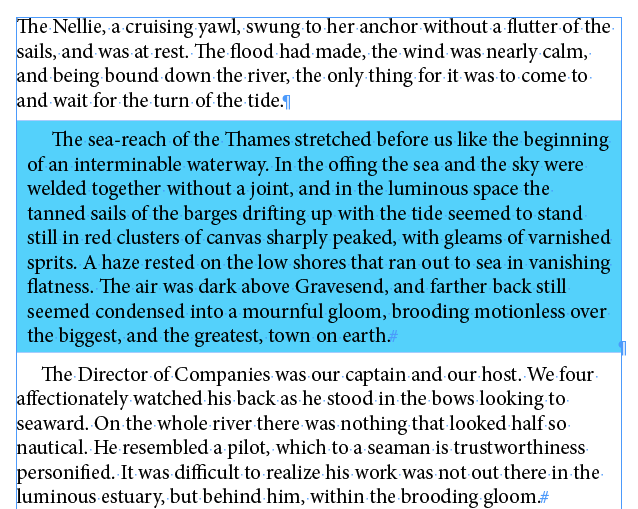
If you ever want to remove the highlighting, just put your cursor in the table and select Table > Convert Table to Text.
And if you ever want a real, dedicated InDesign feature for paragraph highlighting, ask Adobe.
This article was last modified on July 25, 2019
This article was first published on September 4, 2014
Commenting is easier and faster when you're logged in!

Recommended for you


Tackling Tables through Scripting
Tackle tables through Javascript, for instant formatting. And a bonus: download...

How to Extract a Table from a PDF in Acrobat
Get your data out of a PDF and into an Excel Workbook with this quick Acrobat tr...