




Need to have something visible on screen in an interactive PDF but not printable? Here’s a quick and easy way to do it.
Select the object and convert it to a button using the Buttons and Forms panel.

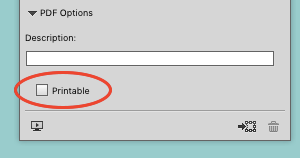
Then with the button still selected, go to the PDF Options in the panel, and deselect Printable. You might have to expand the panel first by clicking the triangle next to PDF options.
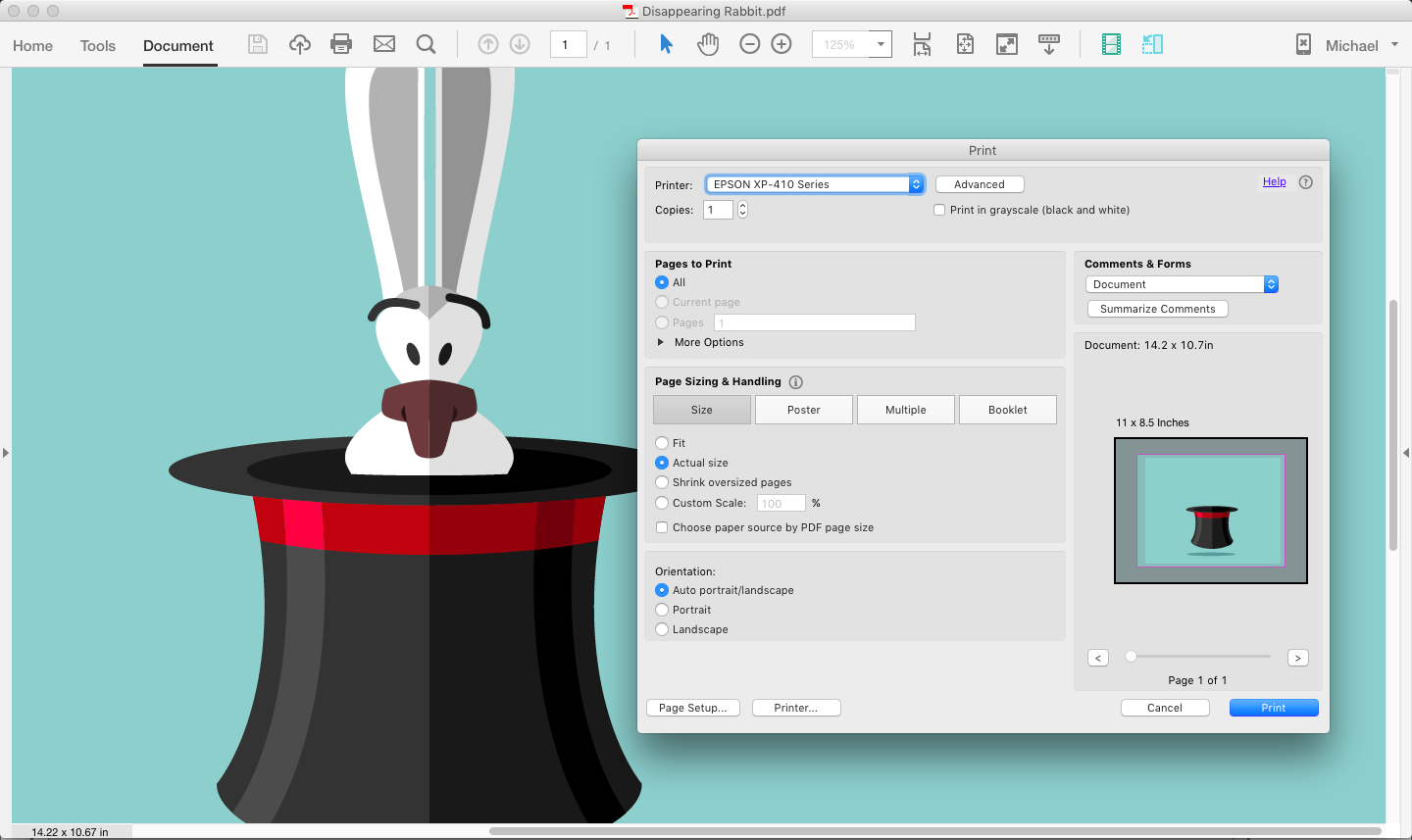
When you create the interactive PDF (this trick won’t work with a print PDF), the object will be visible on screen but won’t print. Notice the print preview in the screenshot below where our long-eared friend is gone.
See also: PDF Button Tips, Tricks and Problem Solving
Tip of the hat (sorry couldn’t help myself) to Bob Levine for this cool technique, which he shared over at the InDesign User Forums.
This article was last modified on August 8, 2019
This article was first published on October 8, 2015
Commenting is easier and faster when you're logged in!

Recommended for you

Quick Wins: Building Print Production Skills
Use these five resources to boost your prepress knowledge and skills.
Why Your Print Workflow May Be Stuck in the Past
A Conversation with Adobe’s Mark Lewiecki on PDF best practices for print

How to Design Button States for Accessibility
Learn how to create accessible button states for web design, while keeping them...