



Hey folks, it’s time for another InDesign mystery that you can solve for a chance to win an awesome prize!
Here’s the scenario:
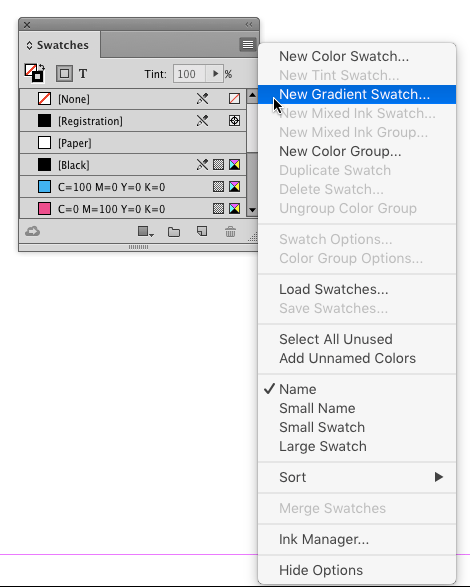
You’re making a flyer for a new local coffee shop. You create a new InDesign document with Print intent. Then the first thing you do in the file is create a coffee-colored gradient swatch to apply to page elements as you work.
OK, technically, it’s tea-colored gradient.

You choose the perfect mix of inks, position the gradient stops at exactly the right place, name your gradient, and click OK.
And suddenly all your other color swatches have disappeared, even the default ones like Paper, Registration, and Black. The Swatches panel only shows your new gradient and [None].

Why did the other swatches disappear?
Hint: if you’re stumped, the screenshots offer clues.
This month’s prize is full access for 3 months to the video archives for PePCon 2016 or the CreativePro Conference (up to $495 value!).
The winner will be chosen at random from all the correct answers I receive before January 20, 2017
Enter now by emailing your solution to mike at indesignsecrets.com
Note: Comments are closed on this post so no one gives away the answer. Good luck!
This article was last modified on July 25, 2019
This article was first published on January 13, 2017
Commenting is easier and faster when you're logged in!

Recommended for you

InDesign Magazine Issue 145: Designing with Gradients
Issue 145 has articles on designing with gradients, page numbering, InDesign's h...

Why is the New Swatch Button Grayed Out in InDesign?
Learn why the New Swatch button on InDesign's Swatches panel is often grayed out...

New Contest! The Crazy Column
Solve this InDesign mystery for a chance at winning a great prize.