



You’re using Pantone 7687, but you want to call it “Dark Blue.” Or perhaps you want to call it 7687_Pantone so that it’s easier to see in a long list of colors. Whatever the case, InDesign doesn’t let you change Pantone spot color names because they’re from a swatch library.
You can, however, create your own spot color swatches and name them whatever you want… but you have to be careful because correct naming is crucial for mapping spot colors in imported images to the proper plate. For example, if you make a spot color in the Swatches panel called “PMS286” and then import an Illustrator image that uses “Pantone 286 C” then InDesign thinks you have two different spot colors.
Fortunately, you can get around that by using ink aliasing! I wrote about aliasing in this article. But you can stretch the idea a bit in order to have your cake and eat it, too!
Create two spot colors: one from the swatch libraries and one named anything you want. They don’t really even need to look the same. Then use the Ink Alias feature in the Ink Manager dialog box to alias your custom-named spot to the original. You can use your “Dark Blue” color all you want, and import art that uses the “Pantone 7687 C” all you want, and when you print or make a PDF, the colors will all come out on the same plate!

Bonus tip: A lot of people are frustrated by the order in which colors appear in the Swatches panel (in the order you created them). There’s a great solution for this… Just drag the color swatches into any order you want! True, it would be awesome if InDesign allowed us to automatically alphabetize them, or put them into groups (folders), but I’m not holding my breath for that.
This article was last modified on December 21, 2021
This article was first published on July 4, 2012
Commenting is easier and faster when you're logged in!

Recommended for you

Ink Manager: Never Forget This Step Before Exporting a PDF
Talk to any printer and they’ll tell you: Designers are forever sending them PDF...

Merging Separations into Composite CMYK plus Spot
Need to recombine pages that have been separated into individual color channels?...
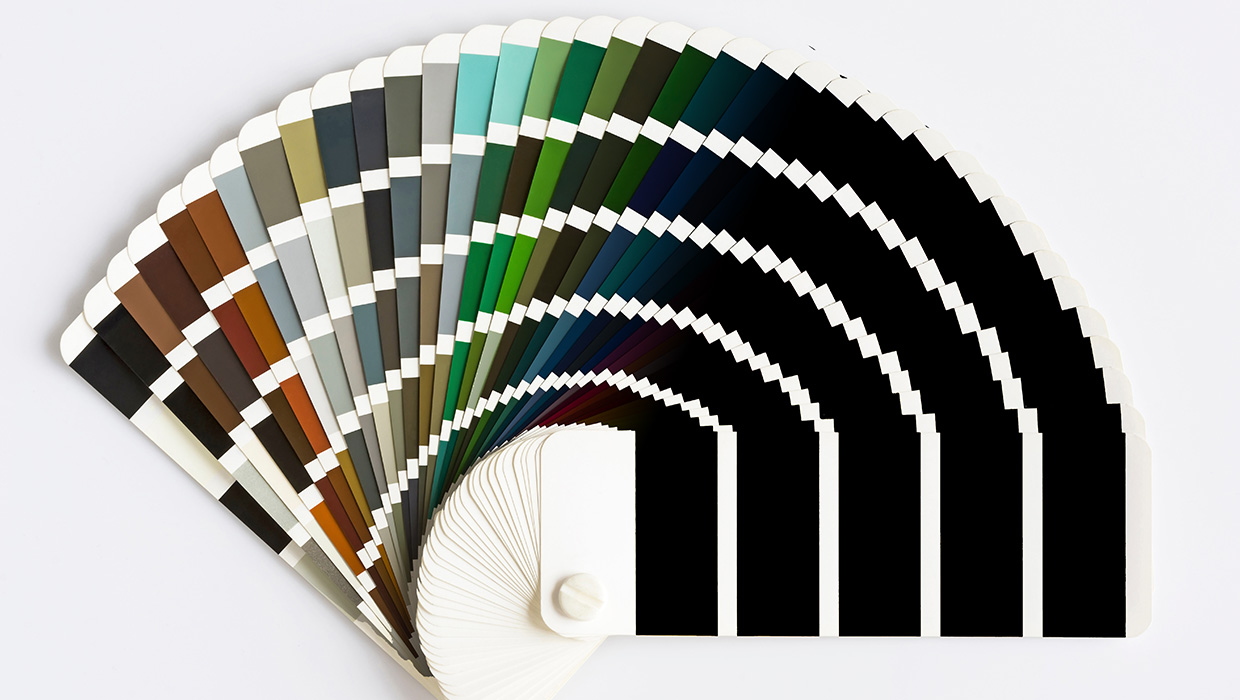
Adobe’s Pantone Colors Fade to Black: Users Turn Rubine Over Removal of Libraries from Creative Cloud 2023
Everything you need to know about what's happening with Pantone colors in Adobe...