



Kristina wrote:
I have made a separated PDF which includes 9 colors (9 pages), and I want to check it before I send it to the printing house. Can I somehow view all 9 pages as one page with all the colors?
Because most people use composite color PDF files (either CMYK, CMYK plus spot, just spot, RGB, etc.) this issue doesn’t come up very often. In the old days, it was a big issue because many people created pre-separated PDF files (where each color is a single page of the PDF). It’s not pretty, and I tend to recommend against this workflow. However, if you find yourself with a preseparated PDF and you need to merge it, the best way I can think of is to merge the pages together in Photoshop. Note that the result will be rasterized (turned into pixels), so you’ll lose your vector art. But this is a reasonable choice for proofing.
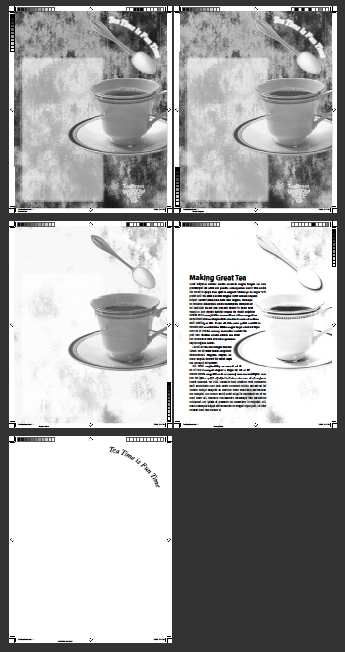
1. Here’s an original PDF file set up in separations (it’s CMYK plus one spot color):
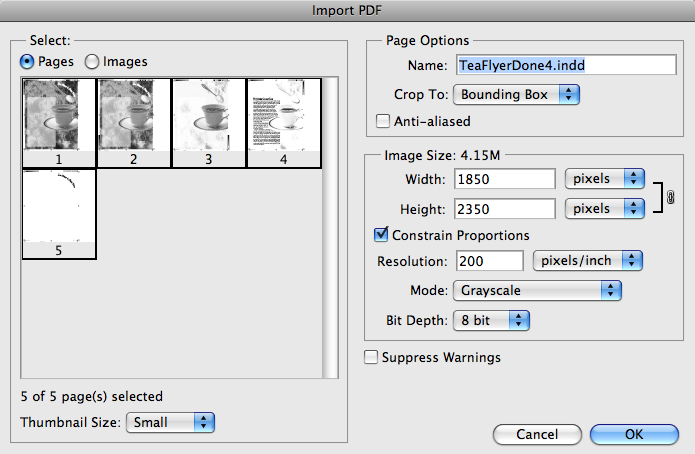
2. Now open this PDF in Photoshop and choose to open all the pages as Grayscale images:
3. Photoshop opens each page as a separate file. Cycle through each one and choose Layer > Flatten Image.
4. Now, with any of the images open, choose Merge Channels from the Channels panel. (If this feature is grayed out, you probably either forgot to flatten or didn’t open them in Grayscale mode.) If you are just opening a CMYK file, then choose CMYK from the Merge Channels dialog box; if there are spot colors involved, choose Multichannel.

5.Pick which of the current grayscale images you want for each channel. This is easier if it’s CMYK, of course, but even multichannel isn’t that hard — you just have to do it one at a time (clicking Next between each one):

6. If you chose CMYK, you’re done; you should have a CMYK image with each channel in the right place. If you chose Multichannel, you’ll end up with a single file with a bunch of “Alpha” channels. If the file is supposed to be CMYK-plus-spot, then choose Image > Mode > CMYK. You may get a color conversion error; if so, just click OK. The first four alpha channels are assigned to cyan, yellow, magenta, and black. Additional channels are left over:

7. To turn the other alpha channels into spot color channels, double-click the thumbnail (or select them and choose Channel Options from the panel menu). You can tell Photoshop to make the channel a spot color:

8. To pick the proper spot color, click the color swatch, then click the Color Libraries button in the color picker:

9. When you click OK, then click OK to leave the Channel Options dialog box, then make all the channels visible in the Channels panel… you’ll be done:

If someone chimes in with a “hey, there’s a simple, one step button you can press to do this,” I’m not sure whether I’ll be happy or infuriated that I didn’t know it all these years. :)
This article was last modified on December 19, 2021
This article was first published on July 3, 2009
Commenting is easier and faster when you're logged in!

Recommended for you

How to Insert a Schwa (or other phonetic) Character in InDesign
How to find special little-used characters when working in InDesign
Sandwiching Text or Logos Inside an Image
Joe wrote: I notice on every magazine out there -- such as Maxim, Stuff, or any...

What’s New in Photoshop 27.10
The August 2026 release brings a range of new tools and techniques—plus a comple...