



Jennifer wrote:
I am trying to make an interactive PDF using buttons and rollovers. I set up the rollover (which works just fine). However in the rollover state, I have text that I would like to use as a hyperlink to navigate to a specific page, and the hyperlinks are not working!
This is an interesting problem, because InDesign’s interface doesn’t always make it clear how to create certain interactive features. In this case, it sounds as though you assigned a hyperlink to the text with the Hyperlinks panel. That may be logical, but it’s doomed to failure because the hyperlink is being lost inside the button object. That is, when you export a PDF, InDesign is creating two objects: The one with the hyperlink and the one with the button. The button sits on top of the hyperlink, so the person viewing it can never “click through” to the hyperlink. Frustrating!
Instead, if you want to make a button that triggers a hyperlink to a Web page, it’s better to assign that action using the Button Options dialog box.
Here’s how you do it in CS2 or CS3: After making the button (either by choosing Object > Interactive > Convert to Button or using the Button tool), double-click on the edge of the button object to open the Button Options dialog box (or choose object > interactive > button options). Then click on the Behaviors tab and choose Go to URL from the Behavior pop-up menu. Type in the URL, click the Add button, then click OK.
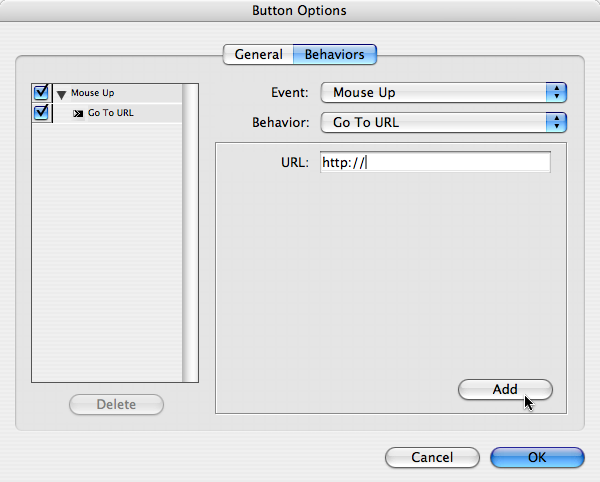
Now the button itself will trigger the hyperlink, and you don’t need to use the Hyperlinks panel at all. Also, don’t forget to turn on the Interactive Elements checkbox in the Export PDF dialog box! Without that, the buttons don’t work at all.
This article was last modified on December 19, 2021
This article was first published on September 29, 2008
Commenting is easier and faster when you're logged in!

Recommended for you

Where Did My InDesign Menu Items Go?
Where do you go when features start disappearing from your menus? Workspaces are...

A Closer Look at Obscure Features
Blink and you might miss these 20 obscure InDesign features worth knowing
Only the Frame Rotates, Not the Image?
Why is InDesign CS6 only transforming frames, and not the contents, a user wants...