




Can someone download this PDF and let me know why the jpg images appear fine when viewing with desktop browser, but some images in the same document don’t appear when viewing in Safari on the iPhone?
This message was posted on the Acrobat Macintosh User Forum, but I experienced it myself a few days ago. I had downloaded the handouts for the InDesignSecretsLive Print and ePublishing Conference I was attending just before I left home. I wanted to view them on my iPad as I was flying to the conference. I was surprised to see that some of the images appeared to be missing?for example, the pictures of the presenters in the page shown below.
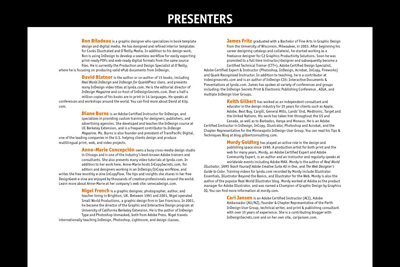
Missing Images
Later, at the conference I found out why. David Blatner did a presentation on “PDF for the iPad and Tablet” and in it he revealed that JPEG images don’t work if you’ve chosen those following the JPEG 2000 standard. Images could be JPEG 2000 for several reasons. Among them are these:
- You chose to export JPEG 2000 out of Photoshop.
- When you chose the Smallest File Size PDF preset in InDesign (or other applications in the Creative Suite), you chose that encoding for images
- When you chose to change your version compatibility (using PDF Optimizer or Reduce File Size in Acrobat) that option was chosen
From what I’ve learned so far, there are two solutions: You can go back to InDesign or Photoshop, and change your settings, and recreate the PDF.
If you don’t have the original files, you can also use the PDF Optimizer tool in Acrobat. In Acrobat 9 Pro, choose Advanced > PDF Optimizer. In Acrobat X Pro, choose File > Save As > Optimized PDF. In the PDF Optimizer, go to the Images section, and change the encoding to JPEG. I believe you’ll also have to UNCHECK the “Optimize images on if there is a reduction in size” choice because you’re changing the image encoding not image size.

PDF Optimizer
The first time I used the PDF Optimizer on the conference handout (which is 334 pages long with lots of images), Acrobat 9 Pro crashed repeatedly when I tried to use it. However, the PDF Optimizer in Acrobat X Pro worked great (see below).
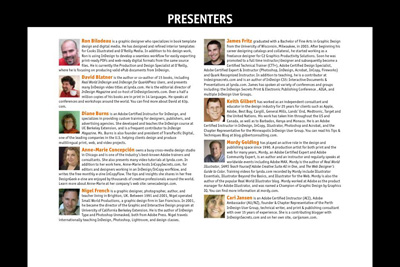
Optimized Images
I’m still investigating this issue. Let us know what you find with your PDF files.
This article was last modified on December 21, 2021
This article was first published on May 27, 2011
Commenting is easier and faster when you're logged in!

Recommended for you
TypeDNA Is New Kind of Font Manager
Press Release TypeDNA has announced the immediate availability of the world...

TypeTalk: Supersize My Font Families, Please!
Q. I notice an increasing number of font families containing an unusually large...

Mastering Photoshop Smart Objects: Layer Comps
If you need to develop several versions of a composition in Photoshop, Layer Com...