



For those of you who are power users of conditional text, this post is for you. Have you ever wanted to delete a condition in your document only get to get the following message?

You’ll only get this message when the condition is currently bring applied to text. If the condition isn’t being used, you can delete it without seeing this dialog box.
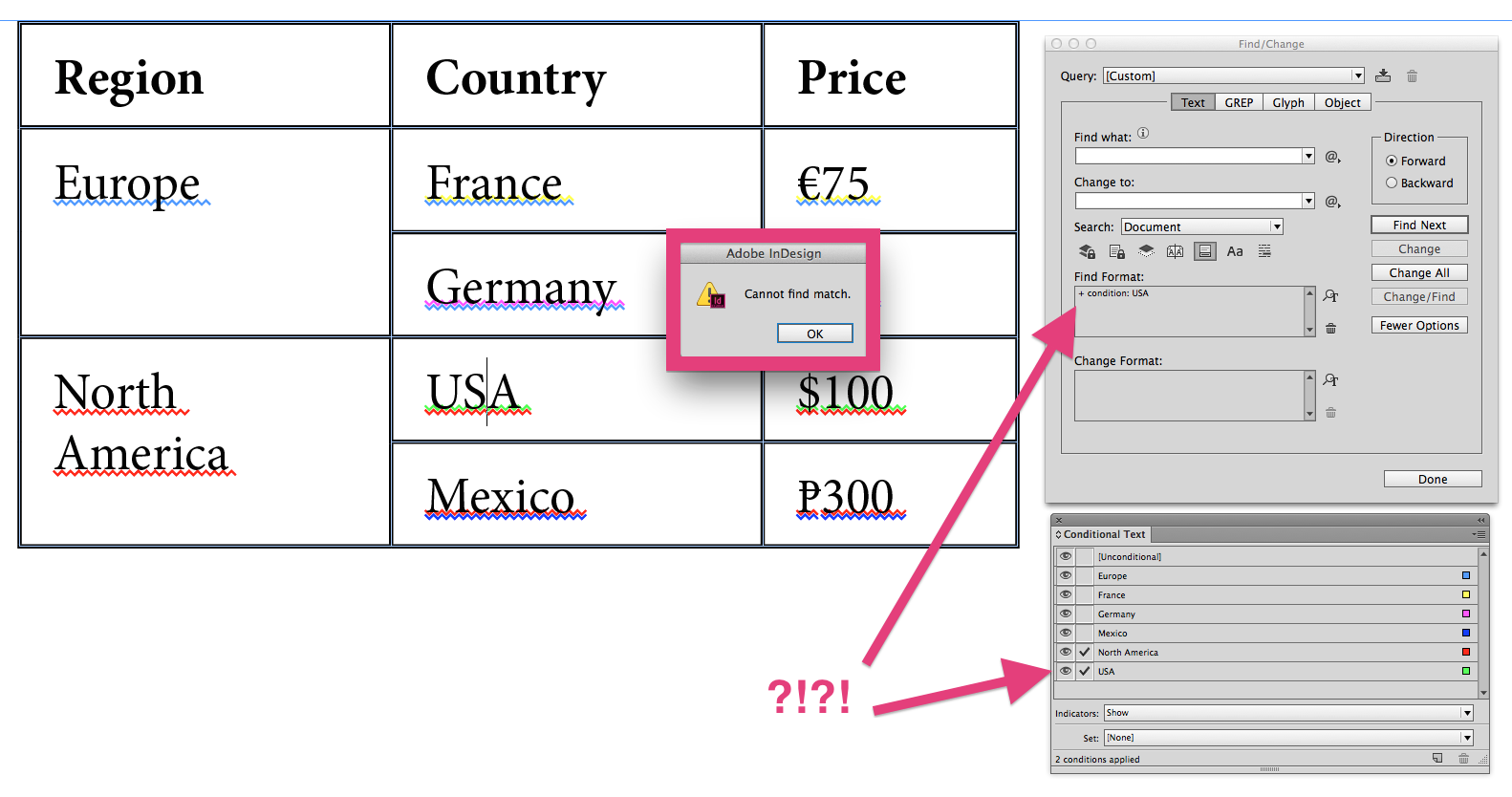
Let’s say I want to delete a condition called USA. So I do a search for any text with the USA condition applied. And InDesign replies, “Cannot find match,” even though I can clearly see USA is being used.
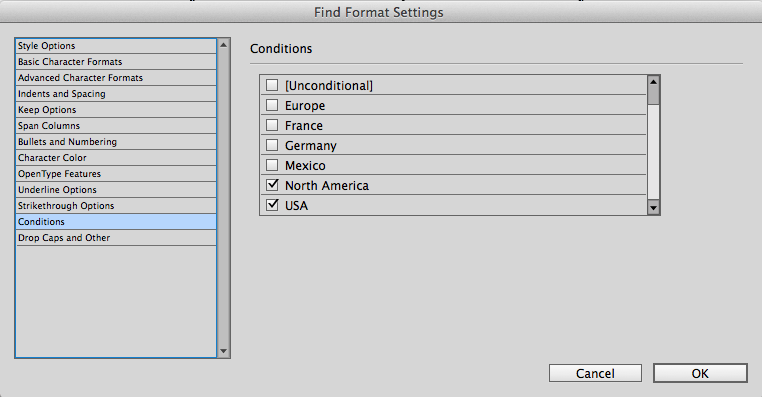
The reason is that the Find/Change function has a serious limitation in that it will only find text with certain conditions applied if you choose to search for ALL of the conditions applied to the text in question. That’s fine in the rare cases where I know all the conditions applied to the text that I need to find. Notice how if I choose both conditions, InDesign has no problem finding the text.


Keep in mind that this is a very simple example, and I can easily see with my human eyes which text has the USA condition applied to it. But consider how you might successfully conduct the same search if you have a 50-page document, filled with conditional text and anchored objects. Many of my long documents (which use conditional text for equipment configurations, as opposed to currency) contain a dozen or more conditions, and it would be impossible to quickly do a visual scan of the document looking for the correct color of wavy underline.
But it turns out there is an easy way to locate which text has an particular condition applied to it. The solution is to change the change the condition method from Wavy to Highlight.
 Now it is easy for me to see which text has the USA condition applied to it. Even though InDesign can’t find the text, human beings can!
This article was last modified on July 25, 2019
This article was first published on March 15, 2015
Commenting is easier and faster when you're logged in!

Recommended for you

Tip of the Week: Making Find/Change Settings Stick
This InDesign tip on making Find/Change settings stick was sent to Tip of the We...

Use Find/Change to Delete in InDesign
Everyone knows how to use find/change to replace text, but what if you want to d...
Use Find/Change to Find Tables
Our friend Rudi Warttmann originally wrote up this technique for the German-lang...