




Today I’d like to introduce you to an overlooked InDesign feature: the Application Frame. The Application Frame is by no means new, as it dates back to CS4, and is also present in Illustrator and Photoshop. In fact, Steve Werner wrote about this 5 years ago. This only applies to the Macintosh version of InDesign, so if you are a Windows user, you can go find another, more interesting post to read.
Since the Application Frame is an option that is turned off by default, many users never notice it. I’ve also found that users are often confused by the status of the Application Frame when they upgrade to a new version of InDesign.
So, what am I talking about? Choose Window > Application Frame, and you will see a gray “backdrop” appear in your InDesign window, and your panels and open documents will be put in a single “frame”.
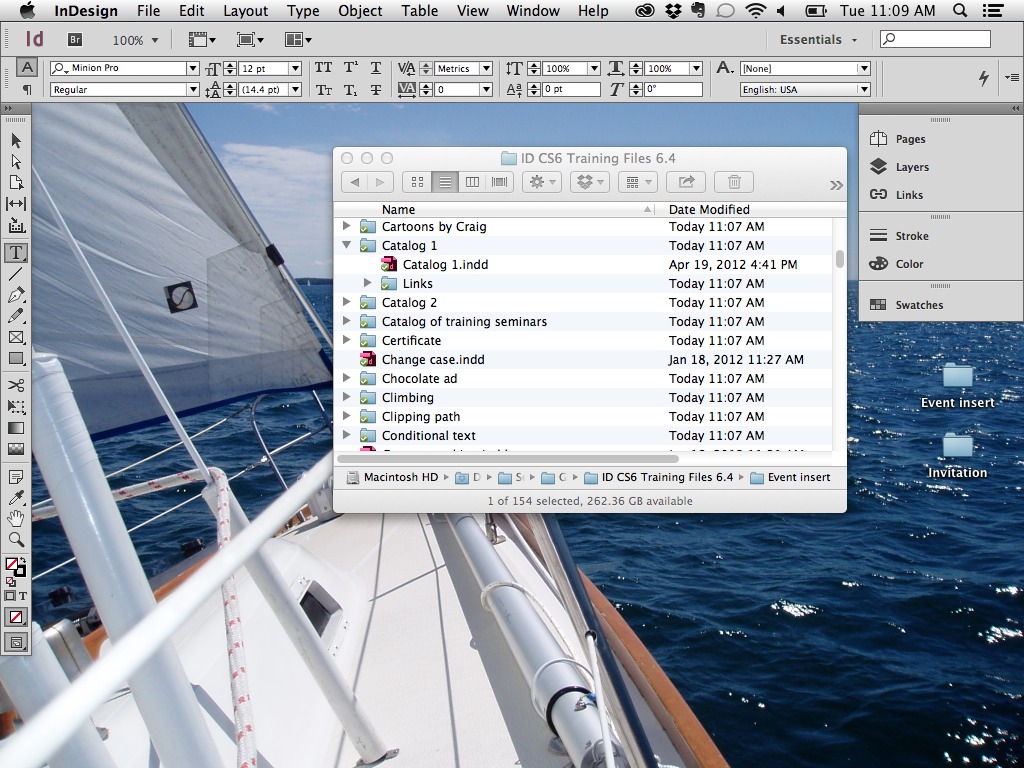
InDesign without the Application Frame. Note that you can see the desktop items “through” InDesign.
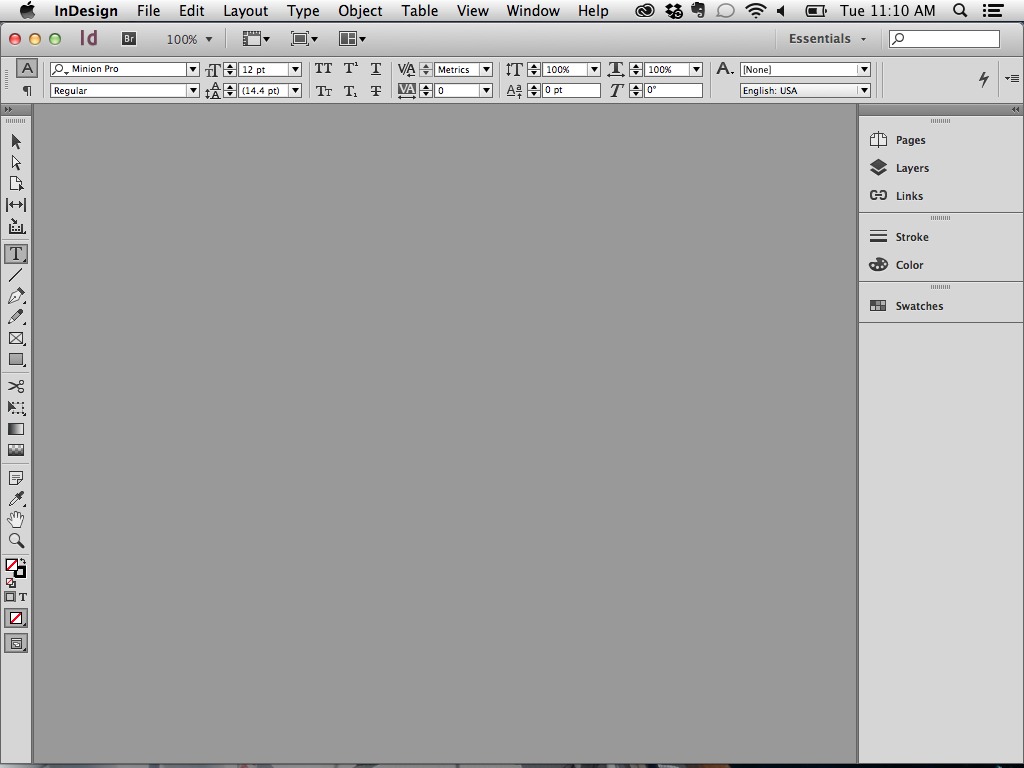
InDesign with the Application Frame. Note the gray backdrop that hides the desktop items.
Why would you want this? After all, it makes it harder to get to your desktop items.
Advantages of the Application Frame
In my opinion, the larger your monitor it, the more important the Application Frame becomes.
First and foremost, the Application Frame allows you to “dock” your panels to the left and right edges of the Application Frame, so that when you move or resize the frame, the panels move with it. You can learn more about docking panels here.

InDesign with the Application Frame on, and several panels docked to the right side of the frame.
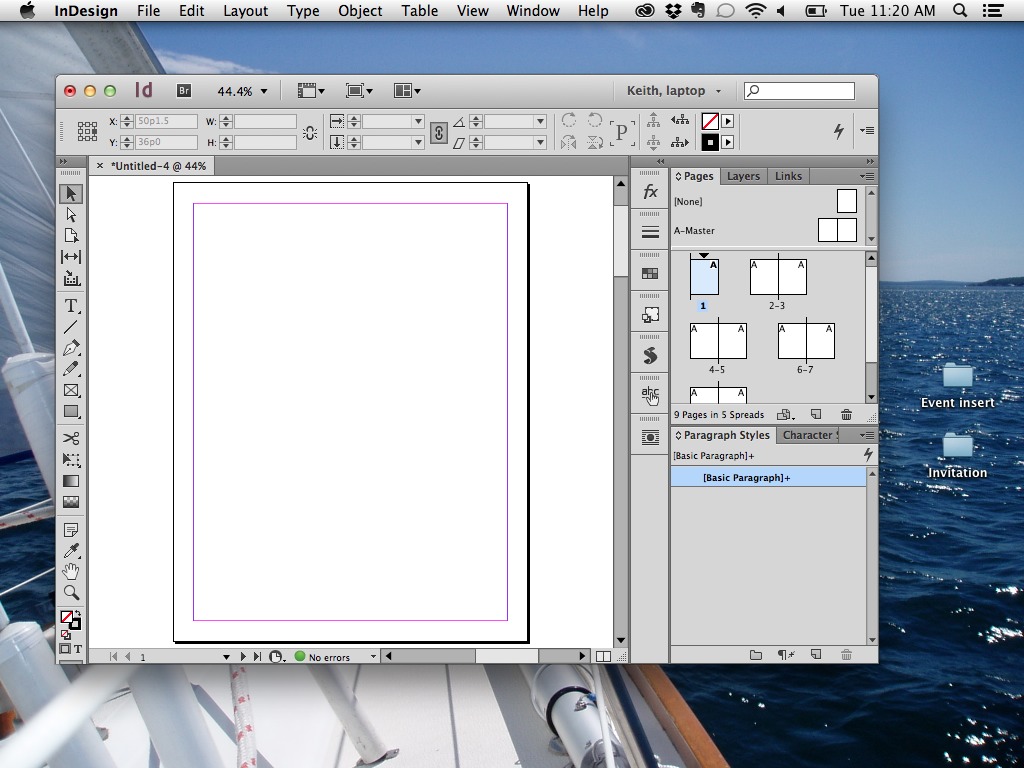
Here, the Application Frame is still on, but the frame has been resized and moved to a different location on the screen. Note that the panels move and resize with the frame.
This provides the ability to move your entire InDesign work area to a second monitor, or a different location on your large monitor, without leaving a trail of panels or open documents behind.
Another advantage of the Application Frame is that the gray backdrop hides all the clutter on your desktop as well as the windows of other applications that you may be running.
Disadvantages of the Application Frame
The biggest perceived disadvantage of the Application Frame is that it makes it more difficult to get to the files and icons that you might have stored on your desktop, or to get to other running applications. My answer to this is that you just need to learn some alternate ways to do these tasks.
My personal favorite is the venerable command-tab shortcut. Hold down the command key, and repeatedly hit the tab key. You will see an icon for every running program (including the Finder) displayed on the screen, and as you hit the tab key, each icon is selected in turn. When the icon you want is selected, release the command key, and you will switch to that application.
One shortcoming…
One shortcoming of the Application Frame is that it doesn’t get stored with your workspace. If you have your panel arrangement saved as a workspace (Window > Workspace > New Workspace), it doesn’t “remember” whether or not you want the Application Frame on or off.
And a handy shortcut…
Double-clicking on the gray background of the Application Frame will bring you to the File > Open dialog box.
This article was last modified on December 30, 2021
This article was first published on July 30, 2013
Commenting is easier and faster when you're logged in!

Recommended for you

How to Enable Photoshop’s Quiet Mode to Stop “Helpful” Pop-Ups
Turn on Quiet Mode in Photoshop for a more peaceful workflow.
Troubleshoot Illustrator Files with Outline View
Use Illustrator's "X-ray vision" to troubleshoot your vector artwork with Kat Kr...
Essential Illustrator Shortcuts
Save time with Kat Kremser's cheat sheet of Illustrator shortcuts!