




Let’s say you have a long document broken down into sections or parts — for example, books are often broken down into headings, catalogs are often broken down into categories, directories might be broken down by geographical location. But how can you jump to any location inside the InDesign document quickly? Of course, if you already know what page the section begins on, then it’s easy: Just press Command/Ctrl+J and type in the number. But if you have no idea where it is? In that case, you need a sort of “InDesign document table of contents” that you can keep open — something that would let you navigate from one section to the next quickly. Fortunately, InDesign has such a thing: it’s the Bookmarks panel. Ordinarily, people think of bookmarks as something you use in a PDF file, but you can use InDesign’s bookmarks as a navigation tool even if it’s a straight print-only publication.
Setting Up Bookmarks
You can find the Bookmarks panel by choosing Window > Interactive > Bookmarks. (Again, just because this is in the Interactive submenu doesn’t mean it’s only good for interactive docs!) To make a bookmark for a piece of text (like a section opener), just select the text and click the New Bookmark button. You’ll see the text you’ve chosen show up in the Bookmarks panel. That’s easy, but it would be very tedious if you had a lot of section openers. So instead, I like to have InDesign make all my bookmarks for me quickly with the Table of Contents feature. It’s easy: Just make sure the section openers have their own paragraph style applied to them. Then choose Layout > Table of Contents, make sure that paragraph style is included: 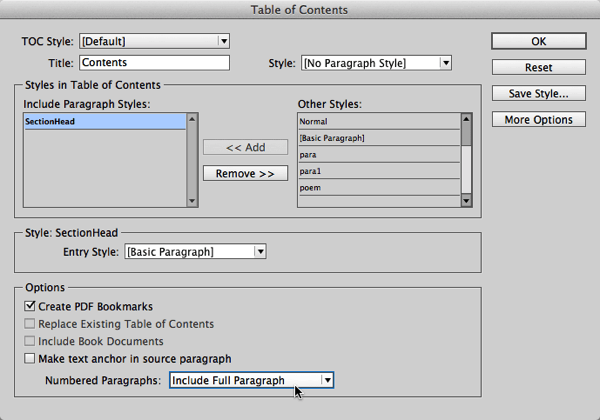
border=”0″ /> Notice that in the image above I have also:
- Turned on the Create PDF Bookmarks checkbox. This is the key to the trick: when on, you get the styles listed in the Bookmarks panel.
- Set the Entry Style to Basic Paragraph Style. Not required, but in this case we don’t care how the TOC looks (because we’re not going to put it on a real page), so I just use Basic Para to keep it simple.
- Set the Numbered Paragraphs to Include Full Paragraph. Again, this is optional. In my document here, the sections actually have numbers (using InDesign’s automatic paragraph numbering feature). I want those numbers in my bookmarks because I need to refer to it by section number.
Next I click OK and InDesign loads my table of contents into the place cursor. Because I’m not using this as a real TOC in my document, I’m going to just put it on my pasteboard: 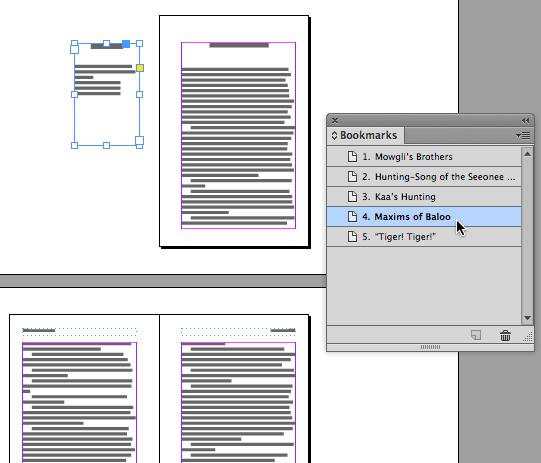 You can see that as soon as you place the TOC, the Bookmarks panel is filled with all the sections in the TOC. The numbering is there because the individual paragraphs are numbered. Later, if the numbering changes (or the text, or whatever), it’s easy to update the bookmarks: Select the TOC on the pasteboard and choose Layout > Update Table of Contents.
Jumping to a Section
So once your bookmarks appear in the Bookmarks panel, you can quickly jump to any section by double-clicking on it in the panel! But a warning: Don’t delete the TOC on the pasteboard or else you’ll loose all the bookmarks in the panel. Or perhaps that’s a good thing, so turn it around… If you want to get rid of all those bookmarks, just delete the TOC on the pasteboard! Want some more navigation tricks? Try these from Keith!

Recommended for you

Review: Photoshop Fix
Photoshop Fix is Adobe’s latest venture into mobile image manipulation. Av...

Tip of the Week: Lock First Line to Baseline Grid
Sign up for the InDesign tip of the week to get a new tip, roundups of new artic...
Breaking Underlines for Descenders
If you’ve ever tried to design type with underlines, you may have run into...
Comments are closed.