




As you know, you can insert any character from a font by double-clicking it in the Glyphs panel. But that panel can get very tiresome if you have to use it often. For example, what if you often need to type the Rupee symbol? Or the right arrow symbol?
The good news is that there are several clever ways to type a character without having to find it inside the Glyphs panel and double-click it.
Recent Glyphs
If you insert a character once with the Glyphs panel, it will then show up in the Recent Glyphs section of the panel—which makes it much easier to find and insert again.
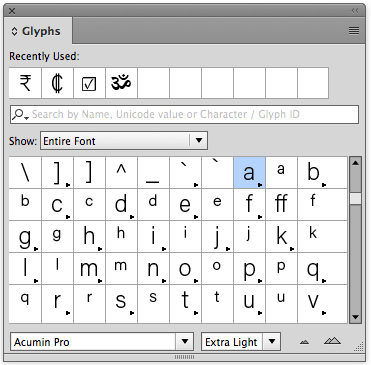
But even easier would be a way to “type” the character with your hands on the keyboard—even if the Glyphs panel is closed. You can do that by assigning a shortcut (using Edit > Keyboard Shortcut) to the Glyph: Insert Most Recent Glyph feature. It’s inside the Product Area called Panel Menus:
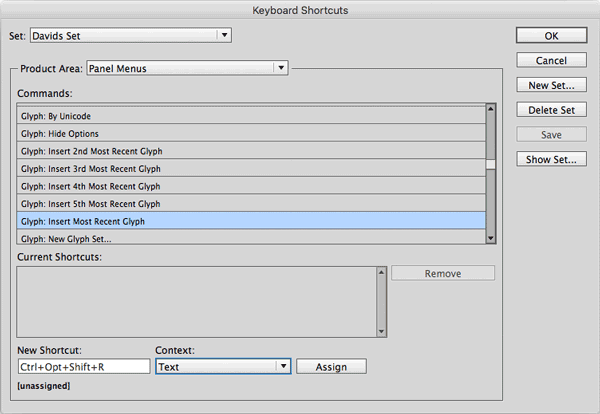
Note that in the image above, I’ve set the Context popup menu to Text; that means this shortcut will only do anything when my text cursor is inside a text frame.
Of course, the biggest problem with this shortcut is that if I insert a character in the Glyphs panel, then that will become the most-recently used glyph. (In other words, the shortcut will start applying the newer glyph.) So here are some more options that ensure your shortcut will always provide you with the character you want.
Unicode Hex Input
I started writing a long section about how, if you know the Unicode number for the character you want, you can just type it—for example, Alt-03C0 on the numeric keypad would type a pi symbol. But it works slightly differently in different versions of Windows, and sometimes requires you to make a change to the Registry (eek!)… and on the Mac it requires that you set up and choose a different Input Method in System Preferences… and the whole thing is so clunky and hard to explain that I have now decided to skip it. OK, moving along…
Glyph Scripts
The coolest way to add precisely the character you want is to get a script to do it for you. There are a handful of scripts you can use, and they’re all easy. Before I tell you about the scripts, there are three things you need to know:
- You do not need to open, edit, or alter the scripts in any way to customize them. In most cases, you simply need to duplicate and rename the script files on disk (just like renaming any other file).
- If you need help installing scripts, see this article.
- Once you have a script that inserts the character you want, you can assign a keyboard shortcut to it! I’ll tell you how below.
OK, here are the four helpful scripts:
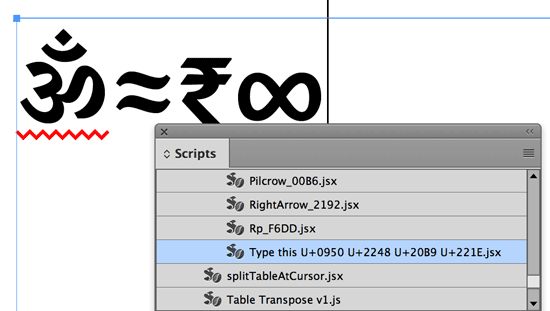
- Unicode Injector. You can add one or more Unicode characters at the same time with Rorohiko’s free Unicode Injector script. The script reads its own name, looks for unicode numbers, and then “types” those characters into the current text frame. For example, if you name the script (on disk) “insert U+20AC.jsx” and then run the script (with the text cursor flashing in a frame), it will insert the Euro symbol. The script ignores any text that isn’t a unicode number in the file name. By adding more than one unicode number, you can get a string of characters:
- Unicode character script. Here’s another type-a-unicode script. It works pretty much the same as the Injector, but it only works with a single character. For example, if you name it “Multiplication_00D7.jsx” (or even just 00D7.jsx) then it will insert the multiplication symbol when you run the script. This version is much less robust (less error checking, etc.) but I wanted to include it just in case the one above isn’t available or doesn’t work for some reason. You can download it here.
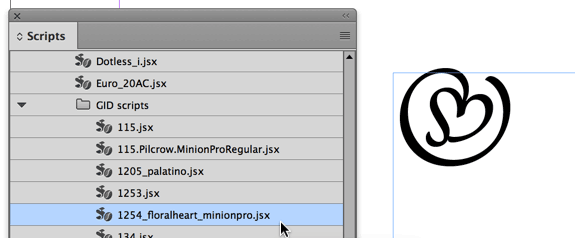
- GID script. Sometimes a glyph can only be inserted by its GID value in a specific font. For example, in the Minion Pro font, there are 26 different bullet characters, each “called” Unicode 2022. So the Unicode scripts won’t help. Olav Kvern wrote a very clever script he calls “Insert-A-Glyph’o-matic” that works much like the last two, but uses the script’s name to specify a GID value. For example, if the script is called “1254_floralheart_minionpro.jsx” (or even just 1254.jsx) then the script will insert GID value 1254 (which basically means the 1,254th character in the font). If the current position of the text cursor is set to Minion Pro, then you’ll get the character you want. If it’s any other font, you’ll almost certainly get some unexpected glyph. You can download the script here.
- Compose. Peter Kahrel wrote a script called Compose, which Anne-Marie wrote about here, and I recorded a movie at Lynda.com about here. Note that at the time of this writing, the script still has “cs3” in its name, but it appears to work just fine in CC 2017. You don’t need to rename this script or anything like that; when you run it, it asks what character you want to insert. So on the one hand, it’s extremely flexible and powerful; but on the other hand, it’s not as good if you find yourself needing to insert the same character many times a day.
Giving it a Shortcut
Searching for the right script to run in the Scripts panel is hardly any more efficient than searching for the right character in the Glyphs panel. So why go through all the work to use a script? Because you can apply a keyboard shortcut to a script! (Or run it using the Quick Apply panel.)
To apply a shortcut, choose Edit > Keyboard Shortcuts and choose (or make) your custom Script set. Choose Scripts from the Product Area, and then scroll through the list of scripts until you find the one you want. Select it, click in the New Shortcut field, and type the shortcut you want to assign. I suggest setting the Context menu to Text, so that the shortcut is only triggered when the text cursor is active in a story. And finally click Assign.
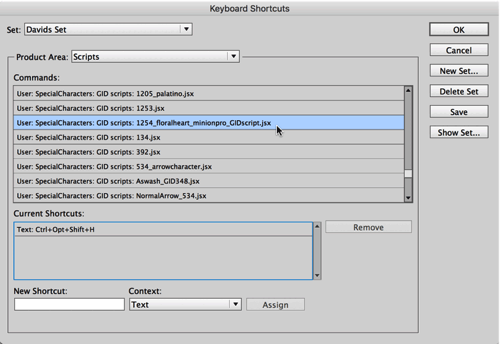
Now, whenever you press that shortcut, the proper glyph will be inserted, depending on whether you used a Unicode or GID script.
This article was last modified on July 25, 2019
This article was first published on January 5, 2017
Commenting is easier and faster when you're logged in!

Recommended for you
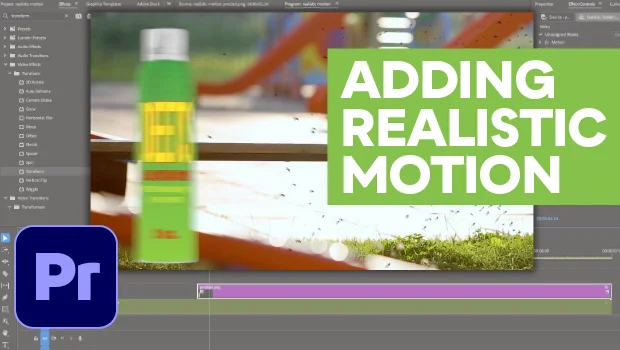
How to Make Motion Look Realistic in Premiere
Create a convincing animation in Premiere using the Transform effect.
Free Webinar: InDesign Fixes for When Things Go Wrong
Learn practical troubleshooting techniques to diagnose InDesign problems, fix th...