


InReview: ID2Office
Steve Caplin reviews a solution from moving InDesign layouts into Word, PowerPoint, and Keynote.


This article appears in Issue 126 of InDesign Magazine.
Word and PowerPoint are, like it or not, the world’s most-used applications for word processing and presentations. But their ubiquity doesn’t mean they’re the best tools for the job; both suffer from awkward layout tools that try too hard to second-guess you. It can be difficult in either program to create precise, attractive layouts without the interface taking over and preventing you from doing so.
InDesign, on the other hand, is the layout program that gives the user full control over every aspect of a document’s appearance, without trying to dictate your approach. It’s with this in mind that Recosoft has created ID2Office, a plug-in for InDesign that turns documents into usable, editable Word and PowerPoint files. The plug-in is useful for professional designers who need to turn a lot of complex InDesign files into other formats.
An alternative approach is to save an InDesign file in PDF, and then use Adobe Acrobat to export this to Word or PowerPoint. But this is a less accurate solution, which can involve a fair amount of editing after export.
Using the Plug-in
Using ID2Office is straightforward. Once you’ve created your layout in InDesign, choose ID2Office from the new Recosoft menu item, which appears after installation. You’ll be presented with a dialog box that allows you to choose how and where you want to export the file. With the Standard version of ID2Office, you can choose Word or PowerPoint; the Professional version adds the option to export to Keynote. Set the image format and resolution, and decide a range of other factors such as how graphics are exported, how tables are formatted, and so on (Figure 1). You can also choose to export the entire document or just a page range.
wp-image-118913″ src=”https://creativepro.com/wp-content/uploads/2019/09/ID2Office-fig1.png” alt=”” width=”480″ height=”587″ /> Figure 1. ID2Office Export Options
Exporting to PowerPoint
Business presentations frequently start life as annual reports, press advertisements, or promotional materials. These are usually created in InDesign, as it’s the layout tool best suited for the task. Previously, these materials had to be laboriously recreated in PowerPoint when needed for on-screen presentations; ID2Office provides a smoother transition, creating not just exported PDF documents but editable PowerPoint files.
Exporting a test file to PowerPoint produced an accurate, exact version of the InDesign file, with editable text in the size and font of the original. Unfortunately, if the images on your page are too close together, or if they’re on top of a background color, in the exported file they will be compressed into a single image. So in my example, the slide projector and graph have both been merged onto the background (Figure 2).
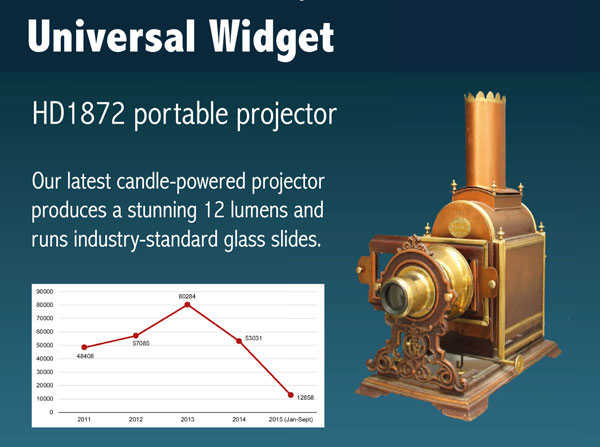
Figure 2. Background colors and closely spaced images will be merged in the PowerPoint export.
If you want to move them, you’ll need to go back to InDesign and export the file again. However, if the images are farther apart and the background color removed, then the graphics will remain separate in the PowerPoint file.
Exporting to Keynote
While most business users create presentations in PowerPoint, Mac users tend to prefer Keynote for its increased simplicity and Mac-friendly interface. Exporting InDesign documents to Keynote is possible with the Professional version of ID2Office, which is available at extra cost. The process works in exactly the same way as exporting to PowerPoint.
In my tests, the export process produced a perfectly formatted, editable Keynote document—although, once again, all the images were flattened into the background graphic. This means that although the text is editable, you can’t move any of the images or graphics around after export.
Exporting to Word
Designing an attractive, professional document in InDesign is a process that will feel comfortable for most designers. But if you’re designing documents that will then need to be edited by standard office workers, it’s likely that they won’t have access to InDesign—or have the necessary skills to use it. So it makes sense to produce a version of the layout as a Word file, which can then be edited by just about anyone.
To test the process of exporting an InDesign layout to Word, I used a theater program I’d previously designed in InDesign (Figure 3).
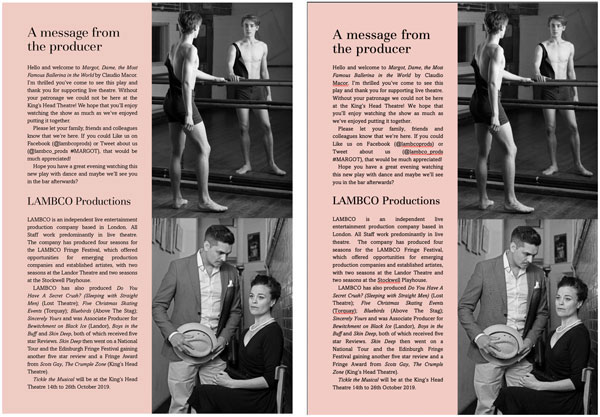
Figure 3. The InDesign page is on the left, the exported Word page on the right.
The exported Word version was largely faithful to the original, with the exception of some slight text reflowing. Some text reflow is almost inevitable, due to the differences in the two program’s text composers.
Again, though, when the images are close to each other, they are flattened onto a single layer, and if you have a tint background, this is flattened along with the images.
Things to Watch Out For
Here are a few items that might not make the transition from InDesign to Office as desired.
Kerning and tracking
While most text is exported correctly, tracking and kerning tend to be misinterpreted in the export process. In Figure 4, the headline has been negatively tracked in InDesign (below left), but this tracking is ignored in the exported Word version (below right). Of course, this is easy to correct in Word.
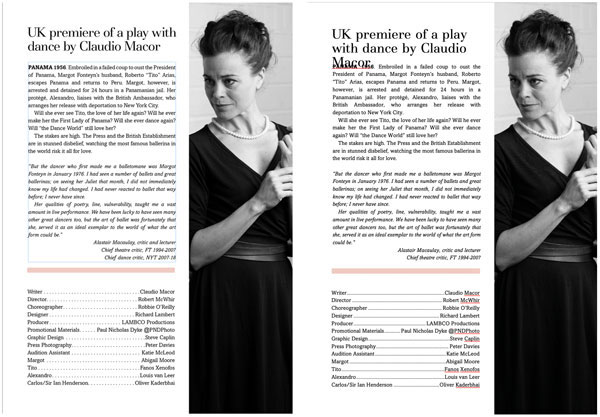
Figure 4. If kerning and tracking matter to you, you’ll need to touch them up in the Word export.
Missing elements
Not all graphic elements export correctly. In Figure 5, the tint box at the top of the page in the InDesign file (above left) is missing in the Word version (above center), and the white text box at the bottom is split during export into individual text frames with white backgrounds—although, curiously, the box is present (albeit somewhat too tight) in the version exported to PowerPoint (above right).
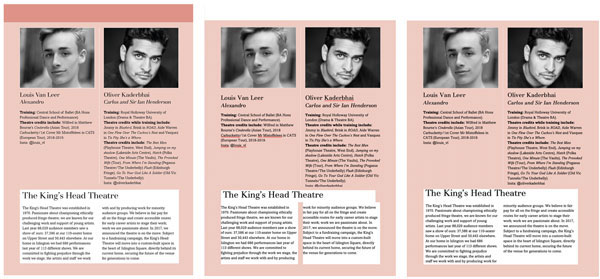
Figure 5. Differences in Word and PowerPoint exports
No text wrap
Images set to include wrapped text in InDesign (Figure 6) have the text wrap ignored when exported to Word (right image).
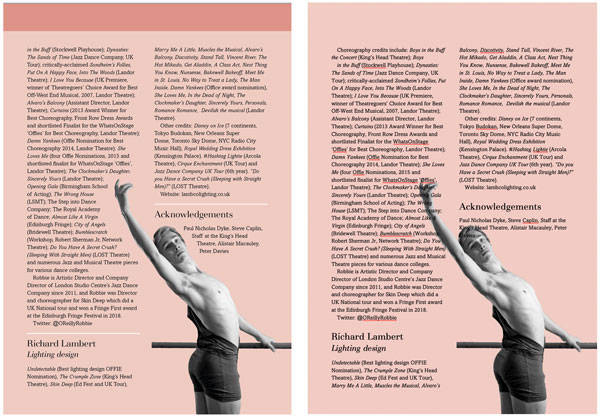
Figure 6. Watch out for tricky elements like text wrap.
Unfortunately, it’s impossible to regenerate the text wrap in Word in this instance, as the image has been flattened onto the tint background; the only solution would be to export the page without the image, and place it directly into the Word file. Note, also, that the white rules below paragraphs in the InDesign original have been ignored in the Word version, as has the top tint bar.
A Competent Conversion
ID2Office performs a unique task, and produces reasonably usable Word, PowerPoint, and Keynote documents. It’s likely that you’re going to want to edit only the text after export to PowerPoint or Keynote, so the flattening of images onto the background isn’t so much of a problem; but it’s more of an issue with Word exports, since you’re likely to want to move graphics and images around. The only solution would be to delete the background and reinsert the images from scratch.
A subscription to ID2Office costs $199 a year, or $249 for the Professional version that includes Keynote export. So it’s best suited for folks who have to convert InDesign content to Office on a regular basis. All in all, it’s an effective solution for a formidable task; just be ready to do a little extra tinkering after export.
ID2Office
- Recosoft
- InDesign CS6 to CC 2019
- $199 a year, or $249 for the “professional” version that includes Keynote export
- Rating: 3½ stars
Commenting is easier and faster when you're logged in!

Recommended for you


What’s New in Photoshop 27.10
The August 2026 release brings a range of new tools and techniques—plus a comple...

Interview with Joy Pollard, Designer and Adobe Certified Professional
Learn how roller derby, astronomy, and theater influenced one designer’s journey...