



Bob Levine shows how to use a unique InDesign workspace for Windows touch devices.
Q: I’ve been using InDesign on a Mac for many years. I’ve just gotten a new Windows 10 laptop for work and the InDesign interface looks completely different. Most of the tools and menu items are missing. What’s going on?
A: I can assure you that it’s nothing sinister. You have been given a Windows 10 laptop that is either fully convertible to a tablet or at the very least has a touch screen monitor.
Historically, InDesign features and capabilities have been practically identical on Mac and Windows. Over the last few versions, however, Adobe has started to take advantage of operating system specific features that exist only on Mac or Windows.
What you’ve stumbled upon is InDesign’s Windows-only touch workspace (Figure 1).
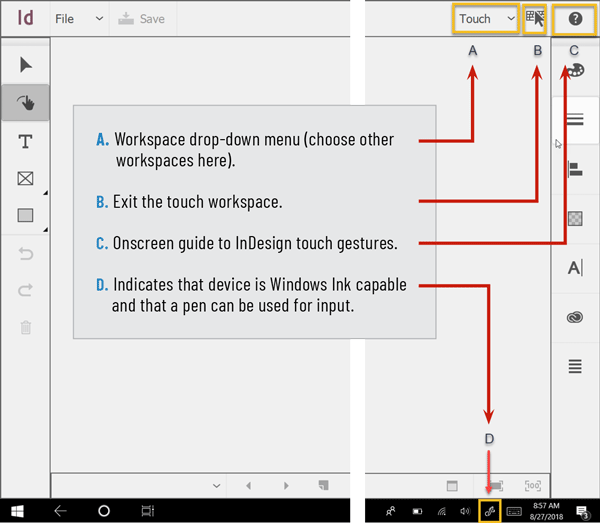
Introduced at Adobe MAX a few years back, the interface will default to the touch workspace on first launch. While it can be startling if you’re not expecting it, it certainly makes it more “discoverable,” as the folks at Adobe would say.
I find the touch workspace handy for assembling quick layouts, much like using Adobe Comp CC on an iPad. In fact, if you’re familiar with Comp you’ll feel right at home in the touch workspace, since it shares many of the same gestures. If, in addition to touch, your laptop is Windows Ink capable, you can use a compatible pen for even more control.
I’m using an HP Spectre x360, and while it came with a pen, I bought a Wacom Bamboo Ink Pen, which I find quite natural to use. While you won’t want
to use the touch workspace for any seriously detailed work, for initial layouts it’s quite nice.
For an overview of the gestures you can use, click the “?” icon in the upper right corner of the workspace (Figure 2).

Commenting is easier and faster when you're logged in!

Recommended for you

Tip of the Week: Print Dialog Box Previews
This tip was sent to Tip of the Week email subscribers on February 26, 2015. Sig...

How to Reset the Recent Documents List in InDesign
With this InDesign tip, you can refresh the display of recent documents in the F...
Frame Tools vs. Shape Tools
Sign up for the InDesign tip of the week to get a new tip, roundups of new artic...