




I’m trying hard not to type phrases like “Most useful plug-in ever,” but I have to tell you: I’m sitting here with my mouth agape, heart beating faster, and thinking “This is what I’ve wanted for 20 years.”
In short, I’m playing with WordsFlow, a plug-in from Em Software that fundamentally changes the way you’ll work with Word documents.
Background: You may know that you can place Word files and link to them so that when the Word file changes, you can update it in InDesign. (The key is the “Create Links When Placing Text and Spreadsheet” checkbox in the File Handling pane of the Preferences dialog box.) But you probably also know that this feature sounds far better than it really is — because you cannot make edits in InDesign after you place the file. Well, technically you can, but if you do then all those edits are thrown away next time you update the link. It’s ridiculous!
Well, the good folks at Em Software (makers of InData and other great tools) came up with a solution a year or two ago that solved this problem by letting you link to Google Docs files — you can edit in both places (Google Docs and InDesign) and it intelligently merges your changes together. However, it only worked with Google Docs? until now.
It turns out that was just phase one. Phase two is WordsFlow — the same concept applied to Microsoft Word documents (or txt files, rtf files, or even Excel spreadsheets).
It could not be simpler to use WordsFlow: You just place a file, same as you always have. But you’ll notice that it shows up in the Links panel:
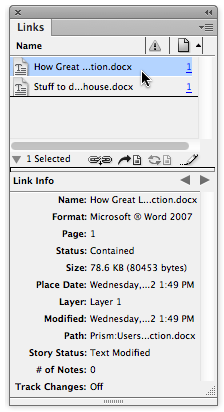
That’s it. Now you can edit the file in InDesign, and you (or someone else) can edit it in Word. Whenever the Word file is updated (changed and saved) it will appear as modified in the Links panel. (In CS6 and later the modified link also shows up as an little “badge” on the text frame, too.)

It works just like modified graphics: When you click the badge (or double-click the Links panel icon), InDesign updates the link.
Chris at Em Software told me how it merges the two files together, but it still seems like magic to me. It takes changes you’ve made in Word, changes you’ve made in InDesign, and “diffs” them to figure out what you’ve done. The result is that you get the best of both worlds and a super-charged workflow.
What About InCopy?
Does this mean you can use Word instead of InCopy? Well, maybe, at least for some people. But InCopy offers many features that you’re not going to get when using Word as your word processor. However, if you just want a bunch of writers and editors to be able to write and edit documents for your InDesign layout up to the last minute, WordsFlow can be a huge help.
Linking to Excel Spreadsheets
As I mentioned earlier, WordsFlow also works with Excel spreadsheets. (Note that Em already has a lot of experience with linking directly to databases and spreadsheets because of their pro-level InCatalog product.) That means you can place a spreadsheet as a table.

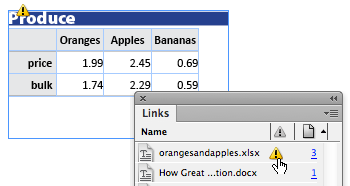
Note that this only currently works if you place the spreadsheet into an empty text frame. If you use File > Place to place it in the middle of a frame that already has text, it drops the link. However, after you place it, you can add text before or after the table and it continues to work fine. (For example, I added the Produce heading above the table in the image above.)
New data in Excel? You need only hit Update in InDesign and it merges the tables together, even if you’ve made edits to the data on your InDesign page! For example, I removed some empty rows in InDesign and the table still updates fine. Magic!
Is It Perfect?
As I type this, WordsFlow is still in beta, so it’s not even 1.0 yet. That said, it’s working really well and I haven’t had any significant problems with it. You can download the public beta now and try it for yourself!
There are, however, a couple of features that need to be fleshed out. For example, after you’ve installed the plug-in, every document you place shows up in the Links panel. If you don’t want a file linked, you have to select it in the Links panel and choose Unlink from the panel menu. Not a huge deal, but if you only want to link to the occasional document, this step gets annoying. Fortunately, Chris tells me they are soon going to add some feature so you can easily turn linking on and off. [D.B.: Note that this has changed in version 1.0, which just shipped. Woo hoo! Much easier to place files without linking now.]
And sometimes you can edit a file too much. I haven’t run into this problem yet, but in theory you could make edits in both Word and InDesign (or Excel and InDesign) and WordsFlow could just throw up its hands saying “I have no idea what you expect me to do here.” But it’s likely that in this case a human editor shown the same edits would say the same thing.
There are lots of additional features I’m sure they’ll add, after they first get 1.0 out the door. For example, there is currently no way to “push” the changes you’ve made in InDesign back out to Word or Excel. You can export a Word document like usual, of course, but it would be nice to export-and-link so that you can send a file out to someone for editing and have it linked automatically. (If you think of other ideas WordsFlow should do, write them below or send feedback to the folks at Em Software. They tell me they love hearing from users.)
Try It.
We have all been wrestling with the MSWord- and MSExcel-to-InDesign workflow problem for years. I’m so pleased that this tool is finally available, smoothing out this too-often bumpy process.
This article was last modified on December 21, 2021
This article was first published on October 25, 2012
Commenting is easier and faster when you're logged in!

Recommended for you

Why Word Character Styles Won’t Map Cleanly to InDesign Styles
The ability to map Microsoft Word text styles to InDesign styles is an incredibl...

Cleaning Up White Space Problems in Word Files
Proven methods for removing messy white space characters that can cause trouble...

Survey: 85% of Designers Struggle with Repetitiveness of Resizing Graphics
Nearly a quarter of designers report “extreme frustration” with resizing graphic...