




In this Photoshop how-to video, Steve Caplin shows off the Harmonize tool, which uses AI to adjust a newly added object’s color, shadows, and lighting so it blends in with the background scene. Then, Steve uses a Curves Adjustment layer to manually touch up the image. With this combination, (almost) any object you add will look like a perfect fit for your scene!
Subscribe to the CreativePro YouTube channel for more helpful design tips!
This article was last modified on April 30, 2026
This article was first published on November 18, 2025
Commenting is easier and faster when you're logged in!

Recommended for you
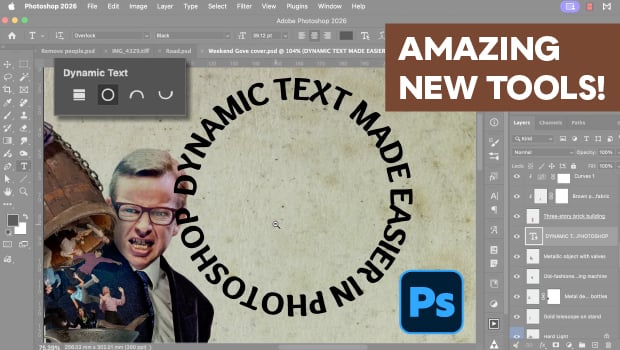
New Photoshop Tools in the Early 2026 Update
Steve Caplin gives a thorough tour of Photoshop's new April 2026 features!
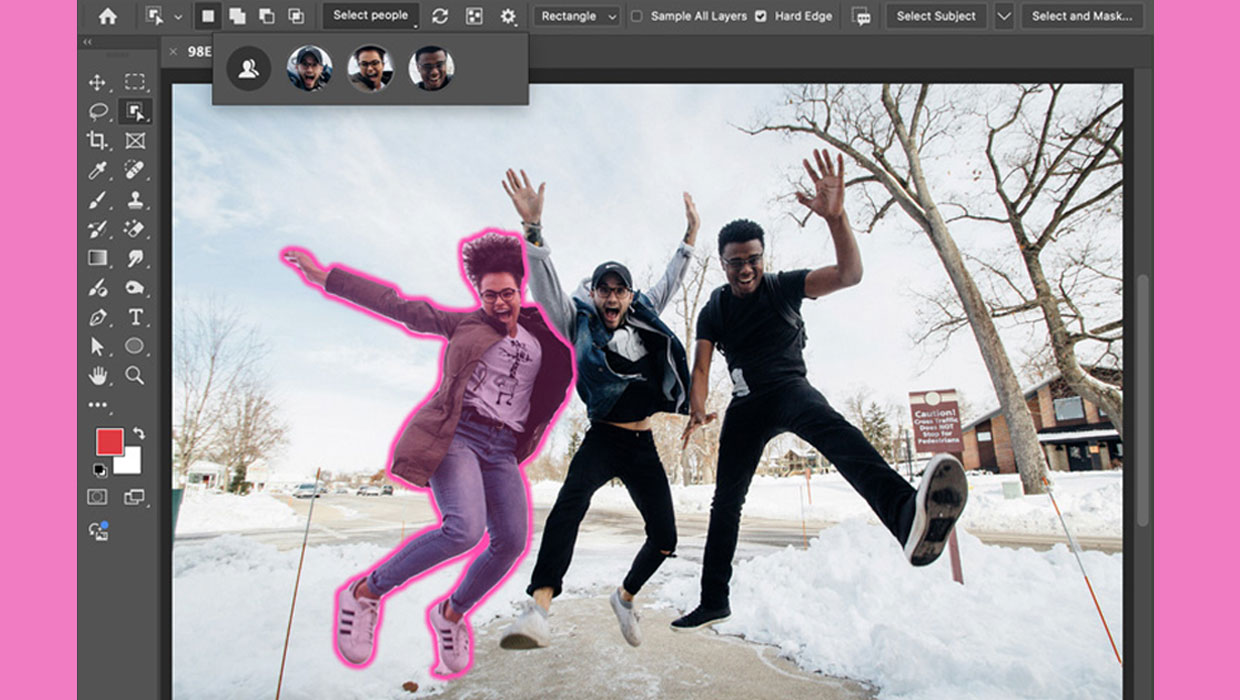
New Features in Photoshop 2025
New features in Photoshop 2025 including powerful new ways to select, mask, and...
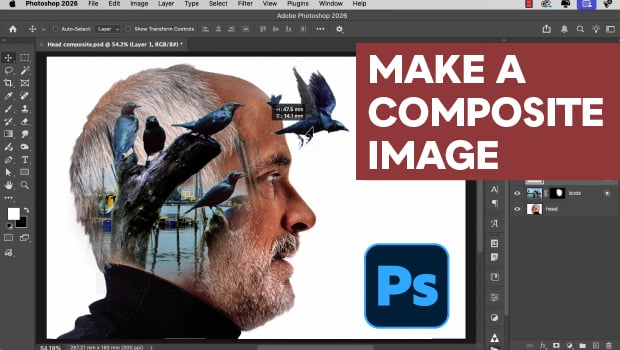
How to Easily Composite an Image in Photoshop
Create an imaginative image of inner thoughts with Steve Caplin.