




In this Three Minutes Max video, Laura Coyle shows how to create artboards in Illustrator from individual items using the Artboard tool. She then continues to bulk name all of the artboards sequentially. Lastly, Laura rearranges their order in the Artboards panel and their position is then updated in the layout.
Three Minutes Max comes from a fun—yet very competitive—session at our annual CreativePro Week conference. Speakers have three minutes to wow the audience with the tip and win a prize for a lucky conference attendee.
Subscribe to the CreativePro YouTube channel for more helpful design tips!
This article was last modified on August 29, 2025
This article was first published on March 5, 2024
Commenting is easier and faster when you're logged in!

Recommended for you

Illustrator CC 2018 New Features
Adobe Illustrator CC 2018 brings several exciting enhancements, including Variab...

Illustrator Downloadable: Frosted Flakes and Frames
Use this Illustrator file to add a snowy touch to your artwork.
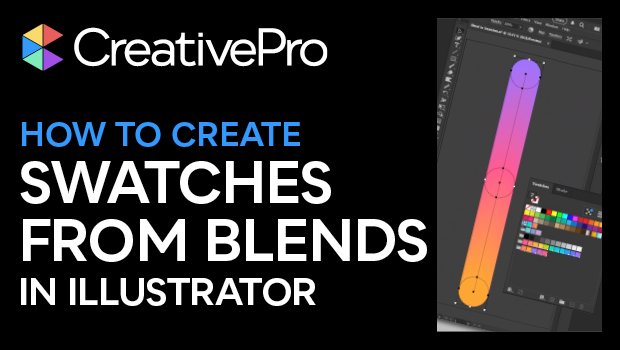
How to Create Swatch Groups from Color Blends in Illustrator
Learn how to create swatch groups from color blends in Illustrator and save them...