




If you’ve ever been stuck finding and fixing a bunch of partially italic words in InDesign, get ready to be amazed by this GREP solution posted by Dhafir Photo in our forums.
The problem:

(Exaggerated but you get the point. All these words should be italic except “are”)
The solution:
Open Find/Change and in the GREP tab, enter the following:
In Find What: [\S]+
In Find Format: + Italic
Together, these conditions match everything in italic except breaks.
In Change To: $0~j
(Add a non-joiner after the found text.)

The purpose of the non-joiner is to be a zero-width marker at the end of italic formatting.
After running the Find/Change, you can see the non-joiners if you show hidden characters. They look like carons (upside down carets).

Now, we need to find all the non-italics before and after the non-joiner and make them italic. For that, enter the following:
In Find What: \p{l*}*~j\p{l*}*
(any letter of any language, zero or more times, followed by a non-joiner, followed by any letter of any language, zero or more times)
In Change Format: + Italic

Now we have the formatting we want.

The only thing left to do is clean up the non-joiners, with the following:
In Find What: ~j
Leave Change To empty.
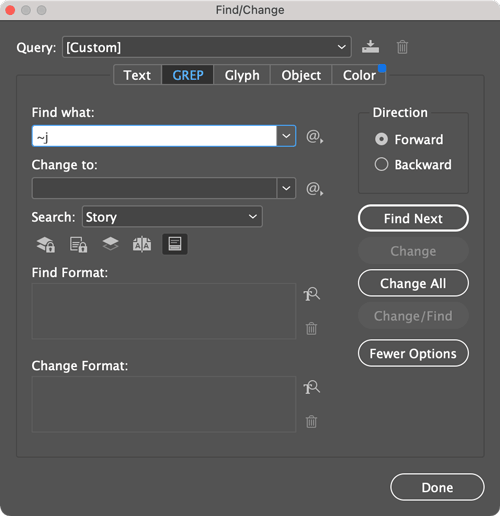
The final result:

Commenting is easier and faster when you're logged in!

Recommended for you

An Unexpected Use for the Hyperlinks Panel
The other day I was working on some chapters for a book I was typesetting, when...
How to Apply Styles Quickly to Formatted Text in InDesign
Learn how to take InDesign text that has formatting already applied and assign s...
InDesign How-to Video: Use Indent to Here
In this week’s InDesignSecrets video, David Blatner explains what InDesign’s Ind...