



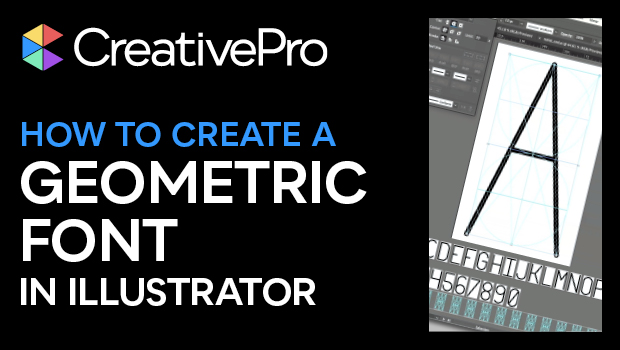
In this “Three Minutes Max” video, Nigel French shows how to use a geometric shape as a guide to create a unicase font in Illustrator. He starts by converting the grid to actual guides and then uses the Live Paint Bucket to create each segment of the individual glyphs.
Three Minutes Max comes from a fun—yet very competitive—session at our annual CreativePro Week conference. Speakers have three minutes to wow the audience with the tip and win a prize for a lucky conference attendee.
Subscribe to the CreativePro YouTube channel for more helpful design tips!
This article was last modified on August 29, 2025
This article was first published on September 20, 2024
Commenting is easier and faster when you're logged in!

Recommended for you

Interview with Ari Weinstein, Illustrator and Branding Expert
Q&A with illustrator, author, and branding expert Ari Weinstein

How to Fix the Fill on Items with Wavy Strokes
InDesign's “fancy” stroke styles don’t adhere to shape of the path you apply the...
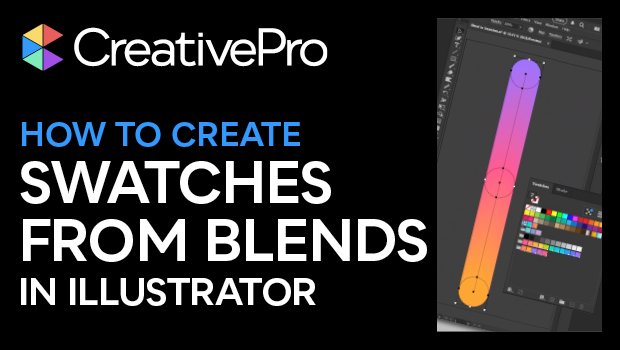
How to Create Swatch Groups from Color Blends in Illustrator
Learn how to create swatch groups from color blends in Illustrator and save them...