


GREP of the Month: Reveal Codes
Normally, you can’t target text with mixed formatting in a GREP search. But with this workaround, it’s a cinch.


This article appears in Issue 76 of InDesign Magazine.
Normally, you can’t target text with mixed formatting in a GREP search. But with this workaround, it’s a cinch.
A limitation of GREP searches (and of normal text searches too) is that everything you’re looking for must be in the same style. Thus, it’s not possible to formulate a GREP expression along the lines of “find certain punctuation in italic that is followed by a non-italic space.” This can be a bad limitation, but fortunately there’s a way around this problem: you can reveal all or some formatting codes.

Using GREP expressions, you can temporarily add HTML-like tags that spell out formatting in a way that you can use and manipulate. For example, to show all italic formatting, enter .+ in the Find What field, <i>$0</i> in the Change To field, and then set Italic in the Find Format panel and Regular (or Roman, or whatever the non-italic style is called) in the Change Format panel (Figure 1). The find expression matches everything in italic. The replace expression uses $0, which stands for “whatever was matched by the find expression.” Instead of the HTML-style tags <i> and </i> that we used here, you can of course use any form: %i% and %/i% would do fine too, as would @i@ and #i#—it doesn’t matter much.
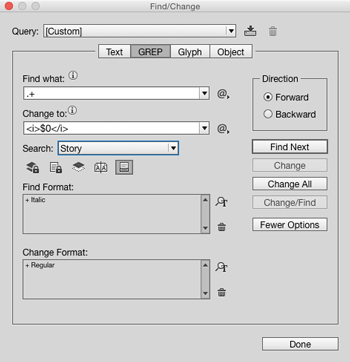
Figure 1: A GREP Find/Change to wrap all italic characters in tags that you can use in another GREP operation.
After running this query, your text could contain things like ;</i> (where there’s a space after the closing angle bracket). To find italic punctuation followed by a non-italic space, we can now
search for [:;,.]</i>x20 (you’ll recall that x20 stands for the space character). To get that punctuation out of italics, search using the GREP expression ([:;,.])</i>x20, and use </i>$1x20 as the replacement string.
To reinstate the italic formatting, use the Find What string <i>(.+?)</i>, the Change To string $1, and set Italic in the Change Format panel (make sure that you leave the Find Format panel blank).
Commenting is easier and faster when you're logged in!

Recommended for you

Find and Remove Repeated Words Using GREP
This GREP query will do a much better job of tracking down repeated words than I...
Favorite GREP Expressions You Can Use
You don't always have to figure out all the GREP codes yourself! Here's a bunch...
Formatting Code in InDesign with GREP Styles
You don't have to be a geek to love the power of GREP styles.