You know I love GREP in InDesign. It’s an incredibly powerful way to format or find or change a lot of text very quickly. However, there is one significant problem with GREP that people rarely talk about… and if you aren’t aware of it, the problem can really bite you badly. I want to explain the problem and then share a couple of possible solutions.
The problem involves using the GREP tab of the Find/Change dialog box to alter text that already has formatting applied to it. For example, let’s look at a simple list, where the family names are tagged with a character style:

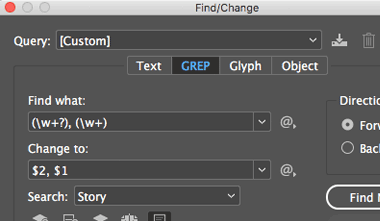
Let’s say that we want to swap the names, so the first name comes at the beginning of each paragraph. So we open Find/Change and use a relatively simple GREP expression to find the first word followed by a comma, followed by another word:
I should point out that this is just a simple approach… see this article for more on swapping names.
Anyway, when we click Change All, we find a couple of problems:

First, the comma still separates the names. That’s because I accidentally typed the comma in the Change To field. Oops! That’s easy to fix.
But the bigger problem is the formatting. See how the formatting stayed at the beginning of the paragraph? On the 3rd line, the original had 10 characters set to the bold style… and after the Find/Change, the first 10 characters are still bold — but it’s the wrong 10 characters!
This is the problem with GREP Find/Change on formatted text. And obviously it can cause huge mistakes!
In general, you want to do all your text clean up (with find/change, etc) before you apply formatting. But what if you need to use GREP Find/Change on formatted text?
Two Solutions
The first solution to this problem is to export the story in the “InDesign Tagged Text” format (using File > Export). When you do that, you get a text file that you can open in any text editor:
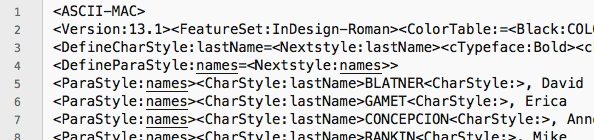
The formatting is all applied using tags. However, this is different than markup (such as XML or HTML) where there is generally a beginning and ending tag. It uses different rules.
(Note that the tagged text file above is exported using “Verbose” tags… that’s one of the options you’ll see when you export the story. This setting makes it easier for humans to read.)
You can pretty much understand what’s going on. For example, on line 5 above, there’s a paragraph style called “names” applied to the paragraph, and then a character style called “lastName” applied to one word, and then the character style is turned off (disabled) for the rest of the paragraph.
So if you’re using a text editor that understands GREP (such as BBEdit on the Mac), then you can easily work with this text. Note, however, that different programs use slightly different GREP commands. For example, where we’d write $2 in InDesign (to replace with the second string of text it found), BBEdit uses the code \2.
Here’s the Find dialog box from BBEdit, searching for the whole paragraph and then rearranging it with the proper formatting tags:

You may notice in the Replace field there are some other strange GREP tags: \L and \E. These are tags that, sadly, InDesign does not support at all. The code \L means “start converting text to lowercase,” and \E means stop the conversion. So the result is that all the characters in the family name (except the first one) are converted to lowercase. Here’s how it appears after we press Replace All:

Gotta’ admit that’s pretty awesome, eh? But of course, it’s even better once we save the new tagged text file and import it into InDesign, replacing the original text:
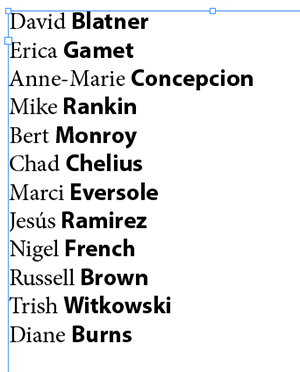
Tagged text is one method for managing already-formatted text with GREP. I showed this method recently at The InDesign Conference, and Peter Kahrel (who was lurking in the back of the room) later said he prefers a different method that doesn’t require exporting tagged text.
His method is to convert all the formatted text into tags inside the InDesign document itself! For example, italic text could be changed (by Find/Change or with a script) to be unformatted and with tags around it, such as this:
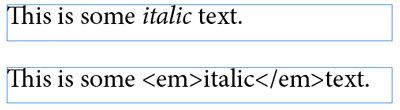
Once there are tags around it, you can do the GREP Find/Change in InDesign itself. With luck we’ll convince Peter to write up this technique in a future article for InDesign Magazine!
Now you know what to watch out for, why it’s important, and some ways to possibly work around this limitation.
This article was last modified on July 7, 2021
This article was first published on June 18, 2018
Commenting is easier and faster when you're logged in!

Recommended for you

InDesign Magazine Issue 74: Flipbooks
We’re happy to announce that InDesign Magazine Issue 74 (June, 2015) is now avai...

Excluding Items with Specific Formatting in InDesign Find/Change
Did you ever wish you could modify all text or objects that are not formatted a...