



It’s time to reveal the solution—and the winner—for this month’s InDesignSecrets contest!
Here’s the scenario:
Someone has provided you with an InDesign file containing shapes resembling traffic signs, and some paragraph styles to format the text that needs to be added to the signs.

When you first add the text, there’s nothing unusual.
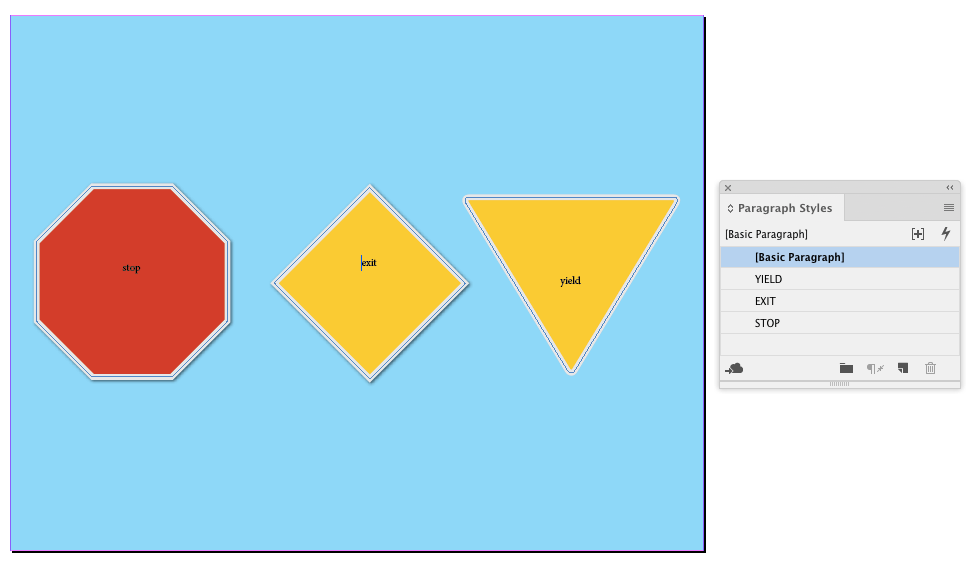
But when you apply the styles, all the signs turn green.
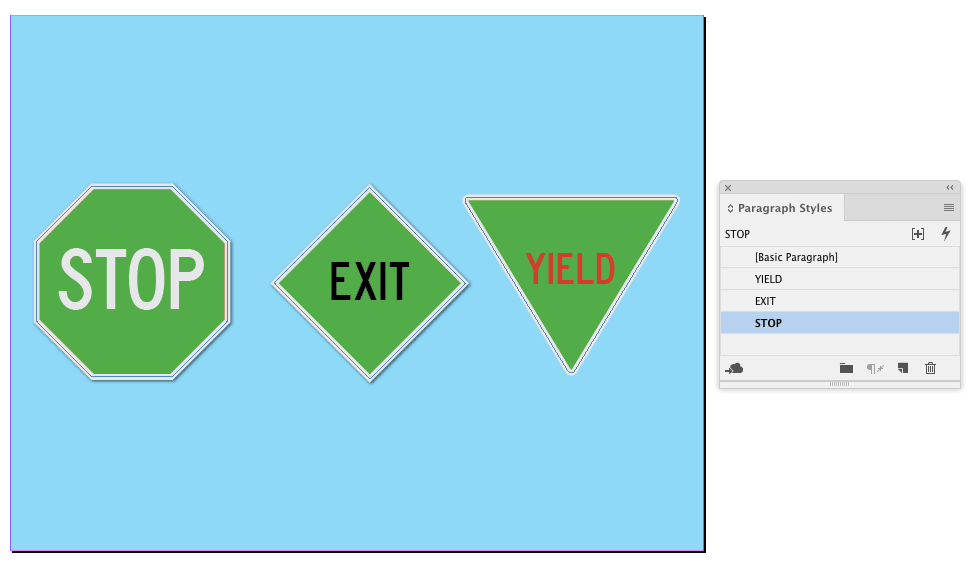
The fill colors applied to the objects have not changed.

There are no other objects on the page that would cause the color change.
Why do the signs change color when the text is styled?
The answer is that the paragraph styles all had Paragraph Shading turned on. The size of the Offsets was large enough to fill the signs. And Clip to Frame was selected, so the shading did not extend beyond the edges of the signs.

Bonus Answer
While I was only thinking of Paragraph Shading when I created the contest, some of you pointed out in your entries that there is another way to achieve the same results with paragraph rules. Normally, a paragraph rule would be visible outside the bounds of the signs since there is no “Clip to Frame” option for rules (Keep in Frame won’t work). However, if you paste a larger text frame inside the sign frame, then the sign frame works as a mask and you get the right effect. So I accepted those entries as correct.
And the winner of this contest is…
José Muñoz
José wins 3 months access to videos of any 2 days of CreativePro Week 2018.
Thanks to everyone who entered, and be on the lookout for another contest with a new great prize next month!
This article was last modified on July 7, 2021
This article was first published on August 30, 2018
Commenting is easier and faster when you're logged in!

Recommended for you

Tip of the Week: 3 Ways to Highlight Text
This InDesign tip on using the Story Editor when designing with text was sent to...
The Case of the Shifting Spot Contest Answer and Winner
The solution to our latest InDesign mystery revealed.
New Contest! The Mystery of the Phantom Fill and Stroke
Solve this InDesign mystery for a chance at winning a great prize.