


Get Your InDesign Content into Photoshop
David Blatner and Conrad Chavez share tips for using InDesign content in your Photoshop documents with maximum quality and efficiency.



This article appears in Issue 107 of InDesign Magazine.
Imagine you’re standing at your workbench, screwdriver in hand. You’ve used that screwdriver to assemble a wonderful object, and now it’s time to paint it. You know the screwdriver will help you open the can of paint… but did you know you can even paint with the screwdriver? You can… but it’s just not going to work very well, and soon you’ll wish you had a different tool—like a paintbrush.
These days, your workbench is your computer, and your toolbox is probably the Adobe Creative Cloud (or Creative Suite, if you’re old school). In our poetic analogy, the screwdriver is InDesign (with which you put everything together, right?) and the paintbrush is, of course, Photoshop. And while you can obviously construct and finish a document entirely with InDesign, sometimes—not usually, but sometimes—you’ll want to insert your InDesign artwork into Photoshop.
For example, we all know InDesign is better than Photoshop—graphically and typographically—for many advanced layouts. So you may use InDesign to build the structure and form of a large poster—getting the text just right—and then finish it by applying crazy graphic or color effects in Photoshop.
Similarly, you might want to design something in InDesign that will end up on the web or in a video. Photoshop is far better at exporting for web and other onscreen formats.
Of course, in a conventional publishing workflow, Adobe InDesign is the hub where you lay out content created in other applications. But let’s see how this machine can run backward—using InDesign as the source for content you want to use in a Photoshop document.
The hitch is that while InDesign is designed to import Photoshop files directly, Photoshop cannot read the InDesign document format. But that’s okay: we’ve got ways to make the connection.
class=”s1″>Creative Cloud Libraries
If you’re a CC user, probably the easiest way to move InDesign content to Photoshop is using Creative Cloud Libraries. It’s just two steps, with no commands or shortcuts to remember: in InDesign, just drag the content into the CC Libraries panel, and in Photoshop just drag the same content from the Libraries panel into the Photoshop document (Figure 1). That’s it!

Figure 1. Creative Cloud Libraries are an easy way to transfer InDesign objects to Photoshop.
The InDesign library item becomes a Smart Object layer in Photoshop, linked back to the library item (not the InDesign document). If you double-click the Smart Object layer or click Edit Contents in the Properties panel in Photoshop, the library item opens in InDesign, where you can edit its objects.
Or, you can Option-drag (Mac) or Alt-drag (Windows) the library item into a Photoshop document. In that case, Photoshop adds the item as an embedded Smart Object layer. That makes it more portable (it’s no longer linked to the Creative Cloud library), but if you double-click this Smart Object layer, it opens in Acrobat… which isn’t very useful.
Copy/Paste
Often it’s the simplest things that end up being the most complicated. These are both Adobe programs, right? So copying and pasting InDesign objects into Photoshop should be a no-brainer. And you can do this, but unfortunately, InDesign objects paste into Photoshop as a single vector Smart Object. That means that not only are the contents non-editable in Photoshop, but if you double-click the smart object layer, it opens in Illustrator!
You can edit the individual elements in the Illustrator file, save it, close it, and return to Photoshop, and Photoshop will update. But there’s one big problem: every paragraph of text is broken up into single lines.
Ultimately, we don’t recommend using copy and paste to transfer content. But copying and pasting is sometimes good enough with small amounts of content, especially for vector paths and single lines of type.
Tip: While copy and paste from InDesign into Photoshop is limited, you can often get better results if you paste into Illustrator first. Then, in Illustrator, copy the object to the clipboard, and paste that into Photoshop. Now Photoshop asks how you want to paste the data: as a smart object layer, pixels, paths, or a shape layer (Figure 2). If you’re looking for paths or a shape layer, you also need to first convert text to outlines in either InDesign or Illustrator.

Figure 2. When you copy and paste InDesign objects through Illustrator into Photoshop, you can choose how Photoshop should use them.
When Copy/Paste Fails
If you try to copy and paste from InDesign into Photoshop and it fails, check your InDesign preferences. Open the Preferences dialog box, select the Clipboard Handling pane, and make sure Copy PDF to Clipboard is selected. If it isn’t, InDesign clipboard contents won’t be available for pasting in Photoshop.
By the way, dragging and dropping from InDesign to Photoshop works exactly the same way as copying and pasting; it’s also affected by the InDesign clipboard preferences.
PDF to the Rescue
When you want to import a Photoshop file into InDesign, you use File > Place, right? Well, the Photoshop File menu has two Place commands: Place Embedded and Place Linked. However, as we noted earlier, these features can’t place native InDesign files. So you need an intermediate file format, and the best is PDF. Export your InDesign document as a PDF using a PDF Preset that maintains the highest fidelity—we suggest PDF/X-4.
Now you can bring that PDF into Photoshop in one of three ways. First, you can simply open it (File > Open). If it’s a multi-page PDF, Photoshop asks you which page to open, what resolution you want, what color mode, and so on (Figure 3).
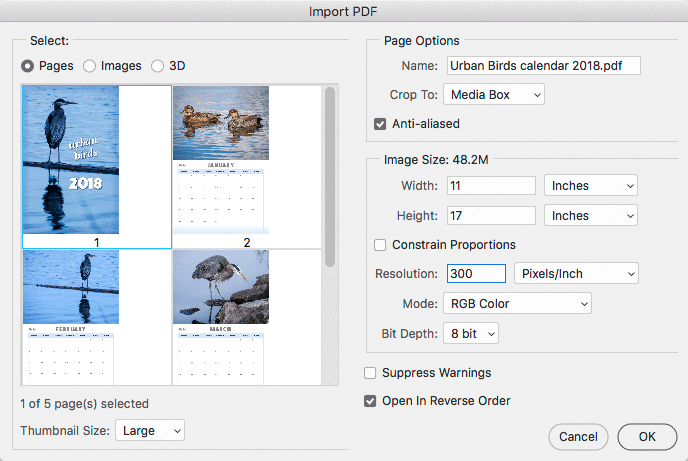
Figure 3. When you open a PDF file in Photoshop, you see the Import PDF dialog box.
You can open more than one page of the PDF by Shift- or Command/Ctrl-clicking on each thumbnail in the Import PDF dialog box. The drawbacks? Everything is rasterized into pixels, and each page is opened as a separate Photoshop document. (It would be cool if Adobe added a feature that let you open them all as multiple artboards in a single file.)
You can also import the PDF into an existing Photoshop file by choosing File > Place Embedded, which gives you a similar import dialog box, but only lets you choose a single page. When you click OK, Photoshop creates a Smart Object Layer. This acts the same way as Option/Alt-dragging the artwork from the CC Library: the artwork is embedded in the Photoshop file, but if you later double-click the layer in the Layers panel, it opens in Acrobat—again, not very useful.
For maximum flexibility, we suggest using File > Place Linked. This creates a “linked layer,” where there’s a relationship between the Photoshop and the PDF files on disk. The great benefit here is that if your InDesign file changes, you can simply re-export the PDF (replacing the one on disk), and when you return to Photoshop, the linked layer is automatically updated.
For example, suppose you’re promoting a calendar produced using InDesign, and you’re designing a web ad for the calendar using a Photoshop template for a standard web ad size. You want to show a group of calendar pages in the ad, so it makes sense to take those pages from the original InDesign document. Here’s a process you could use:
1. In InDesign, export the entire calendar as a PDF file. 2. In Photoshop, choose File > Place Linked, and choose the PDF file. 3. In the Open as Smart Object dialog box, select the page you want to import, and click OK (Figure 4).
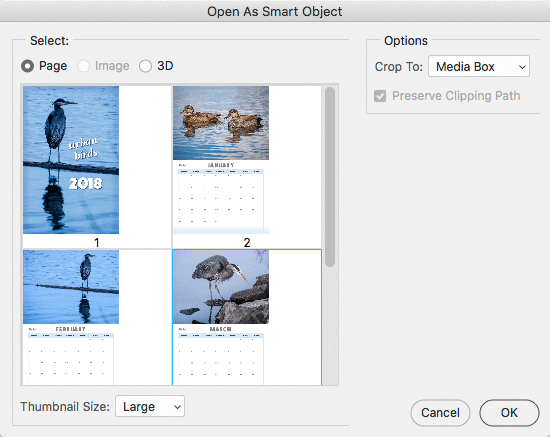
Figure 4. When you use the Place Linked command, you see the Open as Smart Object dialog box.
4. Use the Options bar or the bounding box to reposition and resize the page as needed (Shift-drag a handle to preserve proportions), and press Enter or Return to finish placing the page.
5. Repeat steps 2–4 for any additional pages you want to add (Figure 5).

Figure 5. The three calendar pages at the bottom of this Photoshop web ad are PDF pages exported from an InDesign document.
You might notice that when you place a PDF file in Photoshop, you don’t get to specify pixel dimensions or resolution as you do when you open a PDF file. That’s actually a good thing. Because placed PDF files are Smart Objects, they maintain all of their original resolution and vector data until output time, so you can resize and transform them as freely as files you place into InDesign.
Tip: You can Option-drag (Mac) or Alt-drag (Windows) the PDF file from the desktop into the Photoshop document window; that’s a shortcut for the Place Linked command. (Dragging the file into Photoshop without holding Option/Alt embeds the PDF instead.)
Once again, if you later edit the original InDesign document (in this case, updating the calendar), simply repeat the export to PDF, replacing the original. When you return to Photoshop, you’ll find that any Smart Objects linked to the PDF file automatically update.
This PDF method is the only way for you to update InDesign content inside a Photoshop document after the source InDesign document changes. If you move InDesign content to Photoshop using Creative Cloud Libraries or the clipboard, the content becomes disconnected from its source InDesign document.
Place Media Box
When you open or place a PDF file in Photoshop, you have an option for how to crop the PDF file. We suggest choosing Media Box in the Crop To popup menu rather than the default value, Bounding Box. The reason: there appears to be a bug in Photoshop that, if you use Bounding Box, may result in the image moving on the layer the first time it is updated.
Maintaining Layers
The biggest problem with all the solutions listed above is that all your InDesign objects (text frames, images, lines, and so on) are flattened into a single layer in Photoshop. What if you want each InDesign layer to show up on its own layer in the Photoshop document? It’s possible!
The solution is to export each layer, one at a time, as a PDF, and then open or link to the PDFs in Photoshop. We admit, it’s a bit of a hassle. (You need to turn off all layers except one, then export, then switch to a different layer and repeat…)
Fortunately, if you’re on a Mac, there is a free script that steps through the process automatically, so in just a couple of clicks your layered InDesign document is re-created as a layered Photoshop file. (It’s Mac-only because the developer wrote it in AppleScript.)
You can learn more about the script (and its limitations) in this article. Or, if you’re a Lynda.com subscriber, you can watch a video of it in action here.
What About PNG and JPEG?
InDesign also lets you export one or more pages of your document as PNG or JPEG images, which can of course be opened in Photoshop. We prefer the PDF route for two reasons: first, we find the image quality is very slightly better when opening the PDF. Second, and more importantly, PNG and JPEG files always have a specific resolution, and sometimes it’s difficult to figure out the correct export resolution. See more on this topic in this article and here, regarding a script to perform the task.
From Vectors to Pixels
There are a few important things to remember when you move an InDesign document into Photoshop. Unlike an InDesign document, a Photoshop document always has a fixed number of pixels, and at final output, all layers are rasterized (turned into pixels) at those pixel dimensions. Even at 300 ppi, your vector typography and paths may be visibly pixelated when you print or output a Photoshop document. And if you’ve combined RGB and CMYK artwork in InDesign, you must choose one color space or the other for everything in Photoshop. There’s just no way around it.
To preserve the quality of graphics you import into Photoshop, place them as Smart Objects so that the vector elements are maintained and the image elements keep their original resolution. But, as we said above, they’ll still get rasterized when you export or print.
Off the Page and Onto the Canvas
Despite the limitations, there are plenty of times when moving your artwork from InDesign to Photoshop makes sense—from creating web images to building artwork that requires both the structure and control of InDesign and the infinite flexibility of Photoshop. And it’s those times that remind us how good it is to have the right tools—plural—for the job.
Commenting is easier and faster when you're logged in!

Recommended for you

InQuestion: Placing an Image Into a Grid
Q: I’d like to place an image into my layout and have it look as though it’s bei...

CreativePro Week Conference Speaker Spotlight: Bert Monroy, the Digital Art Pioneer
Welcome to our Speaker Spotlight series, designed to highlight some of our Creat...

Building an Underwater Scene in Photoshop, Part 2
In the previous tutorial, we saw how to assemble all the elements of our underwa...