


Formatting Fractions


by Ben Richardson
Formatting fractions can be quite easy when you’re using high-quality OpenType fonts. Just select the fraction text and choose Open Type > Fractions from the Character panel menu.
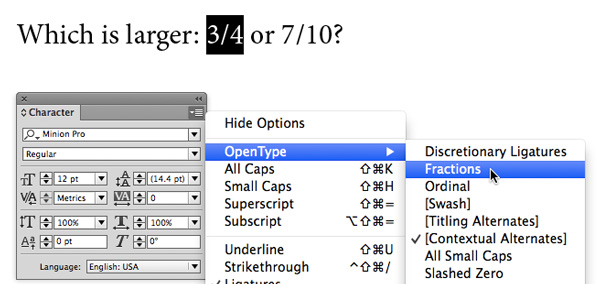

But when you are working on something like textbook or a cookbook, you can easily have dozens (or hundreds) of fractions to set. And then it can be far too time-consuming and tedious to do the job manually. Unfortunately, you can’t just select all the text and switch on the Fractions option because whole numbers, slashes, periods, and commas might be treated as parts of fractions. Luckily, there is a way to automate the job to finish it in a matter of minutes, no matter how long your document/book might be. And that is to use GREP styles.
Using GREP Styles for Fraction Formatting
You can apply the OpenType fractions option to your whole document at once using GREP Styles, which basically work like the Find/Change feature, but within a style. To do this, start by opening the Paragraph Styles panel (Type > Paragraph Styles), then right-click the appropriate style and choose Edit.
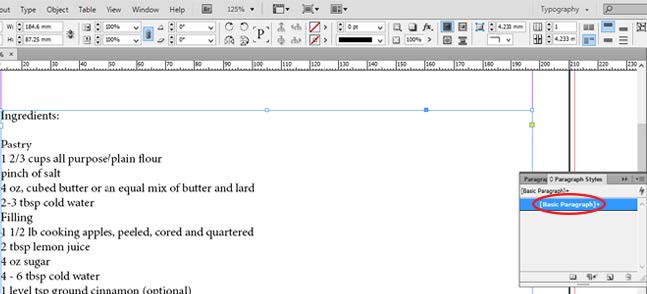
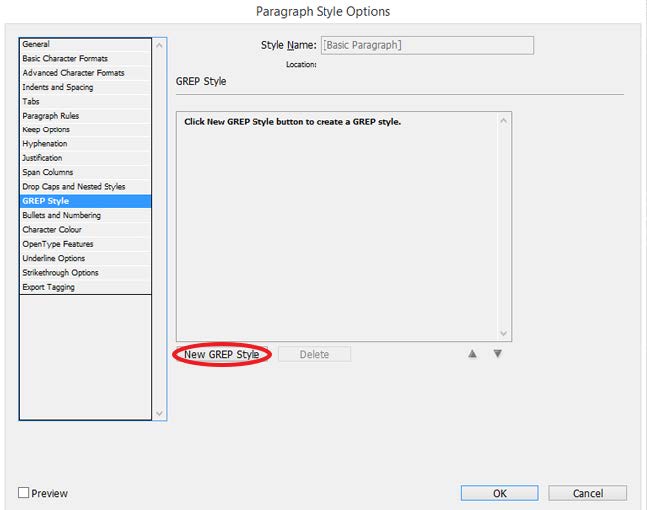
Select GREP Style in the left-hand menu, and click on New GREP Style.
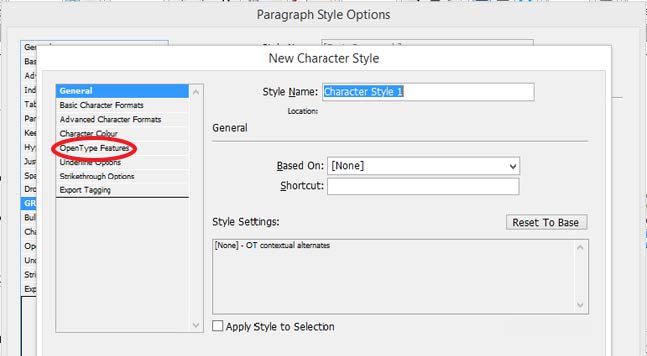
Where it says Apply Style, click on [None] twice then choose New Character Style from the menu.
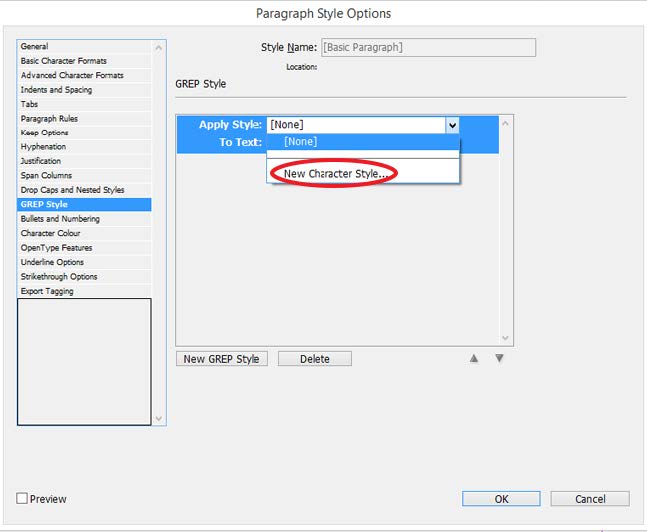
Select OpenType Features in the left-hand menu.
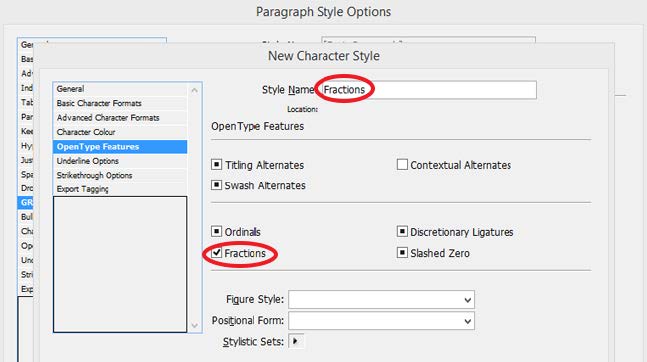
Name your new Character Style, enable the Fractions option, and click OK to go back to the Paragraph Style window.
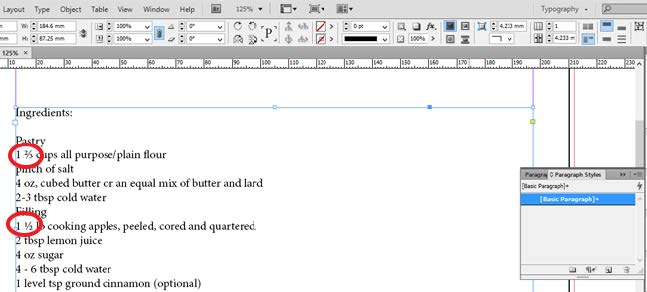
To create a GREP style to find fractions, you need to set the To Text field appropriately. Since \d stands for any digit, \d/\d will make it search for digit/digit. That means this will work for 1/2 but not 12/9, for example. In order to turn 12/9 into a fraction, you’ll need \d+/\d+, as the plus sign stands for “one or more” digits. However, \d+/\d+ will format whole numbers too, resulting in mixed numbers like 1½ being turned into 11/2. Enter either \d/\d or \d+/\d+, depending on what type of fractions you’re working with.

By clicking OK and closing the Paragraph Style window, all the fractions within that style will be formatted automatically.
One thing to keep an eye on are dates written in numerical form, such as 12/12/2014, as they might be considered fractions. If this happens, you can create another GREP style to search for them and apply a separate character style to remove fraction formatting. Have your Date GREP style search for \d+/\d+/\d+ and have it remove OpenType fractions (deselect the Fractions checkbox). Also, make sure that the Date GREP style appears below the Fraction GREP style in the panel, since InDesign applies GREP styles in the order in which they are listed.

Using Fonts Without OpenType Fraction Support
Now that you’ve saved some time by automating this formatting process, you might wonder what to do with fonts that don’t support fractions. If there’s a whole document you need to set up in this font, you might want to consider downloading an InDesign script or plug-in that will take care of this for you. There are several available online that are free, and some Pro versions even recognize dates and leave them alone. Blatner Tools has some powerful features for handling fractions. And if you face this issue very often, it might be a good idea to invest in a full-featured OpenType font that includes fractions, as it will save you a lot of time.
If you just need one or two fractions in a display font, you can use this simple trick.
Select the first number and click on the superscript button in the character menu.
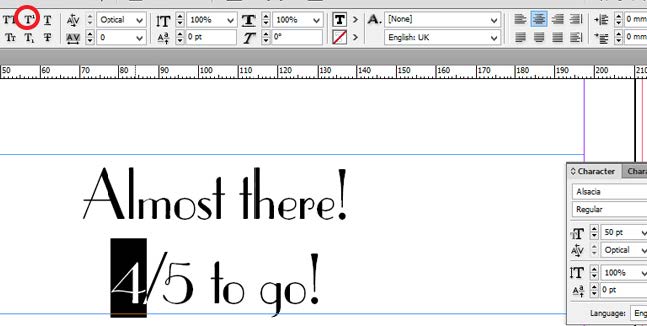
Then select the second number and click on the subscript button in the same menu.
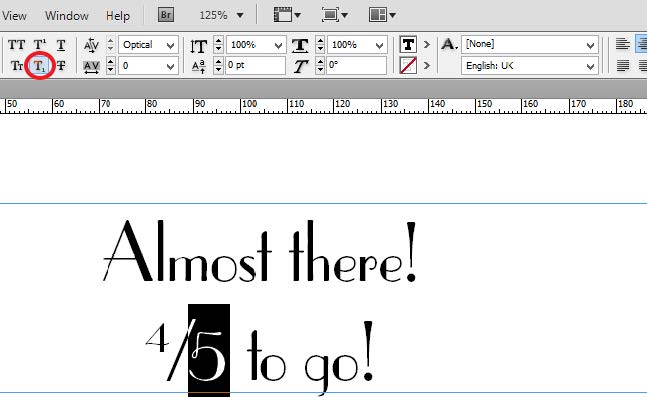
The subscript option will probably put the number too low, so shift the baseline in the character menu.

You might want to also play with kerning and replace the standard slash character with a true fraction bar (Shift+Option+1 on Mac; Shift+Alt+1 on Windows) to make a good-looking fraction. It depends on the font you’re using.

As you can see, both GREP styles and the baseline shift tricks are easily applicable and not very complex. Fractions can make your job a bit hard sometimes, but hopefully this tutorial will help with that.
Editor’s Note: Also check out our resource page on GREP here.
***
Ben Richardson is director of Acuity Training an IT training business based in Guildford, UK and is sharing some of the tips that delegates have found more useful from their InDesign classes.
This article was last modified on July 8, 2021
This article was first published on August 1, 2014
Commenting is easier and faster when you're logged in!

Recommended for you
A Script to Edit Styles with Find/Change
Bookraft Solutions has created a really useful script that will be of interest t...
GREP of the Month: Negating Characters
Learn how to exclude a single character (or a range of them) with these handy GR...
Using Conditional Text for Web Addresses in Multi-Channel Publishing
Using the same layout for a print and digital version of a project? There are pl...