


For Position Only: Designing PDF E-Books, Part 2


One week ago in this space I discussed how to design readable e-books in PageMaker and InDesign, and export them to PDF as the books’ final format. As I explained then, these two applications allow the text in your resulting PDF files to reflow, so that readers can comfortably view your e-book pages no matter which the device they view it on. (To refresh your memory or if you missed my last column, read it here.)
Go with the Flow
Adobe added text reflow to Acrobat 5.0; readers must have either the full version or Reader 5.0 for the feature to work. Reflow is also in Reader for the Palm and Reader for Pocket PC, but not (surprisingly) in Adobe’s eBook Reader 2.2. I must say, it’s way cool.
With your e-book (or any tagged PDF file) open in one of the supporting readers, choose View > Reflow, or click the Reflow button in the toolbar (it has a page icon with a squiggly arrow on it). Now you can drag to resize the document window, and the text reflows to fit the new size and shape (see figure 1). The page construct — the contents as defined on the original PDF page — remains intact, so if you size it small, the page grows “longer” and you have to scroll more to read it (see figure 2). If you size it large, the page is “shorter,” requiring less scrolling (see figure 3).

Figure 1: Original page.
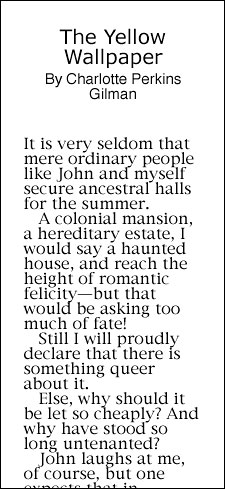
Figure 2: Document window resized smaller, creating “longer” page.
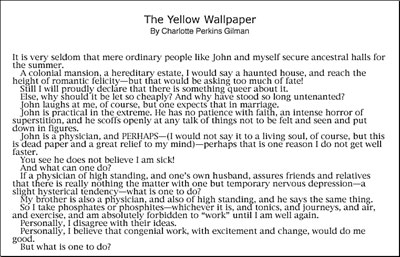
Figure 3: Document window resized larger, creating “shorter” page. (Image size reduced 50 percent to fit this page).
Now is a good time for me to emphasize that if you’re designing the e-book in PageMaker, you must use the new 7.0.1 update. PageMaker 7.0 has a bug that causes line breaks in tagged PDF files to reflow improperly in Acrobat 5.0. This problem is fixed in PageMaker 7.0.1. But should you encounter problems with reflowed text, Acrobat does let you finesse it.
In Acrobat, with Reflow mode toggled off, select any characters or words that you want to edit with the TouchUp Text tool; Acrobat highlights the entire line of text. Then choose Tools > TouchUp > Text Breaks. Acrobat will pop up a Text Breaks window, which indicates word breaks and identifies unrecognizable glyphs with question marks. You can go ahead and edit the text in the PDF — add a missing word, make a deletion, fix a typo, and so on — and the change will be reflected in the Text Breaks window (and your line will lengthen or shorten accordingly).
You can also add soft hyphens, line breaks, non-breaking spaces, and em dashes by choosing Tools > TouchUp > Insert and selecting any of those characters. All changes you make can be saved in the PDF and will reflow for the next person who opens and reads the PDF file.
This article was last modified on January 8, 2023
This article was first published on March 14, 2002
Commenting is easier and faster when you're logged in!

Recommended for you
InDesign How-To: Create Anchored Form Fields
See how to anchor fillable form fields so they flow with text and how to quickly...

A Script for Accessing OpenType Features in InDesign
This free script makes it easier than ever to access OpenType features like disc...

Five Paper Tips from Xerox: Use Less, Use Wisely
Memos, reports, invoices, forms, presentations and instructions are the trademar...