




This InDesign tip on the fast way to apply OpenType features to text was sent to Tip of the Week email subscribers on January 4, 2018.

Sign up now and every week you’ll get a new tip, keyboard shortcut, and roundups of new articles, plus exclusive deals sent right to your Inbox!
Just scroll down to the bottom of this page, enter your email address, and click Go! We’ll take care of the rest. Now, on with the tip!
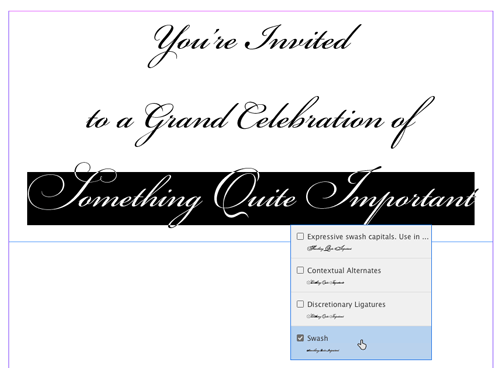
One of the benefits of using OpenType fonts is that they can contain a large number of glyphs, including features like contextual alternates, discretionary ligatures, swashes, and more. If you’re using InDesign CC 2017 or later, you have very convenient access to Open Type features via adornments attached to text frames and text selections.
Select an unthreaded text frame, and a small OpenType logo appears on the bottom right of the frame.
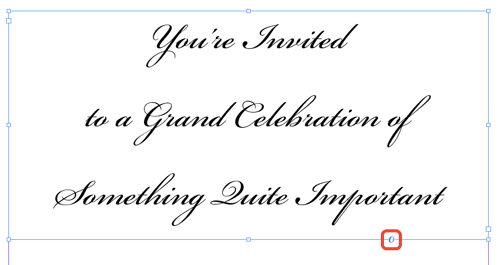
Click it and you can choose from the available options for the font(s) used in the frame.
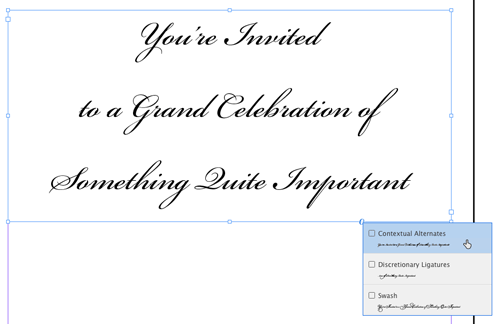
Then click the OpenType feature you want to apply.
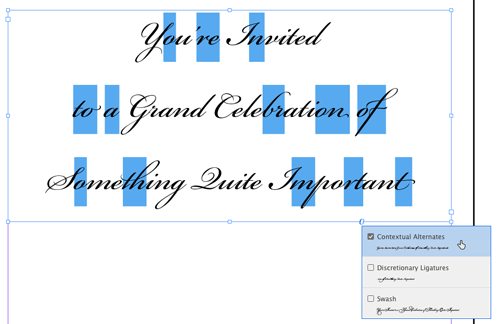
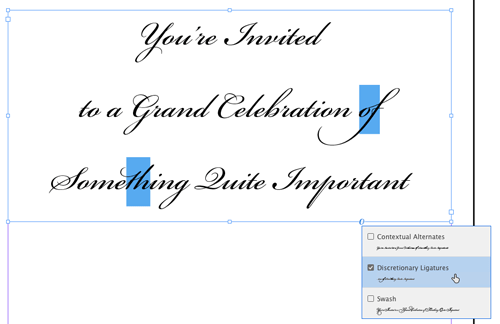

Don’t want the feature to apply to all the text in the frame? Make a selection of the text you want to change first. Then, instead of clicking the frame adornment, click the OpenType logo that appears at the below the text selection.

This article was last modified on July 20, 2021
This article was first published on January 9, 2018
Commenting is easier and faster when you're logged in!

Recommended for you
Don’t Sweat the Math—Let Photoshop Do It!
Let Photoshop—and other Adobe apps—do the math for you when entering numerical v...

Navigating and Customizing the Premiere Interface
Are you a Premiere beginner? Get started and customize your workspace with Myra...

Add Menu for InDesign’s Drawing Tools
InDesign's drawing tools are several mouse clicks away. A start-up script places...