



One great reason to use InDesign is that you can’t choose Zapf Dingbats italic, or Symbol bold. Those fonts don’t really exist (at least not in the files on my computer), so I can’t select them. Well, sometimes you just neeeed to make it a little more bold, or a bit more oblique (skewed). Please don’t tell anyone you heard it from me, but you can fake these effects in InDesign.
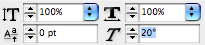
To fake an italic, set the character in its normal upright face, select it, and apply a 10- to 20-degree Skew in the Control panel or Character panel. (Or better yet, make a character style with that skew and apply that.)
To fake a bold font, apply a thin stroke to the character in the Stroke panel. To fake an outline font, fill the character with Paper (in the Swatches panel) and apply a colored stroke to it. (That’s quite handy for making hollow checkboxes from Zapf Dingbats or other “pi” fonts.
Here’s three regular characters, then made italic (oblique, slanted), bold, and outlined.
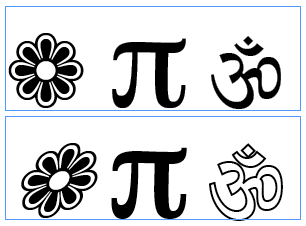
Is this an abomination? Absolutely! Is it sure to make your art director squirm? Of course! Should you do it? Well, if you need the effect, and you can make it look good enough and get away with it, then sure!
This article was last modified on December 18, 2021
This article was first published on March 31, 2008
Commenting is easier and faster when you're logged in!

Recommended for you

Setting InDesign’s Display Performance
I spend a lot of time helping people troubleshoot their InDesign files. I love t...

The Mystery Of The Reappearing Sample Button Library
How library panels can act like Tribbles and cause confusion if you're not watch...
TypeTalk: Are Free Fonts Worth the Price?
TypeTalk is a regular blog on typography. Post your questions and comments by cl...