




Andrea had just completed her InDesign training with me. A week later, she sent me an InDesign file (designed by an outside firm) that was misbehaving and asked,
As you can see from the attached INDD document, the columns on page 1 are not aligning at the top of the frame. I have checked all of the settings and can’t figure out why it is not aligning @ top. If you could suggest a way to fix that, I’d greatly appreciate it.
Here is what she referring to:
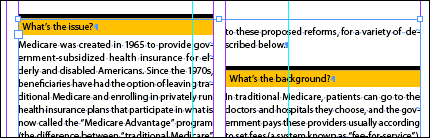
Pretty cool subhead treatment, isn’t it? The designers created a paragraph style that included both the yellow background highlighting (Rule Below) and black top rule (Rule Above).
The problem was the offset setting of the Rule Above. When I edited the Paragraph Rule settings and turned on the Keep in Frame option …
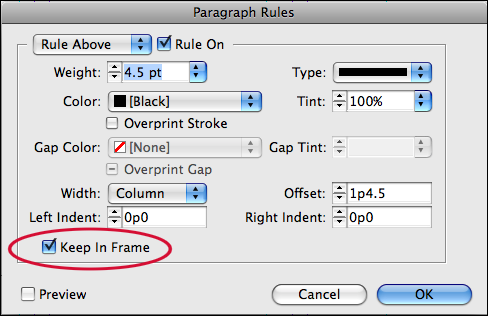
… the problem was solved:
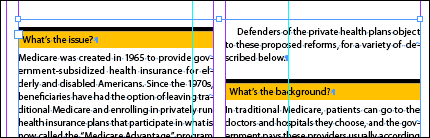
The “Keep in Frame” setting forces paragraph rules that appear at the top or bottom of a frame to fall inside it (moving the paragraph text along for the ride) instead of floating outside of the frame boundary.
That’s all … just a little tip that helped Andrea make her deadline!
This article was last modified on December 19, 2021
This article was first published on May 4, 2009
Commenting is easier and faster when you're logged in!

Recommended for you

InDesign to Print & Screen: A Best-of-All-Worlds Workflow
When the output could be PDF, EPUB, or print—or all three—there’s no need to com...

The 5 People All Creatives Need in Their Lives
As creative professionals we often find ourselves married to our work. Whether y...

Fibermark Expands FSC Portfolio with New Multicolor Line
FiberMark, a leading producer of specialty covering materials for a variety of a...