




Sometimes my role as co-founder and Editorial Director of InDesign Magazine takes me beyond editorial decisions. For example, this morning the wonderful and very capable Terri Stone (the magazine’s editor in chief, who also ends up doing far too much of the production work herself) wrote me asking why the 2-up “print” version of this issue was weighing in at 95 MB. That did seem odd, as the interactive version was only about 34 MB.
Tracking down the problem led me to learn a couple of interesting things about PDF files from InDesign — and a really cool InDesign trick that I never knew about — things which you may want to be aware of.
I have an interest in making svelte files, as evidenced by an article that I wrote with Mike Rankin called “Drop 20 Pounds with InDesign.” In that article, we mentioned Acrobat’s PDF Optimizer feature, but we neglected to point out a really cool feature inside that dialog box. If you open a PDF and choose Advanced > PDF Optimizer (at least that’s where it is in Acrobat 9… I still haven’t gotten around to installing Acrobat X yet), you’ll see a button labeled Audit Space Usage. (Remind me sometime to mention how I dislike words like “usage” and “utilize.”)
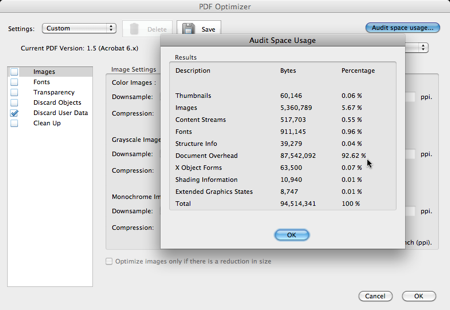
In the case of this mysterious 94 MB file, when I audited how space was being used, I found that something called Document Overhead was taking up 92.62% of the file size. I have not found any reliable sources to describe what this “overhead” is, but at this rate it sounds like the overhead at some military contractors!
Fortunately, you can remove much of the overhead. In the PDF Optimizer dialog box, turn on the Discard User Data checkbox, and then turn on Discard Document Information and Metadata. Click OK and watch the cruft disappear.
In this case, the file dropped from 94 MB to 6 MB, without any apparent change in quality or function. (I didn’t change image compression, or fonts, or any other settings.)
Lots of Other Reasons
I need to take a moment and say that document overhead is certainly not the only (or even most common) form of bloated PDF files. One of the most common reasons PDF files are too large is that people don’t understand they need to change the image compression settings. Again, check out the Drop 20 Pounds article I mentioned above.
But Why Was the Cruft There?
Okay, so it was fun to see the file size drop to 6 MB (a perfectly reasonable size for a magazine of this size). But why was it so large to begin with? What caused all that overhead? I’ll spare you my myriad troubleshooting steps, and jump to the punchline. In this case, the 2-up version of the magazine was created by taking the one-up PDF and placing it into an InDesign document (2 pages of the PDF per single InDesign page, of course), like this:
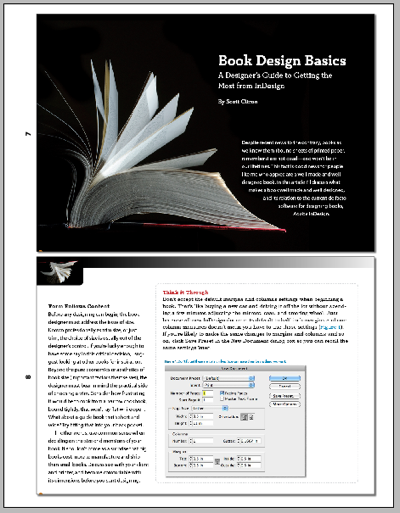
When exploring the size issue, I had a sudden thought: What if there is a bit of “overhead” in each one of those PDF pages… and that overhead gets included into the final PDF, too. The more PDF pages, the more overhead. In this case, it’s an 87-page issue, so the PDF was placed 87 times, and 87 times a little bit of overhead equals… yup, you got it!
So I wondered what would happen if I replaced the pages of the PDF with the original InDesign document itself. You can, after all, place an INDD file into InDesign just as easily as a PDF file. I tried this and exported a new PDF with the same settings, and — you saw this coming, didn’t you? — the file was 6 MB.
Does that mean placing any PDF file adds a bit of “document overhead” and that placing the equivalent INDD file is always better? I haven’t had time to try it. Let me know if you do.
Bonus Links Trick
The coolest part of the whole troubleshooting experience was that I learned something about the Links panel that I never knew (or, if I knew it, I had completely forgotten). I had the same PDF file placed 87 times, right? (One time for each page… for example, you can specify which page of a PDF you want to place by choosing Show Import Options from the Place dialog box.)
I wanted to replace page 1 of the PDF with page 1 of the INDD, page 2 with page 2, and so on. I really didn’t want to do this 87 times. So out of desperation, I tried something crazy: I selected the “master” link (the item in the Links panel that has the little twistdown triangle next to it), clicked the Relink button in the Links panel, and chose the InDesign file. I was prepared for every instance of the PDF to be replaced with Page 1 of the INDD file, but instead InDesign did exactly what I had hoped it would!
There’s even a clue that this will happen… take a look at the Links panel:

See the little :2 next to page 2, :3 next to page 3, and so on? The colon tells InDesign which page of the PDF (or INDD file, in this case) is placed. So when I replaced the whole enchilada, it was smart enough to replace it page for page. I almost cried with joy.
This article was last modified on December 21, 2021
This article was first published on June 17, 2011
Commenting is easier and faster when you're logged in!

Recommended for you
Why You Should Import RGB Images Into InDesign and Convert to CMYK On Export
Yes, we know you probably learned to convert images to CMYK in Photoshop before...
Adding Client Notes in PDFs From InDesign Using the Slug Area
The slug area in InDesign is one of the most underutilized and misunderstood fea...

Beware Stacked Transparency in PDF Files Across Long Documents
The Problem I recently encountered a PDF export problem that plagued me for mont...