



I’ve been working with Adobe’s Digital Publishing Suite (DPS) tools for more than a year now. For those of you unaware, DPS is a set of tools that works with InDesign CS5 and CS5.5 for publishing rich interactive content to tablets such as Apple’s iPad. The file format for these publications is .folio. Among the major titles using these tools is the New Yorker and Wired.
One thing that I can’t help but keep thinking is that Adobe was, shall we say, a bit unprepared for the demand that these tools would create. This is very apparent by looking at the pricing models for the only two services currently available-Professional and Enterprise. The minimum price is about to be $6,000/year for Professional and Enterprise, with its high end options such as analytics, is even higher.
For major publishers such as Condé Nast this is a drop in the bucket but to the freelancer or small agency it’s a budget buster.
While the rest of us are waiting for Adobe to hopefully come up with a low price plan there are still ways to take advantage of these tools as long as the final project doesn’t need to be branded and published to iTunes.
What You’ll Need
- InDesign CS5 or CS5.5. The DPS tools are not compatible with earlier version of InDesign.
- The free Adobe Content Viewer for the iPad. In addition to being a proofing tool for the designer, this app allows anyone with an Acrobat.com account view shared .folio files.
- A basic level Acrobat.com account to share up to 20 different folios ($15/month) or a Plus level account ($390/year) with unlimited folio sharing.
Your client will need only a free Acrobat.com account.
A Few Possibilities
I’ve seen a lot of folks that want to use the tools for sales presentations and these only need to be accessed by a small team. On the same note, special materials for tradeshows can also be distributed this way. Then there’s potential for advertising agencies to be able to create interactive ads to be submitted to magazines that will be published with DPS.
In the same way you now send PDFs, you can send an interactive ad ready to go. The ads can be viewed in all their interactive beauty by any client with an iPad and the already mentioned Acrobat.com account.
Thinking totally outside the box, you can create nice interactive photo albums that you can distribute to family and friends and as as an added bonus, can be updated as time goes on.
Sharing via Acrobat.com is Simple
So, how do you “publish” a .folio via Acrobat.com? After building your folio in InDesign open the Folio Builder panel menu and choose share. The Share dialog box will open. Provide the email addresses for anyone that needs to view the folio and click Share. Adobe will notify all the recipients via email that you’ve shared a folio.
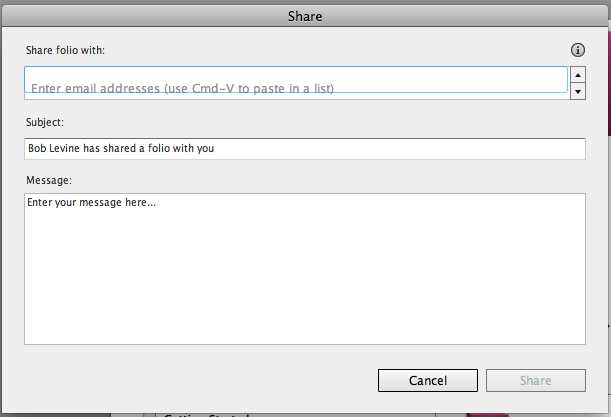
folio sharing dialog
The only requirement is that the email address must be the same as the address that was used to register for Acrobat.com. When the recipient launches the Adobe Content Viewer on their iPad there will be a sign in link in the upper left corner. Once they sign in using their Acrobat.com credentials, they will get a notification that the folio is available for download. Once downloaded it can be viewed at any time.
Should changes be made, they’ll be advised of that the next time they launch the viewer, the update will be available for download.
So, now that I’ve hopefully planted a seed or two, I’d love to hear other ideas for these tools. Please use the comment section to add yours.
This article was last modified on December 21, 2021
This article was first published on September 1, 2011
Commenting is easier and faster when you're logged in!

Recommended for you

Can There Be Too Many Styles? (Yes, There Can)
This is a fictionalized version of my exploration of a recent client’s fil...
Create InDesign CS5 Panels with Configurator 2.0
Configurator from Adobe Labs was just updated to work with InDesign as well as P...
Transforming Pages in CS5
With CS5 you can transform pages with Scale, Shear, Rotate, and Free Transform.