




With InDesign you can create hyperlinks to PDF files that reside on your file server or local hard drive. The trouble is, when you create a PDF of the InDesign file, those hyperlinks point to the absolute, fixed path to those files on your server or local hard drive, which makes it next to impossible to share the PDF with anyone else in a meaningful way. David wrote about this problem way back in 2010.
I revisited this problem recently at the request of a client who needed to create a giant in-house reference guide with hundreds of links to PDF files that resided on their file server. The hyperlinks they were creating weren’t working because different users had different drive letters mapped to different paths on the server. Furthermore, they were concerned about the links continuing to work in the future if changes were made to the top-level drives and folders on the server.
In my research and testing, I discovered that things have changed! You can now create “relative links” to PDFs in InDesign. But it is far from obvious how to do so. Here’s the trick.
1. Create a folder structure that will hold all of your linked PDF files, as well as the InDesign file and the exported PDF file that will contain all the links. How this folder structure is organized isn’t important. What is important is that the folder structure never change, and the location of the exported PDF relative to the linked PDFs never change. For example, in the folder structure below, I want to create buttons in the “Reference Guide.pdf” that link to PDFs in the “Tables”, “Safety”, and “High pressure valves” folders. Later, I’ll be able to move or copy the “Marketing” folder (the parent folder of all my other folders related to this project) wherever I want, but I won’t be able to rename or move the folders within the Marketing folder after I’ve created my links.
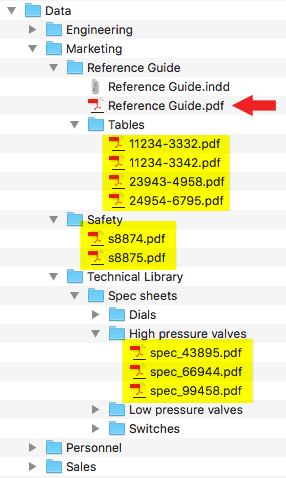
2. Create your InDesign file in the location where you want the final PDF to be exported. In this case, I created the “Reference Guide.indd” file in the “Reference Guide” folder, which is where I want the final “Reference Guide.pdf” file to end up.
3. In your InDesign file, create a button (not a hyperlink) with the “Open File” action.

4. Click the folder icon, and select a PDF that resides in the folder structure you created in step 1. The full path to the linked PDF will display in the panel, which makes it look like InDesign is creating an absolute link, not a relative link. But trust me, this will work.

5. After you’ve created all of your buttons, export your InDesign file as an Interactive PDF. You must use the Adobe PDF (Interactive) format, since button actions aren’t exported with the Adobe PDF (Print) format.
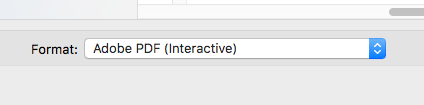
6. Test the buttons in Acrobat or Acrobat Reader. They should work. If you dig around in Acrobat and examine the properties of one of your buttons, you’ll see that the button appears to contain an absolute link to the pdf on your hard drive or server. But again, trust me, this works.
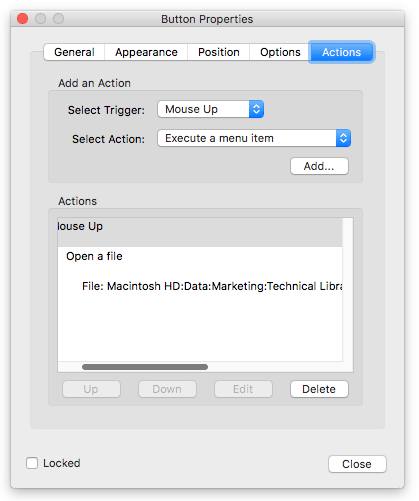
7. Now, to give the links a real test, move the entire parent folder (in my example, the entire folder named “Marketing”) to a flash drive or a different location on your server. You can remove the InDesign file and any folders and files that aren’t referenced in the PDF from the folder structure if you wish.
8. Open the PDF that contains the buttons, and test them. The buttons to linked PDFs will still work, even though the linked PDFs now reside in a new location!
I did all my testing in InDesign CC 2018 version 13.0.1. However, I think its a safe bet this isn’t a recent change…I believe it goes back quite a few versions. I’ve tested this cross-platform, between Macintosh and Windows, and it works well.
Limitations
This won’t work on mobile PDF readers, since most mobile PDF readers don’t support buttons, and even if they do, mobile devices don’t have a file system equivalent to a full computer.
Also, there isn’t any way that I know of to specify in the button link that you want the linked PDF to open in a new window or tab. However, in Acrobat Preferences, you can control this behavior with the Open cross-document links in same window option in Preferences.

This article was last modified on July 20, 2021
This article was first published on February 5, 2018
Commenting is easier and faster when you're logged in!

Recommended for you

Quick Wins: Building Print Production Skills
Use these five resources to boost your prepress knowledge and skills.

How to Create Telephone Hyperlinks in InDesign
With a telephone hyperlink, you can make a phone call with a single click. Myra...

How to Design Button States for Accessibility
Learn how to create accessible button states for web design, while keeping them...