




When I work with clients who are already using InDesign, and they send me one of their actual INDD files, the first thing I do after opening their document is open the Character Styles panel. At least 25% of the time, I find at least one-or to my dismay, many-character styles that should have been paragraph styles. Like this:

This is a made up example but it’s emblematic of the problem. The user created a character style called “Body-no indent” and is applying it by selecting all the body text and clicking on the character style name. Ditto for the green subhead, and other styles. Often, they also create paragraph styles of the same name, and apply both to the text. Just in case, you know?
Recently, someone posted a forum message asking how to get whitespace to automatically appear under her subheads, and included a screenshot similar to the above. I cringed when I saw it.
With a paragraph style, it’d be easy to answer her question: Edit the Subhead paragraph style to include a Space After measure in the Indents and Spacing pane. The end. But this user said they created and applied a Subhead character style, and character styles don’t have an Indents and Spacing pane. Unfortunately, that was all they used – the paragraph style panel showed that only the default [Basic Paragraph] was being used by the subhead.
Years of talking to users who mistakenly use character styles for everything has convinced me that part of the problem lays at Adobe’s feet. Some self-taught users-who don’t like to read online help files, books, or watch training videos-figure if they want to create a style for text formatting, they should use Character styles, and if they want to create a style for paragraph formatting, they should use Paragraph styles. It sort of makes sense. If Adobe could do some clever panel renaming to convey that Paragraph Styles contain both paragraph and character formatting commands, and should be the first resort, that would help. Maybe not even include the Character Styles panel in the default workspaces.
The goal
If you’re one of these unfortunate, misguided-until-now users (or you’ve been struggling with a file set up like this by someone else), you will find your InDesign production time become much simpler and faster if you invest 15-30 minutes or so to fix the problem in your file right now, before you do anything further with the layout.
What you want is for all the text in your document to be styled with paragraph styles: Body, Subhead, Caption, and so on. The paragraph style options will let you specify everything that you were specifying in character style, plus they have additional panes for paragraph formatting like spacing, indents, and hyphenation.
In most cases, what you also want is that the same text should be styled with the default [None] Character style. In certain special cases, if one or more characters in a paragraph should be styled differently than the rest of the paragraph text-a bold lead-in, a drop cap, the number or bullet in a list, a hyperlinked URL, and so on- then you should create and apply a character style just to that text. (Or, you’d include that as a Nested Style or GREP style in the paragraph style.) Otherwise, all your text should show [None] as the character style.
The magic trick
If you’re confronted with a document that uses character styles instead of paragraph styles, don’t despair. Though you may be tempted to just delete all the styles and formatting and start over from scratch, that’s a lot of work and most likely not needed. Instead, what you want to accomplish is something like that trick of snapping a tablecloth out from under a fully-set table without changing the table settings. That is, you want to retain the current formatting as much as possible, while just switching how that formatting is defined.
Here’s how.
Prune the Character Styles. Working on a copy of the file, delete all the character styles that shouldn’t be there (ones that have been applied to entire paragraphs), one by one, by selecting them in the panel and clicking the Trash icon in the panel. If the character style isn’t even used anywhere in the file, it’ll just silently disappear from the panel. If it is used, you’ll get an alert like the one shown below.
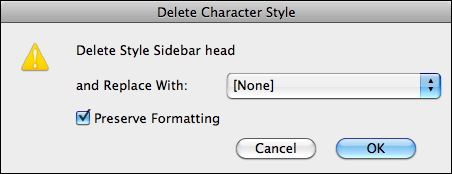
In the Alert, make sure you choose Replace with: [None] and turn on the Preserve Formatting checkbox, as shown above. That way the tablecloth disappears but the place settings remain intact. :-)
Do that for every bad boy character style. If you want to see how or where the style is being used before you delete it, remember you can use the Find Formatting panel (in the Edit > Find/Change dialog box) to search for character styles.
Of course, if you have any “real” character styles, like Drop Cap or Bold Lead-in, you can leave them intact.
Fix the Paragraph Styles. Now you just need to fix the paragraph styles. Some layouts have no paragraph styles other than the default [Basic Paragraph], which is a nightmare I’ll get to further down.
But assuming the file has existing paragraph styles, click inside some “normal text” (not inside a bold-lead in or formatted hyperlink, for example) in a representative paragraph, like a body copy paragraph, and look at the style name that’s highlighted in the panel. Assumably, it’ll be named appropriately, like Body Copy. If there’s no plus symbol after the style name, you’re home free. The designer simply duped the character specs from the paragraph style into the character style.
More often, you’ll see a plus symbol, like the one below.
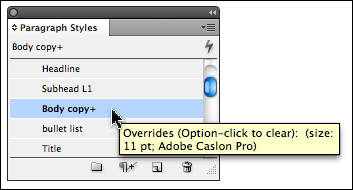
This tool tip is telling us that the Adobe Caslon font and 11 point type size are both overrides, the paragraph style’s settings have something different for font and type size. Since all the body paragraphs have the same override, it’s likely that the font and size used to be controlled by a character style that we deleted. (Of course, in your files, you’ll see something different as an override.) This is what happens when you turn on Preserve Formatting when deleting a character style.
And it’s a good thing, because by simply choosing Redefine Style from the Paragraph Styles panel, we can “suck in” that override to the paragraph style’s specifications. Voila, the plus symbol disappears and the Paragraph style is properly defined with the Caslon font and 11 pt. type size. Nothing changes in the appearance of the document, but all body copy paragraphs are now properly formatted throughout the file with a usable style.
You will need to do that check … click inside representative text, look at the paragraph style, redefine style when necessary … at least once for every “type” of paragraph in the doc.
Or, Create the Paragraph Styles. If you don’t have any paragraph styles at all – everything is “[Basic Paragraph]+” -you’ll need to create them. It’s not that bad, since the hard part -the formatting specs- have already been defined as manual overrides, right? You just need to give each set of manual overrides a paragraph style name to call home, and then tag the appropriate paragraphs with the style name.
So, click inside a paragraph, hold down the Option/Alt key and click the Create New Style icon at the bottom of the Paragraph Styles panel. That opens the New Paragraph Style dialog box and automatically creates settings that match the source paragraph, the one your cursor was blinking in when you opened the dialog box. Enter a name for the style (if you clicked in a body copy paragraph, name the style Body Copy, and so on), and then click OK.
Now drag over a bunch of body copy paragraphs to select them and click the Body Copy paragraph style name. Since the style specs match the formatting, the look of the text should not change. Now that they’re formatted with a style, though, you just need to edit the style specs to change the formatting throughout the file. Ah, the power of styles.
Do the same for all the other types of paragraphs: click inside, Option/Alt-click on New Style, name it, then apply that style to the other paragraphs of the same ilk. Sometimes you can speed up the “apply” step by using Find/Change. For example, if all your picture captions are in 9 point Adobe Caslon italic, and nothing else in the document uses that size/font combination, you can set Find Formatting to find Adobe Caslon Italic 9 point, and set Change Formatting to change found text to the “Caption” paragraph style; for example.
So yes, it’s a bit of a chore to fix the file, but it’s time well spent, believe me!
This article was last modified on December 20, 2021
This article was first published on April 6, 2011
Commenting is easier and faster when you're logged in!

Recommended for you

Free Webinar: Canva for Designers and Marketers
Join us Tuesday, October 22 at 10 am Pacific for our free 45-minute webinar to l...

Inside QuarkXPress: The Building Blocks Behind Effective Business Card Design
Application: QuarkXPress 4.x Operating systems: Macintosh, Windows There are two...

Supercharge Your Graphics with Cell Styles
I am a new gardener and this year I’m in the process of building raised sq...