



As I’ve said before, I try to avoid clipping paths for images these days. They’re tedious to draw and their edges are so “sharp” that they don’t look natural. Instead, when it comes to bitmapped images (such as those from Photoshop), I much prefer using native transparency (which looks like a checkerboard background in Photoshop). Here’s a discussion about making transparent images.
An image’s transparency is based on something called an “alpha channel.” If there are transparent (checkerboard) pixels in Photoshop, that programs saves them in the alpha channel. Then InDesign can read them (as long as the file is saved in a format that saves the alpha channel, such as PSD or TIFF), giving you a nice soft edge.
However, as it turns out, any extra channel (over and above the R, G, B, or C, M, Y, or K channels) in an image can be used as an alpha channel. For example, this image in Photoshop doesn’t even have any transparency, but it does have two extra channels:

When you import an image, turn on Show Import Options, then choose the channel you want to use as an alpha channel:

This means that you can apply soft-edged alpha-channel transparency to an image!
But there’s a problem. What happens if you change your mind after placing the image? For example, in this case we placed it with all three cherries, but now we want to use the “two cherries” channel instead (so we’d only see two cherries). The key is that you need to get to the Import Options dialog box again… and the easiest way to do that is to relink the image to itself. That is, select the image in the Links panel, click Relink, turn on the Show Import Options checkbox, then choose again from the Alpha Channel pop-up menu.
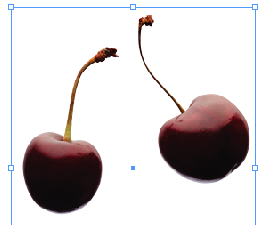
It would be cool if Adobe added some way to adjust the alpha channel without relinking or re-placing. But in the meantime, this works reasonably well.
This article was last modified on December 19, 2021
This article was first published on August 7, 2009
Commenting is easier and faster when you're logged in!

Recommended for you

Merging Separations into Composite CMYK plus Spot
Need to recombine pages that have been separated into individual color channels?...
How to Choose a Different Artboard in an AI File
Need to switch from one artboard to another in the same AI file? This simple tri...
The Riddle of the Ring Contest Answer and Winner
Solve this InDesign mystery for a chance at winning a great prize.