



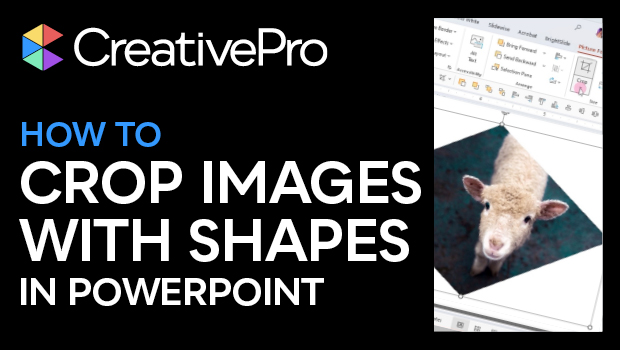
In this PowerPoint how-to video, Stephy Hogan shows how to use a shape as an image frame. She uses the Crop to Shape function to use the shape as a clipping path. Stephy also demos choosing the shape’s aspect ratio and fitting the image to the frame and vice versa.
Subscribe to the CreativePro YouTube channel for more helpful design tips!
This article was last modified on October 30, 2025
This article was first published on June 24, 2025
Commenting is easier and faster when you're logged in!

Recommended for you

A Script to Rotate Objects in InDesign with an Object Style
If you were to ask me how to use an object style to rotate objects in InDesign,...

Remove Blemishes in Photoshop With a Click
Khara Plicanic shows us how to remove blemishes from skin in Photoshop with just...
Essential Illustrator Shortcuts
Save time with Kat Kremser's cheat sheet of Illustrator shortcuts!