




This InDesign tip on changing object shapes was sent to Tip of the Week email subscribers on August 9, 2018.

Sign up now and every week you’ll get a new tip, keyboard shortcut, and roundups of new articles, plus exclusive deals sent right to your Inbox!
Just scroll down to the bottom of this page, enter your email address, and click Go! We’ll take care of the rest. Now, on with the tip!
Need to change one frame shape into another? Check out the Convert Shape submenu (under the Object menu).


Want to make a bunch of selected objects into starbursts? Just double-click the Polygon tool to open the Polygon Settings dialog box, specify the settings you want, and click OK.

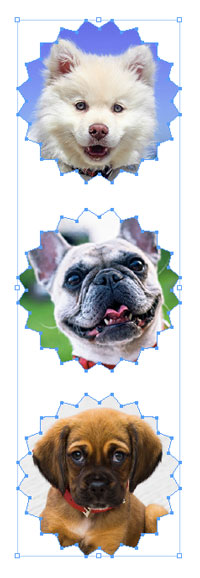
From then on you can select any frame and choose Object > Convert Shape > Polygon to get those same starburst settings.
This article was last modified on July 25, 2019
This article was first published on August 14, 2018
Commenting is easier and faster when you're logged in!

Recommended for you
How to Work with Illustrator’s Effects
Learn how to work with effects in Illustrator and make further adjustments, incl...
Getting the Most from PowerPoint’s Merge Shapes Feature
Explore Merge Shapes, one of PowerPoint's most powerful tools, with Nolan Haims!
Tips to Control Photoshop Layers
Khara Plicanic shares smart Photoshop Layers panel tips to help you find and man...