



In a perfect world every asset we need to create an InDesign publication would be in one folder, but we don’t live in a perfect world and so we find ourselves hitting the browse button to go back and forth between two or even more folders. At the very least it’s a pain. But there is a workable solution contained in the oft overlooked Bridge.
Enter Bridge’s compact mode. This mode leaves you with only the contents of the selected folder but none of the other Bridge panels. You can size it to pretty much the same size as an InDesign panel and place it anywhere on your desktop and by default it will stay on top of other applications. In full screen mode, InDesign would steal focus from Bridge and just cover it up.
With compact mode comes a little added bonus; the ability to open a second (or more) instance.
Here’s how to add ‘Bridge Panels’ to InDesign and minimize the need to use the File > Place command and browse to different folders.
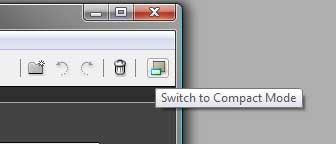
Open Bridge and choose Switch to Compact Mode from Bridge’s menu bar.
Bridge will immediately scale down and give you a thumbnail view of the contents panel.
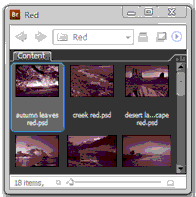
Browse to the first folder you’ll be using (for an ongoing project you might want to add folders to your favorites). Position and size the window to a comfortable size and adjust the thumbnail size using the slider at the bottom of the panel. Now comes the fun part. From the flyout menu, choose new window and you’ll have second instance. Browse to your second folder.
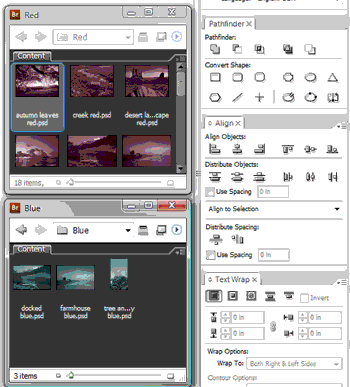
As they say on the shampoo labels, lather, rinse, repeat.
You now have drag and drop fingertip access to your images or other files that you’ll need in a space no larger than any other panel and, as mentioned earlier, even when you’re working in InDesign and not Bridge, these panels will float above the application.
I’ll add one small caveat about sizing the panels. If you make them too narrow you’ll lose the ability to browse to other folder since the menu will be lost. If that happens you can always just drag the window out just a bit.
This article was last modified on December 19, 2021
This article was first published on May 14, 2008
Commenting is easier and faster when you're logged in!

Recommended for you

Eliminating the White Box Effect
One of the most common complaints of designers or print service providers when p...
Beware the Placed InDesign Stitching Bug
Soon after InDesign CS3 was announced, I posted about the wonderful new ability...
This Week in InDesign Articles, Part 4
A few articles that caught my eye this past week. Enjoy!