



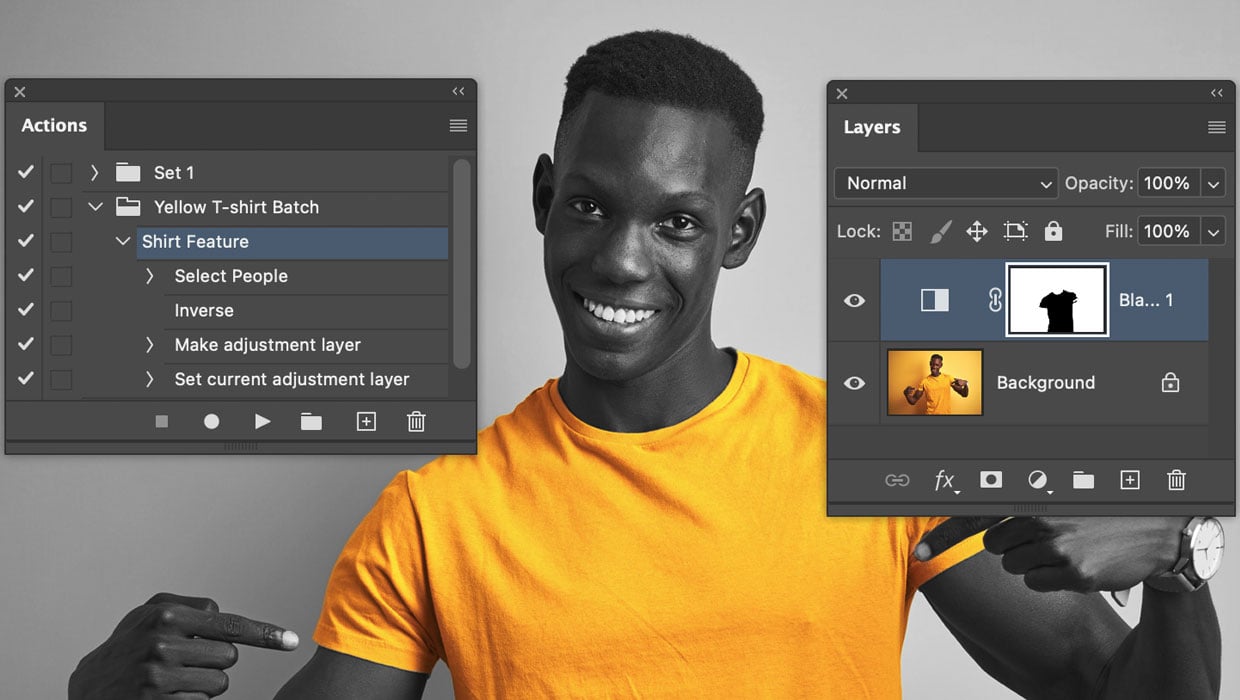
Here’s how to automate edits in Photoshop by combining the Object Selection tool with Actions.
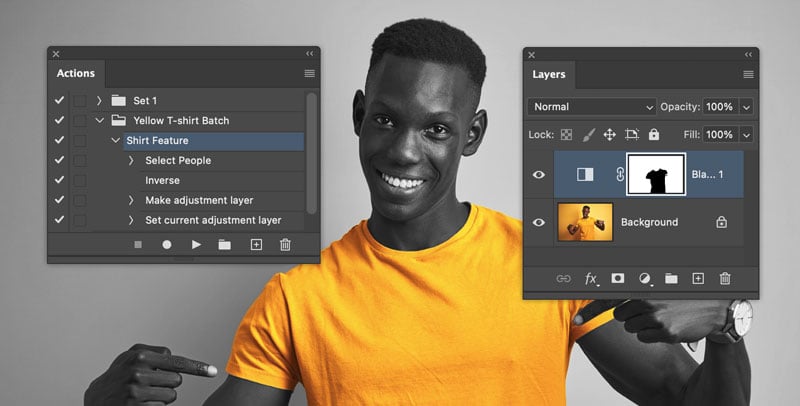
Open the Actions panel (Window > Actions).
Click Create New Action and start recording.
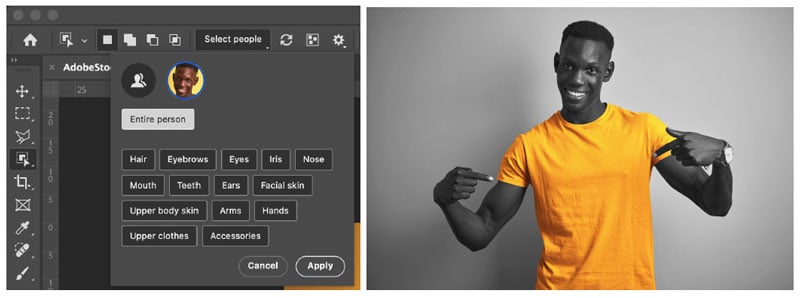
In the Options bar at the top, click the Select People button.
Photoshop will analyze the person and provide a list of detected parts (hair, eyes, skin, clothes, etc.).
Click on a part from the list, like “Upper clothes”, to instantly create a precise selection just that item, even if it’s on a similarly colored background.
Record your edit. For example, Select > Inverse, then add a Black & White adjustment
layer. This will make everything except the shirt black and white.
Stop the action recording.
Open any new photo, select your saved action, and press Play. The entire AI-powered
selection and edit will run automatically in seconds. This even works on complex images,
like a person behind reflective glass.
This article was last modified on February 27, 2026
This article was first published on February 2, 2026
Commenting is easier and faster when you're logged in!

Recommended for you
What’s New in Photoshop: April 2026
New features for removing unwanted people and objects, rotating objects, and ren...
Better first proofs. Fewer review rounds. Introducing PreProof™
Most designers are already familiar with Preflight — checking a document for tec...

Free Webinar: Photoshop + AI—Smarter Tools, Better Results
Learn how to use Photoshop’s AI tools to speed up your editing process and...