



On Monday, Adobe announced updates to many of the Creative Cloud applications including Adobe InCopy. The update includes a number of welcomed features to improve productivity and overall efficiency when working in InCopy. Let me get the most obvious thing out of the way first. There’s not a typo in the title of this article. Although the release is in June of 2016, Adobe actually considers this to be an update to Creative Cloud 2015 (2015.4 to be exact). So your eyes are not deceiving you and when you look at the updates available in the Creative Cloud desktop application on your computer, they’ll be listed as updates to CC 2015.

What’s new?
For starters, one of the big complaints that I’ve heard from users of all Adobe applications, is how small all of the icons in the user interface have become. We can’t really blame Adobe for this, it’s really a by-product of increasing monitor size and resolution. As the size and resolution of a monitor increase, the interface size of applications decreases. Adobe heard your cries, and with this update has redesigned hundreds of panels, icons, and dialog boxes to make the interface easier on the eyes which should reduce the strain that many users have experienced after working in InCopy for long periods.


Glyphs
Two useful updates to working with glyphs have been added with this release. First, you can now search in the Glyphs panel for specific characters that you want to use. The filters at the top of the Glyphs panel have helped in the past, but sometimes it’s not obvious what category in which a particular glyph should be found. Now, you can search for glyphs by name to more quickly find the one that you’re looking for.

The other powerful glyph feature found in this update is the ability to display alternate glyphs for selected text. This is an OpenType feature and therefore will only work when using OpenType fonts, but when you select text that contains alternate glyphs for the selection, a blue indicator will appear below the selected character displaying all of the alternates for the selection. The number of glyphs displayed for the selection will vary based on the character and the font.

Styles
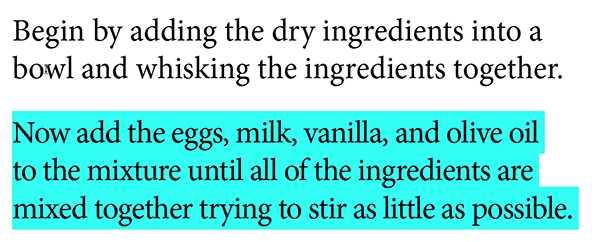
In many workflows, styles allow InCopy users to apply basic styles to text to ensure proper formatting and provides the side benefit of allowing the user to see how text content will look in its final form. Occasionally however, users may manually adjust text by applying tracking and other modifications that go beyond the definition of the style. In this update to InCopy, a new button has been added to the Character Styles and Paragraph Styles panels called the Style Override Highlighter that when enabled, highlights any text in a document that has been modified beyond the definition of the style. This is useful for both designers and editorial staff to quickly see any modifications that have been applied to text.

Swatches
If your workflow requires that you apply color to content in InCopy, you may appreciate the ability to now sort the swatches within the Swatches panel by name and by color value. I’ve seen many documents that contain a lengthy list of swatches that can make it difficult to locate within the swatches panel. The ability to sort those swatches can help users to more quickly find the swatch that they’re looking for.

Last year I vented a bit in this post about features that were added to InDesign but didn’t get pushed to our beloved InCopy. I’m happy to see these features added in this release as well as some other powerful and useful features that will make working in InCopy that much more pleasurable.
This article was last modified on July 10, 2020
This article was first published on June 22, 2016
Commenting is easier and faster when you're logged in!

Recommended for you

Free Webinar: Turning Data into Design
Thank you for your interest in our webinar, “Turning Data Into Design.”Access to...
Common Print Design Mistakes
With the current emphasis on digital media many graphic designers are overlookin...

The Text That Wouldn’t Move Contest Answer and Winners!
It’s time to reveal the solution—and the winner—for this month’s InD...