




This InDesign tip on adding space around lists with spans was sent to Tip of the Week email subscribers on July 6, 2017.

Sign up now and every week you’ll get a new tip, keyboard shortcut, and roundups of new articles, plus exclusive deals sent right to your Inbox!
Just scroll down to the bottom of this page, enter your email address, and click Go! We’ll take care of the rest. Now, on with the tip!
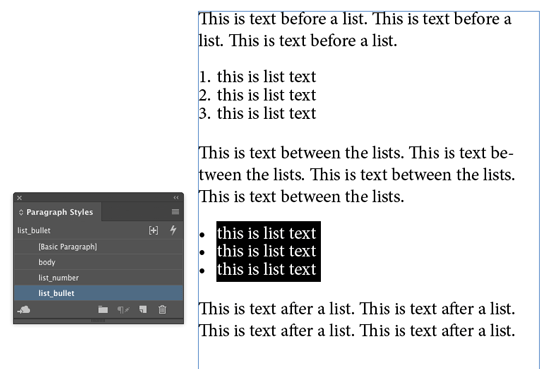
Here’s a common scenario: you have lists (either bulleted or numbered), and you want to add extra space before and after the list, but not between the list items.
Most folks would see that there’s no way to use the Indents and Spacing settings to accomplish this with one style, and then resort to applying overrides or using three separate paragraph styles (one for the first list item with Space Before, one for the last list item with Space After, and one for all the items in-between with no extra spacing).
But in fact, there has been a way to accomplish this with a single paragraph style since CS5! It’s the Span Columns feature. Here’s the trick:
In your list paragraph style, go to the Span Columns pane and choose Paragraph Layout: Span Columns, Span: All, and then set the desired space before and after.

Voila! Your list now has extra space before the first item and after the last one.
Thanks to Michel Allio (aka Obi-Wan) for pointing this out in the forums!
This article was last modified on July 25, 2019
This article was first published on July 11, 2017
Commenting is easier and faster when you're logged in!

Recommended for you

Quickly Renumber a List in InDesign
Khara Plicanic shows how to renumber an InDesign list without digging through me...
Quickly Renumber a List in InDesign
Khara Plicanic shows how to renumber an InDesign list without digging through me...

How to Be a Better Graphic Designer: Sweat the Details
Nigel French reminds us how much the little things matter in design.