



Design and production cycles are so squeezed nowadays that there’s seldom time to send anything on paper — instead, we rely on sending files via email, instant messaging, and the Web.
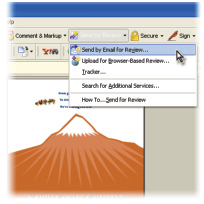
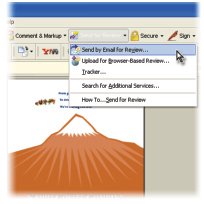
If you’ve tried to use PDF as the file format for document review and commenting but have been stymied because collaborators and clients didn’t have Acrobat Professional, you’ll be happy to know that version 7.0 eliminates that requirement.
This short, simple tutorial shows you how to set up PDFs so anyone who has the free Acrobat Reader can use Acrobat’s commenting tools as part of a fast, online review cycle.
"Click Customize Review Options. Select Also Allow Users Of Free Adobe Reader 7.0 To Participate In This Review. If you want to include drawing tools, such as the Cloud and Arrow tools, also select Display Drawing Markup Tools For This Review. Click OK, and then click Next to continue through the wizard. When you select Also Allow Users Of Free Adobe Reader 7.0 To Participate In This Review, Acrobat enables reviewing tools such as the Note tool and Pen tool for the PDF document so that reviewers using Adobe Reader 7.0 can enter comments. Instructions for using the reviewing tools are displayed when the document is opened by Adobe Reader 7.0."
We’ve posted this excerpt as a PDF file. Just click the link "Editing for Adobe Reader" to open the PDF file in your Web browser. You can also download the PDF to your machine for later viewing.
To open the PDF, you’ll need a full version of Adobe Acrobat (5 or higher) or the Adobe Reader, which you can download here:
 .
.
To learn how to configure your browser for viewing PDF files, see the Adobe Reader tech support page.
This article was last modified on April 22, 2005
This article was first published on April 22, 2005
Commenting is easier and faster when you're logged in!

Recommended for you

Quick Wins: Handling Images in InDesign
Use these five resources to boost your image-handling skills in InDesign


Interview with Brittney Megann, CEO and Head Socialista
A self-taught CEO shares how she built a marketing business after a life-alterin...