


A Trio of Acrobat Tips



Attach a File
Many is the time that it’s useful to attach a PDF or other file to a primary PDF document before sending it on or for archival purposes. For instance, you may want to attach a copy of the document’s original source file, companion documents, or other related materials. The PDF format allows for just this via Acrobat 7’s attachment features.
Using Acrobat, select Document > Attach a File and then browse to choose your appropriate file. Once you have added the attachment, the Attachments panel automatically opens at the bottom of screen.
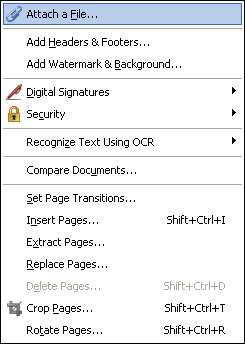
All done! To attach another file, simply repeat the process.
Flatten PDF documents in Acrobat
One long-standing benefit of the PDF format is that it allows users to send documents for review in an uneditable format, so the rabble can’t mess with your work. But what happens to this property when editable objects, such as form fields, text annotations, comments, and stamps, are added to the document? It’s still possible to distribute the files in an uneditable format by flattening these objects to become part of the document.
Here’s how:
- In Acrobat Professional, open the JavaScript console (Ctrl-J).
- Type in flattenPages() and press enter.
Voila! You should now have a flattened document.
Tile PDFs across Two Screens
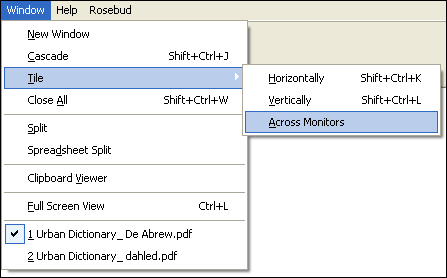
One way to save time, particularly when you need to cross-reference documents, is to view multiple documents concurrently. While this can be unwieldy if you have only one screen, people with two monitors can use the Acrobat Monitors option to tile two or more documents across multiple screens.
Here’s how:
- Open the relevant documents in Adobe Acrobat.
- Select Windows > Tile > Across Monitors.
This article was last modified on August 16, 2006
This article was first published on August 16, 2006
Commenting is easier and faster when you're logged in!

Recommended for you

Interview with Brittney Megann, CEO and Head Socialista
A self-taught CEO shares how she built a marketing business after a life-alterin...
Make Headings Span Across Multiple Columns in InDesign
Master InDesign’s Span Columns feature with Pariah Burke.

Interview with Joy Pollard, Designer and Adobe Certified Professional
Learn how roller derby, astronomy, and theater influenced one designer’s journey...