




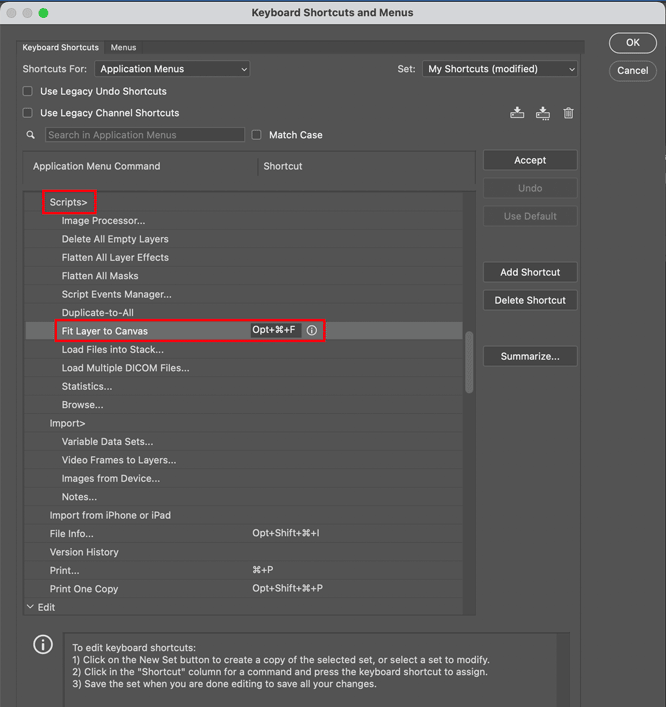
If you’re an InDesign user who dabbles in Photoshop, you may be wondering where the command is to fit a layer to the canvas, like InDesign’s Fit Content to Frame. In fact, you don’t even have to be a dabbler; any Photoshop user would appreciate that command. Alas, it doesn’t exist. So, we’re forced to waste time fiddling around with the Transform command and dragging handles.
But, a script to instantly (and precisely) resize the currently selected layer(s) to the canvas does exist. It was written by Josh Winn and you can download it—and check out his other scripts—at GitHub.
To install the script, put it in the Presets > Scripts folder inside the Photoshop application folder and restart the program.
For bonus points (and save even more time), assign that thing a keyboard shortcut so you have time to dabble in more interesting stuff than resizing layers.
This article was last modified on November 15, 2024
This article was first published on November 15, 2024
Commenting is easier and faster when you're logged in!

Recommended for you

The Photoshop User’s Guide to Motion and Video
Get your design work moving with an app you already know and love!
How to Remove All Hidden Photoshop Layers in One Click
Learn how to quickly clean up your Photoshop Layers panel by getting rid of all...

A Script to Collect All Objects With A Particular Object Style
In the course of my editorial duties here at CreativePro, from time to time I...