This tip comes from our best friend in Brussels, and InDesign “génie” Branislav Millic.
Problem:
You work in a highly-structured layout system where all images are named by the chapter, page, and verse (?) where they appear in the document. So, you have on page 10 an image labeled: image_ch_1_page_10_a.psd.
OK, now someone does something to the text and your image has moved over to page 11. And the whole document is now chapter 2. How do you rename the file without jumping through a lot of hoops to go into the Finder. Rename the file, and then Relink? (Windows users, relax, you don’t have to worry about this.)
Just click the file in the Links panel and choose Relink. Then switch to the Adobe dialog button at the bottom of the Relink dialog box.

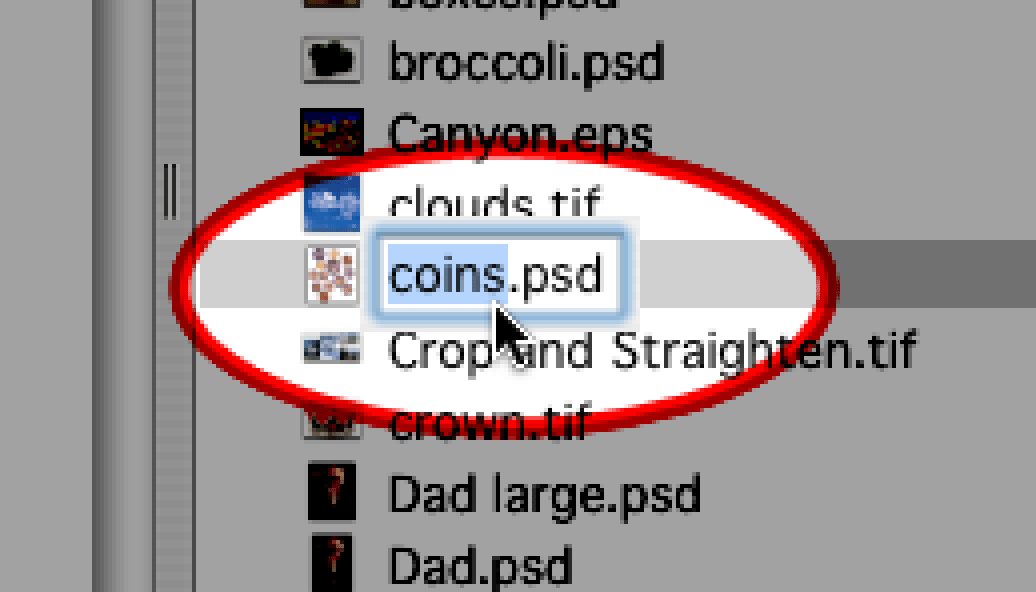
Then, once you’re in the Adobe dialog, click the name of the linked image, and you’ll be able to highlight and rename the file.
This article was last modified on December 18, 2021
This article was first published on August 10, 2007
Commenting is easier and faster when you're logged in!

Recommended for you

Create Flawless Fractions with OpenType
Choose your font carefully if you need flawless fractions!

Livestream Video: Creating Retro Looks & Type Treatments in Photoshop
Making new things look old is always a fun challenge!