



This tip was sent to Tip of the Week email subscribers on July 9, 2015.

Sign up now and every week you’ll get a new InDesign Tip of the Week and Keyboard Shortcut of the Week, along with roundups of new articles at InDesignSecrets and CreativePro, plus exclusive deals sent right to your Inbox!
Just scroll all the way down to the bottom of this page, enter your email address, and click Go! We’ll take care of the rest. Now, on with the tip!
If you’re using InDesign CC 2014.2 or later, you can select one or more pages from the Pages panel and choose Print Spreads from the panel menu.
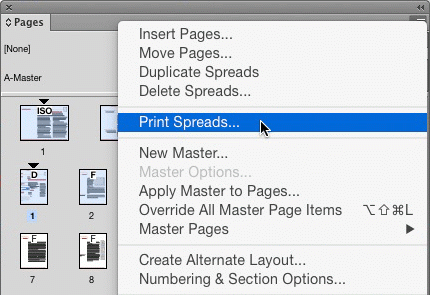
Or with the pages selected, you can also right-click to choose the same command.

If you don’t have a full spread selected, you’ll see Print Pages instead of Print Spread.
When you use either method, the pages you selected are automatically entered in the Range field in the Print dialog box.
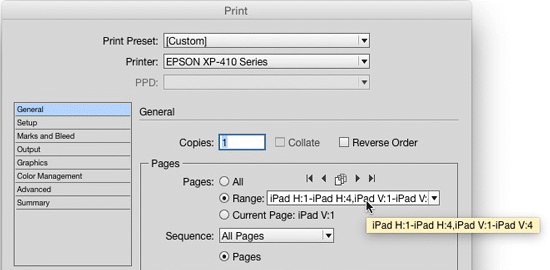
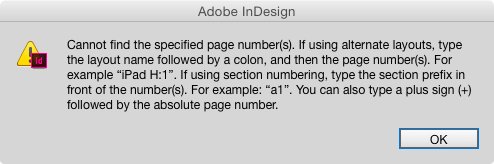
This can be especially useful when you’re working with documents that contain prefixed sections (or alternate layouts) because it saves you from having to type in complicated and cumbersome page ranges like “iPad H:1-iPad H:4,iPad V:1-iPad V:4” in the Print dialog box.
And you’ll never see this error message again.
This article was last modified on August 8, 2019
This article was first published on July 14, 2015
Commenting is easier and faster when you're logged in!

Recommended for you

Tip of the Week: Controlling the Glyphs Panel Display
This tip was sent to Tip of the Week email subscribers on March 26, 2015. Sign u...

CreativePro Conversations: Looking at the History of Type with Frank Romano
Learn the fascinating evolution of type from Gutenberg through webfonts with leg...
Tip of the Week: Move Items with Precision
This tip was sent to Tip of the Week email subscribers on July 2, 2015. Sign up...