



I’m not the best GREPper out there, but I do know how to create a few simple styles. One of the things I like to do is see the results of turning a GREP style on and off for several types of paragraphs. But I don’t want to delete my precious, laboriously-made GREP formulas. This morning I had an epiphany.
To temporarily turn off the GREP style, select the character style and change it to None. It’s that simple! You don’t delete the GREP style, you just make it do nothing.
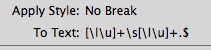
A GREP style set to apply the No Break character style.

A GREP style turned off by setting it to None.
But then I found Anne-Marie’s comment to Mike Rankin’s post Adventures in GREPland where she reminds him that an asterisk (*) in front of a GREP expression will turn off the expression.

Placing an asterisk in front of a GREP express also turns it off.
The benefit to using the asterisk trick is that you don’t have to remember which character style was associated with that expression. You just have to remember to use an asterisk.
This article was last modified on July 25, 2019
This article was first published on December 18, 2014
Commenting is easier and faster when you're logged in!

Recommended for you

What is that Mysterious Space Character in InDesign?
Unicode lets you insert tens of thousands of different characters into your text...

Find Spacing Problems by Displaying Spaces Instead of Text
Our friend and colleague Nigel French (author of the book InDesign Type) reminde...
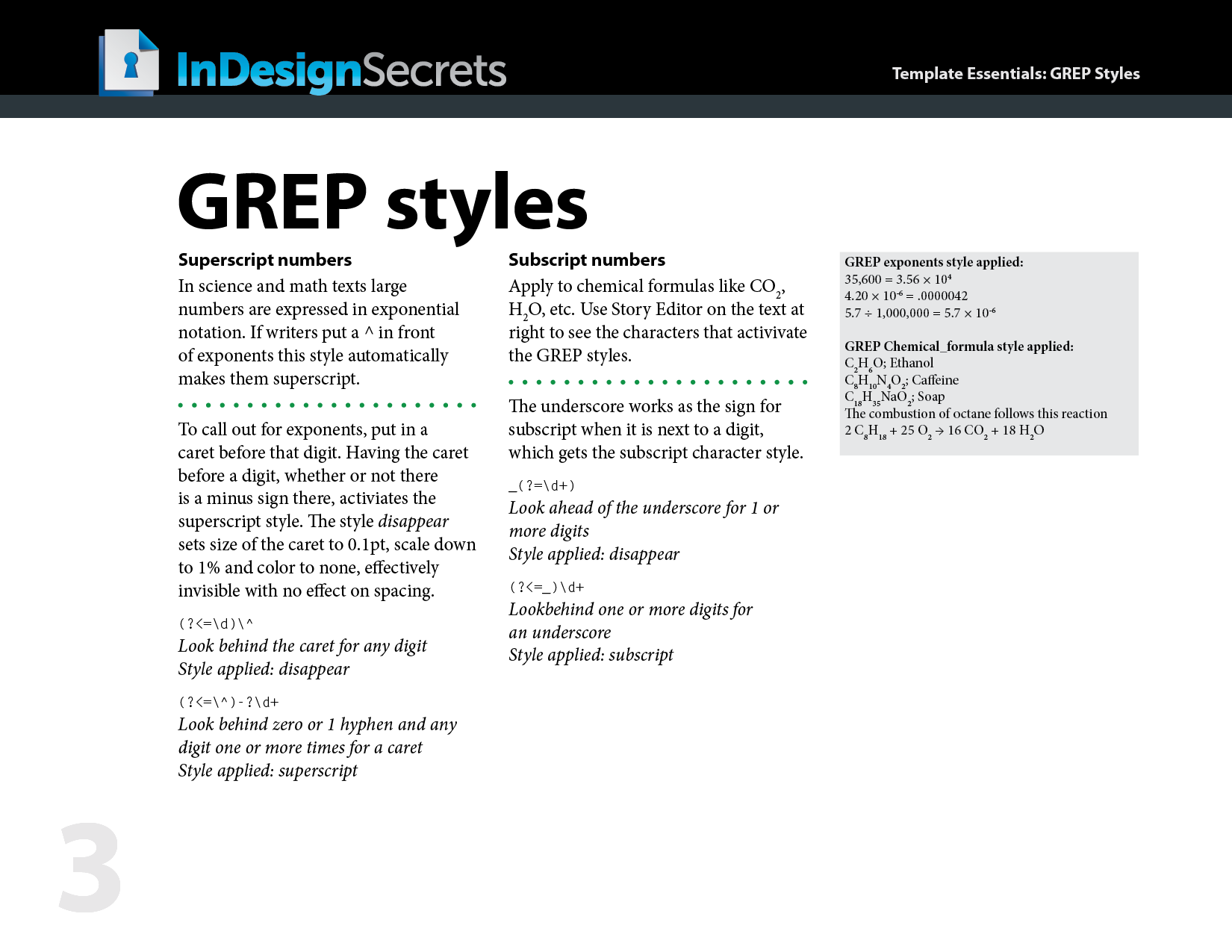
InDesign Template Essentials: GREP Styles
Time for another exclusive template for our Premium members! (Not a Premium memb...