



Izaac wrote:
I am trying to add a currency symbol such as $ sign to a cell as a style, which means that the style needs to include the $ sign every time it is applied to another cell.
My initial response was that this is unfortunately not possible and that he should check out a plug-in such as ActiveTables (which provides Excel-like features in InDesign tables). But then Masood Ahmad (who is an active contributor in our forums) suggested a solution that is simple and brilliant: bullets.
Remember that a bullet doesn’t have to look like a bullet! So create a new paragraph style (perhaps based on the one that you’re already using) and give it a custom bullet character… of a currency symbol:
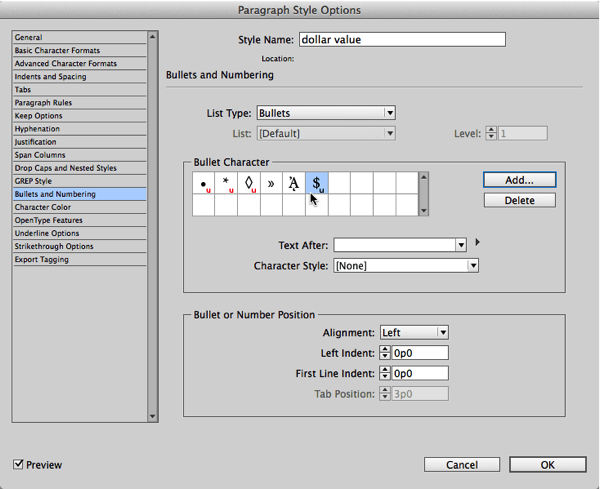
See that little “u” symbol next to the dollar symbol in the Bullet Character section? That “u” means that it will work for whatever font you’re using in the paragraph. It’s there because when I clicked the Add button (to add my own custom bullet), I turned off the Remember Font with Bullet checkbox:
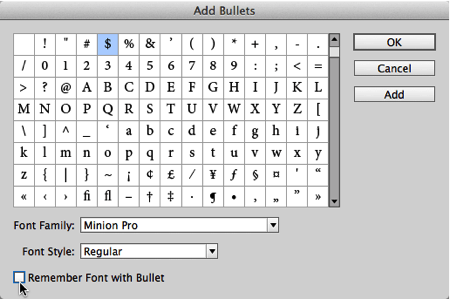
Also note that I have left the Text After field blank (in the paragraph styles dialog box). Of course that means there will be no space before the dollar sign and the text that follows it.
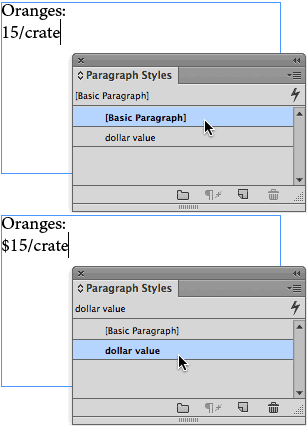
Now you can simply apply that paragraph style wherever you want a currency symbol. For example, to a paragraph:
Or inside a table cell. The best way to do that would be to assign the paragraph style you made inside a cell style:

Then you can apply that cell style as part of a table style, or just apply it manually whenever you need it:
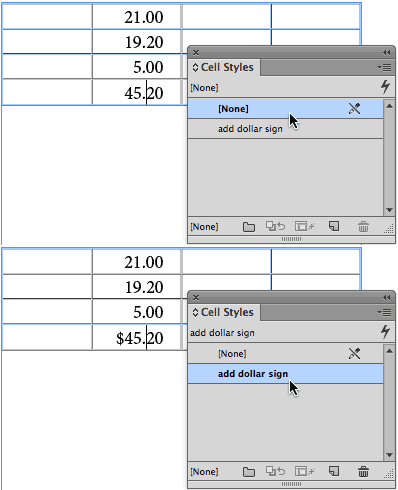
(For those who are wondering… how I got those decimal dots to align.)
Of course, there are caveats here: The bullet/symbol will not necessarily export when you create an EPUB or XML or other export types unless you specifically turn them to actual text characters. But in general, this is a swift way to apply all kinds of symbols to text.
This article was last modified on December 30, 2021
This article was first published on April 22, 2014
Commenting is easier and faster when you're logged in!

Recommended for you

Batch-Process (Convert/Export/Import) Documents
Export documents by the folder to PDF, IDML, (INX), JPEG, PNG, RTF, or package t...

Tips for Using the Make Grid Script
Last week I posted a tip about using compound frames to create interesting image...

Adobe Recants: Flash and Interactive Apps Cancelled
Everyone knew Flash and Flex were just a fad (like the Web). Adobe finally gives...