



Oh yesterday was such fun… after working on a document for a while, pressing Cmd/Ctrl-S every so often (thinking I was saving it), I tried to Undo a mistake I made. Nothing. I headed over to the Edit menu and Undo and Redo were both grayed out. And then the other shoe dropped: I looked at the File menu and saw that all my save options were grayed out, too:
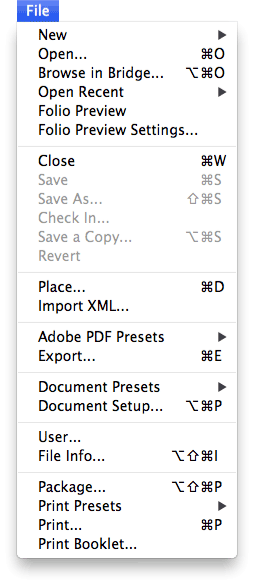
Now, I’ve been using InDesign for a long time, and I’m relatively cool as a cuke about these things, but I will admit that I did use an expletive or two. I mean, was my document saved or not?
The answer, it quickly became clear, was Not.
Look, I have no idea why this happened. I’m not sure I want to know. But I will tell you what I did about it, in case it happens to you.
First, I thought through the various reasons why a feature might be grayed out in InDesign. Then I considered just closing the document, or force-quitting (“end task”), and losing all my work. And then I remembered my friend IDML.
I reached for File > Export, and chose InDesign Markup (IDML) from the Format pop-up menu. IDML is usually used for saving backward to earlier versions or cleaning up file corruption, but in this case it saved my bacon (or bacon-flavored kosher tempeh, for who prefer). When I opened the IDML file back in InDesign, all my work was there, and the file could be saved.
Then I could close the original, messed-up file, and go on with my work.
Before I proceeded, however, I did take one additional step: I quit InDesign and relaunched it, rebuilding the preferences files. Just in case.
This article was last modified on December 30, 2021
This article was first published on September 18, 2013
Commenting is easier and faster when you're logged in!

Recommended for you


A Solution for Packaging Files With Missing Plug-ins
Recently, I worked on a project where I had to package over 100 I...
Saving Thumbnails of InDesign Pages
Keith does a "deep dive" into saving thumbnails for Bridge in InDesign.