



S.G. wrote:
I need to use the schwa character in a text. I don’t need a full-fledged phonetic font, just an easy, reliable, and cross platform way to type a schwa character.
Fortunately, many fonts include the schwa character (which looks like an upside down “e”), though sometimes it takes some digging about until you find it. The key to finding it lies in our friend the Glyphs panel.
Create a new text frame and open Type > Glyphs. Choose an OpenType font from the Font menu in either the Type menu or the Control panel. (You can choose a font from the Glyphs panel, but sadly it won’t indicate font type there.) But which font to choose? The best bet to start with is one that is usually associated with Microsoft. For example, both Arial and Times New Roman have a bazillion phonetic (and just downright odd) characters.
Now comes the fun part: Start scrolling through the Glyphs panel until you find the character you want. There are some tricks, such as choosing a subset of the font from the Show pop-up menu at the top of the panel — but while that works for math or Greek symbols, I don’t think phonetic characters fit into any of these categories.
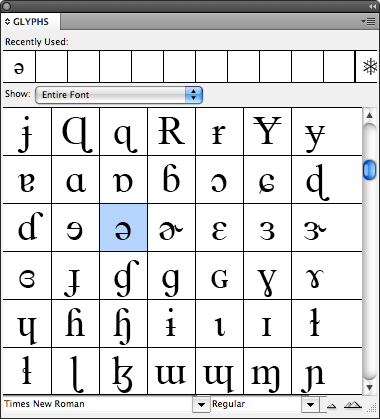
To place that character into the text frame, double-click it.
Alternatively, if you know the Unicode number for the character you’re looking for (the schwa is 0259), you can bypass this in a couple of ways. For example, you could use the Compose.jsx script or the dotlessi script which I talked about here.
Once you have the character, you can copy and paste it from place to place (or use find/change to replace some other stand-in character with it).
Or, select it and change its font. If a font doesn’t support the glyph, you’ll see a pink rectangle appear. Here’s a fun trick: select the character, place the cursor in the Font field of the Control panel, and press the up or down arrow keys on the keyboard to choose the previous or next font. Keep scrolling through the list, one font at a time, and you’ll quickly see which fonts do and don’t support it. I was surprised to find that Adobe’s Minion and Myriad fonts don’t have a schwa, but the TrueType version of Marker Felt does! Will wonders never cease?
Of course, you can always just create your own schwa in any font by selecting an “e”, choosing Type > Create Outlines, then selecting the resulting inline object with the Selection tool and rotating it 180 degrees in the Control panel!
This article was last modified on December 20, 2021
This article was first published on January 11, 2010
Commenting is easier and faster when you're logged in!

Recommended for you

Set the Size of Lots of Frames at the Same Time
Elvis (no kidding!) wrote: Lets say I have 20 rectangles of different sizes on m...
Why Red Squiggly Underlines When Words are Not Spelled Wrong
InDesign's Dynamic Spelling feature is great for quickly identifying misspelled...
Why Is InDesign Soooo Slow?
Experiencing a slow-down in InDesign? Here are seven reasons it might be happeni...