


Import Custom ID CS3 Settings into CS4
Does your t-shirt say "I upgraded to InDesign CS4 and all I got were these lousy defaults?" Don't fret, you can easily import your custom shortcuts, glyph sets, and more.


When you upgrade to InDesign CS4, how do you get the Glyph sets, custom keyboard shortcuts, saved Find/Change queries and other settings you created in a prior version of InDesign into the new one? Since there’s no “import settings from old version” button anywhere (feature request!), you’ll need to get under the hood a little bit. Don’t worry, it’s simple and your hands won’t get dirty.
First, note that when you start up a freshly-installed InDesign CS4 for the first time, the program creates a new InDesign Preferences folder called “Version 6.0” (there were two versions of InDesign before Adobe came up with the Creative Suite idea, so ID CS4 is version 6). Many of the program’s default settings and any new custom settings you create are stored within this folder — well technically, within a subfolder named for the default language of your computer. On a Mac using US English, the default InDesign CS4 preferences are here:
[Home/username] > Library > Preferences > Adobe InDesign > Version 6.0 >
en_US >
On a Windows XP computer, the ID CS4 settings are here:
Documents and Settings\[username]\Application Data\Adobe\InDesign\Version 6.0\
[language]\
and on Windows Vista, they’re here:
Users\[username]\AppData\Roaming\Adobe\InDesign\Version 6.0\[language]\
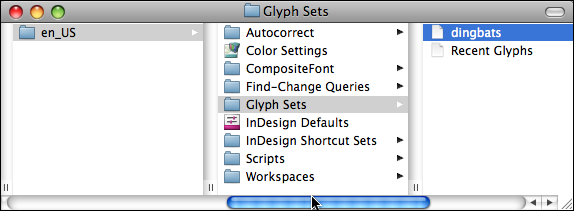
Look inside the subfolders in this folder and you’ll see some have default files (Glyph Sets has Recent Glyphs, for example) while others, like the Find/Change Queries subfolders for Text, GREP, etc. are empty. But as soon as you save a custom setting in InDesign, a matching XML file is saved in the appropriate folder. When I create a Glyph Set called “dingbats” in CS4, it’s immediately added to the Glyph Sets folder in CS4’s preferences folder:
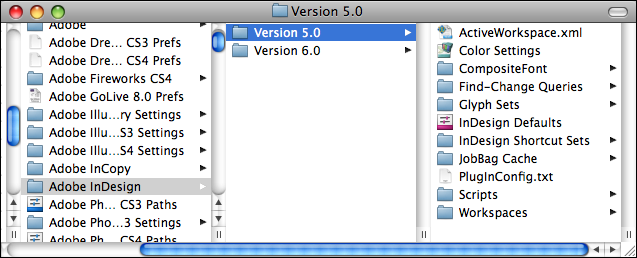
Every version of InDesign gets its own preferences folder, named for its version, and they live together in harmony in the same place on your hard drive. Any custom settings you create while working in InDesign are saved in that version’s own preferences folder. Installing a new version of InDesign does not affect the preferences or custom settings of older versions. Below, I’ve selected my InDesign CS3 (Version 5.0) Preferences folder.
To move custom settings from one version of InDesign to another, you can usually just copy and paste the little XML files from an older InDesign preferences folder to a newer one and they’ll work. You could select a custom Glyph Set’s XML file from the Version 5.0 Glyph Sets folder to the Version 6.0 Glyph Sets folder, for example. You don’t even have to quit the programs first, and once they’re pasted in, they’re immediately available. “The poor man’s import,” you could call it.
You can do the same with keyboard shortcut sets and Find/Change queries. I would be leery of moving custom workspaces over in the same way, though, since workspaces act differently in InDesign CS4 than in previous versions. (But no harm in giving it a shot … if InDesign has a hissy fit, just delete the workspace files you added in the Version 6.0 folder and restart the program).
A caveat: Adobe’s online help says that moving the preferences folder around from one user’s computer to another so that everyone has the same custom prefs “might cause application instability.” They recommend you use a script to share preferences, and include a helpful link on “how to learn scripting” … gee thanks. I don’t think, though, that moving these sorts of individual files around is the same thing, and I myself haven’t noticed any instability. But I thought I should mention it.
What about the Presets?
Unfortunately you won’t find handy little XML files representing your custom Print or Document Presets. Apparently these are saved within the glob known as the InDesign Defaults file, located in the same InDesign preferences folder, and copying and pasting that thing is asking for trouble (who the heck knows what else is in there).
To move presets over, start up the old version of InDesign, choose File > Print Presets (or Document Presets) > Define, select a custom preset and click the Save button.
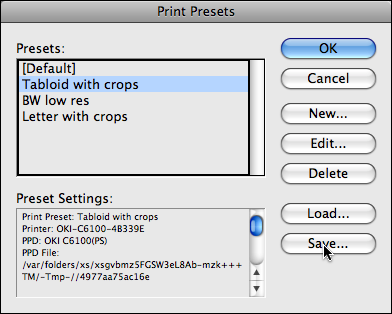
Do this for each custom preset, taking care to give each one its own name and selecting an easily-remembered location in the Save dialog box. Then in InDesign CS4, go to the same Define dialog box, click the Load button, and find the preset you saved. The program translates the presets into CS4-ese and they’re added to the list.
This article was last modified on December 19, 2021
This article was first published on January 22, 2009
Commenting is easier and faster when you're logged in!

Recommended for you
Finding and Changing Glyphs
Have you ever tried to switch to a different font in a document which uses speci...
Relink from One Image File Type to Another
Need to relink all your TIF images to PSD (or JPG to PDF, or whatever)? CS4's Li...
Saving Your Links Panel Settings
The Links panel in CS4 can be customized to show you exactly what you want, but...