



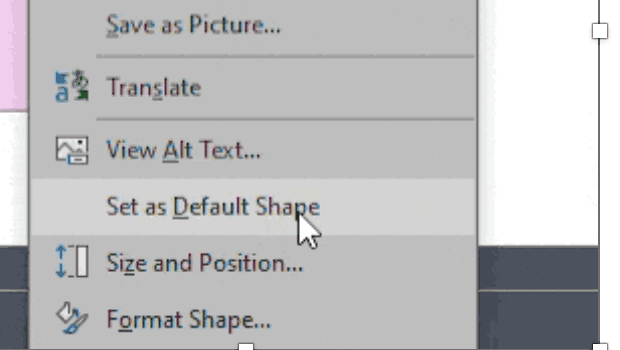
One way to make working in PowerPoint smoother is to set default shapes, lines, and text box styles so you have things the way you want them right from the start. Here’s how.
Start by putting a shape (any kind), a line, and a text box on a slide.
Format each one to your preference and then right-click on each one and choose “set as default [shape/line/text box].”
For example, the first thing I do is set my textbox to default with zero padding.

This article was last modified on October 30, 2025
This article was first published on August 8, 2025
Commenting is easier and faster when you're logged in!

Recommended for you

How to Create an Iris Transition in PowerPoint
Learn how to create a cinematic transition in a presentation by customizing buil...

How to Find and Delete Production Notes in an InDesign Layout
Learn how to use InDesign’s Preflight feature to quickly find and flag productio...
Export a PDF to a PowerPoint File from Acrobat
Editing your PDF file will be a breeze if you export it to PowerPoint, with Chad...