
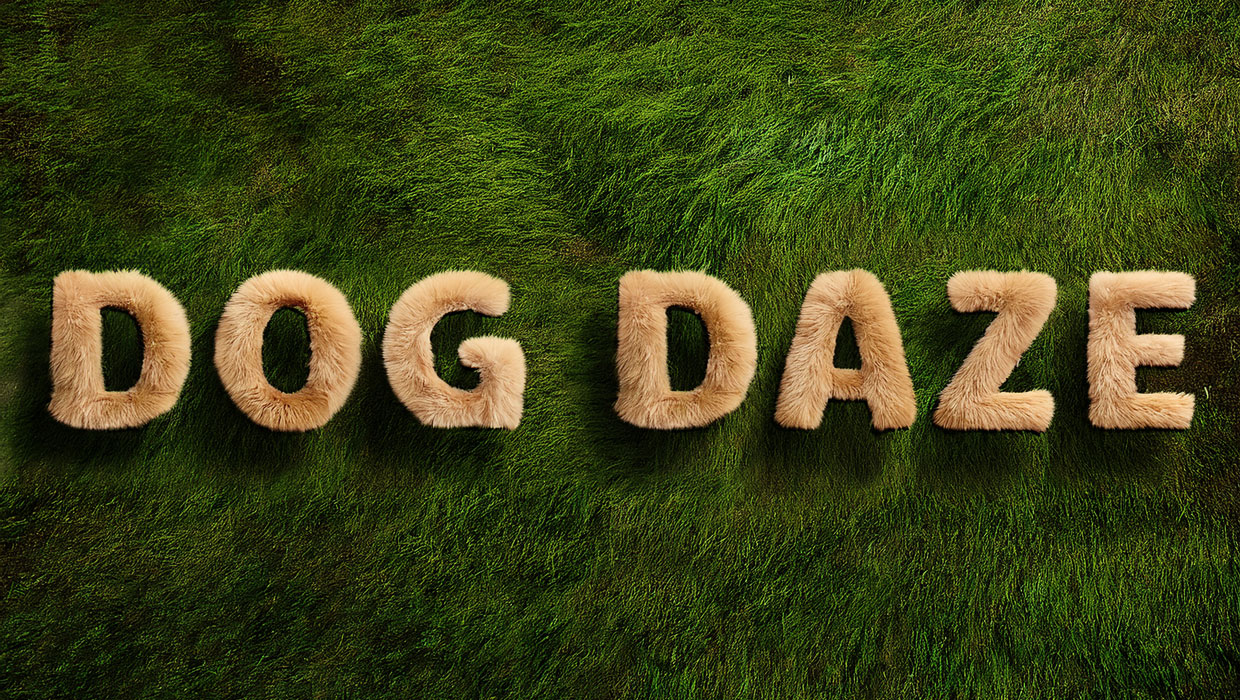
Here’s how to create a fun text effect that looks like fluffy fur on a grass background, using the Generate Image panel in Photoshop.
Prepare the Style Reference
Download a top-down grass field photo and place a fluffy texture over it. This will be your Style Reference.

Set the Text
Open a new document, type the text you want to appear in the fluffy effect. This will be your Composition Reference.

Generate the Image
Click Generate Image at the bottom of the toolbar.
In the dialog, enter the following:
Prompt: Beige fluffy hairy typography on green grass
Content type: Photo
Effects: Fur and Hyper realistic

Upload your Style Reference (the grass + fluffy texture) and Composition Reference (the type).
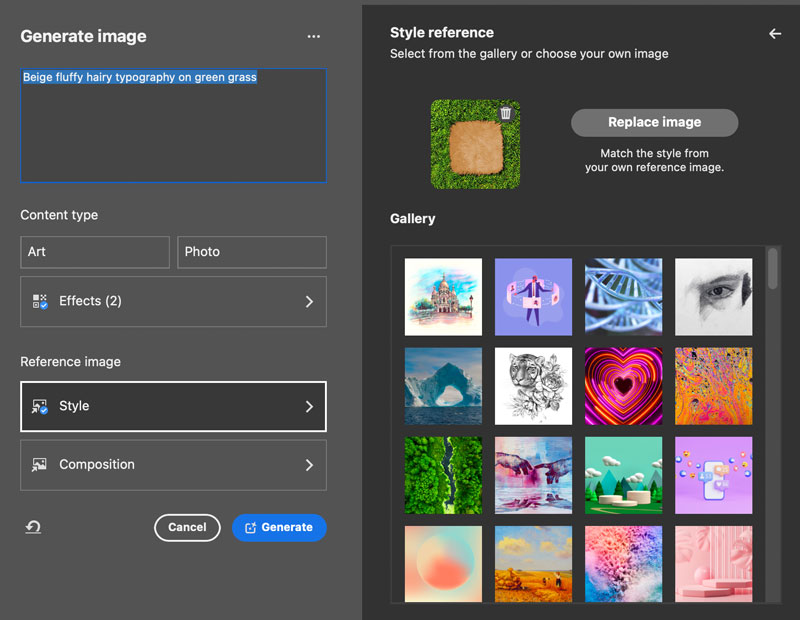
Click Generate and choose your favorite variation from the Properties panel.
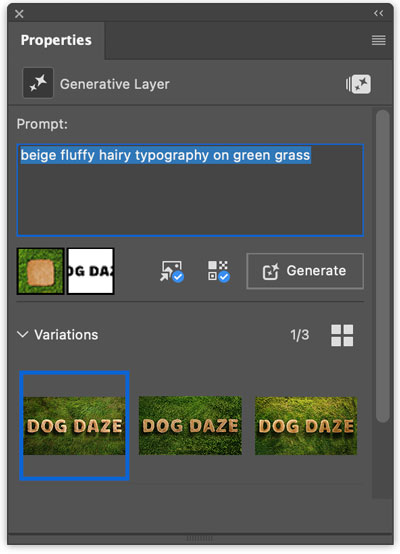
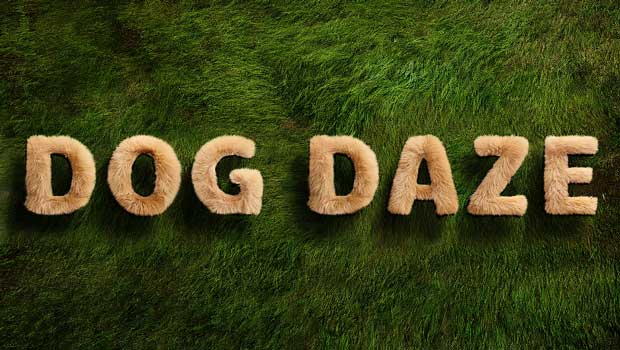
Didn’t like any? Click Generate again to produce three more variations.
This article was last modified on August 6, 2025
This article was first published on July 28, 2025
Commenting is easier and faster when you're logged in!

Recommended for you
Adobe Certified Professional Exam Prep Guides
Use these self-assessment guides to determine what you should study to pass the...
Premiere: It’s Not Just For Video
Designers using InDesign and Photoshop can look at Premiere as a surprising reso...